Set up Reaktion in Gemini, check access to your data, and reconnect when you want to use another Reaktion user.
Before you start:
- You must be logged in to reaktion.com before starting. Sign in as the Reaktion user you want to connect. Keep the Reaktion tab open in the same browser profile that you will use for the connection.
- Ensure you select the correct personal Google account (or a Workspace account with custom connected apps enabled).
- Keep Activity turned on in Google Account Settings (custom integrations disappear if activity history is disabled)
Installation Steps:
1) Open gemini.google.com
In the bottom-left menu, click Settings & help (gear icon) and select Personal Intelligence > Connected Apps:
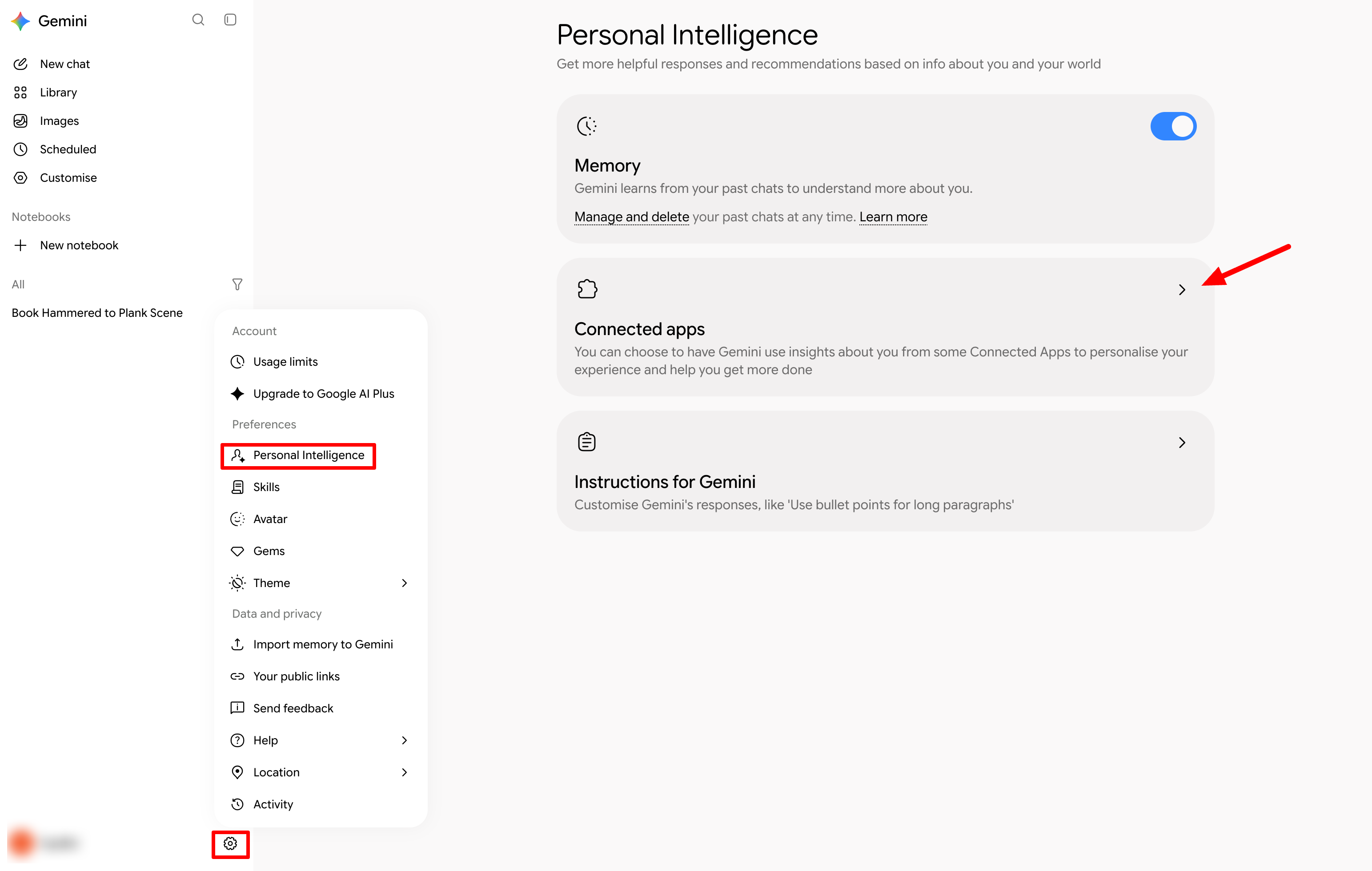
2) Add the Reaktion MCP
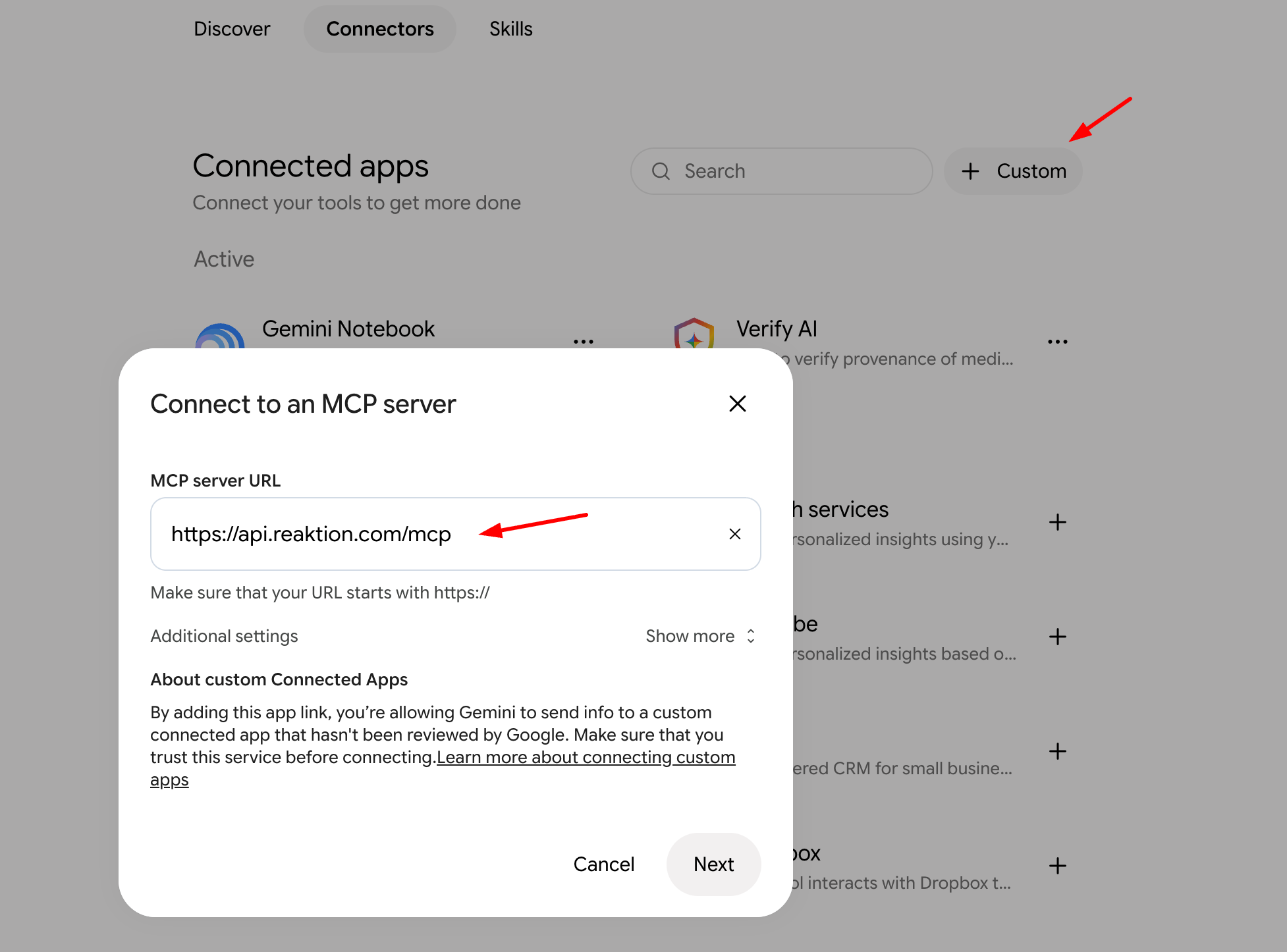
Click on + Custom and connect your Reaktion Custom MCP server
MCP Server URL: https://api.reaktion.com/mcp
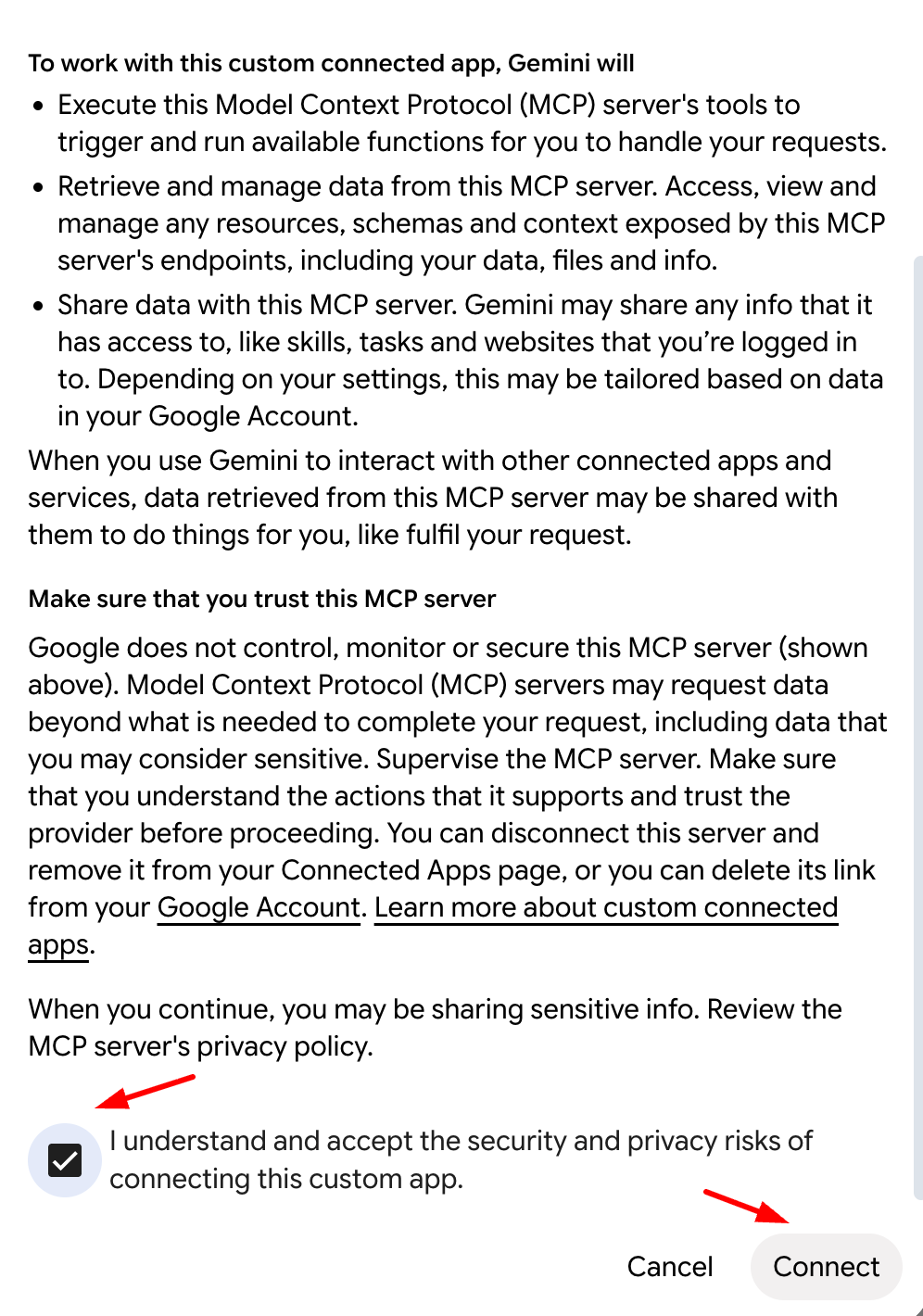
In the 'Connect this MCP server' pop-up, scroll down, select the checkbox, and click 'Connect':
3) Authorize & Verify Tools
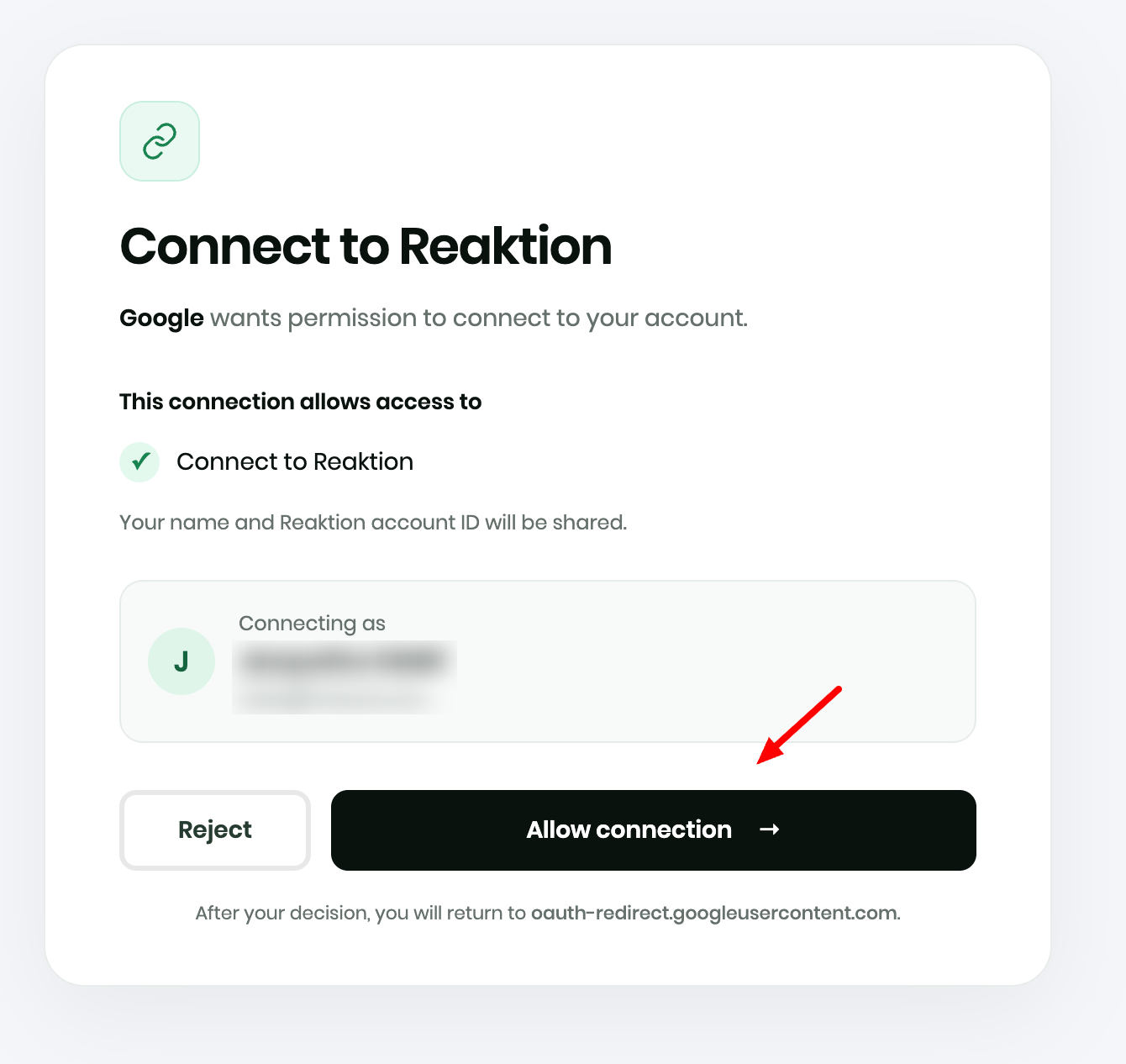
Gemini will launch this Reaktion authorization screen:
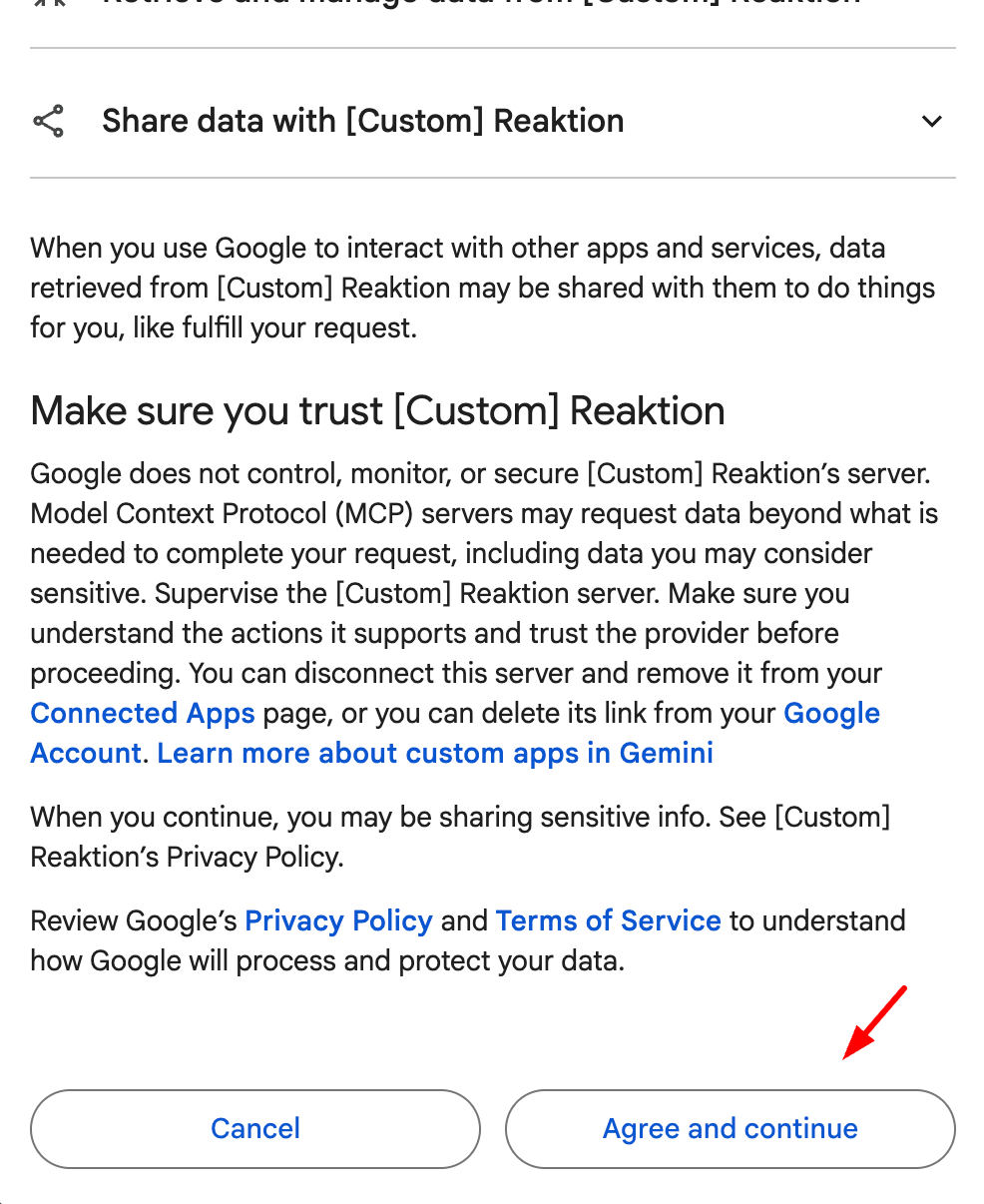
Sign in with your Reaktion credentials and click 'Allow Connection':
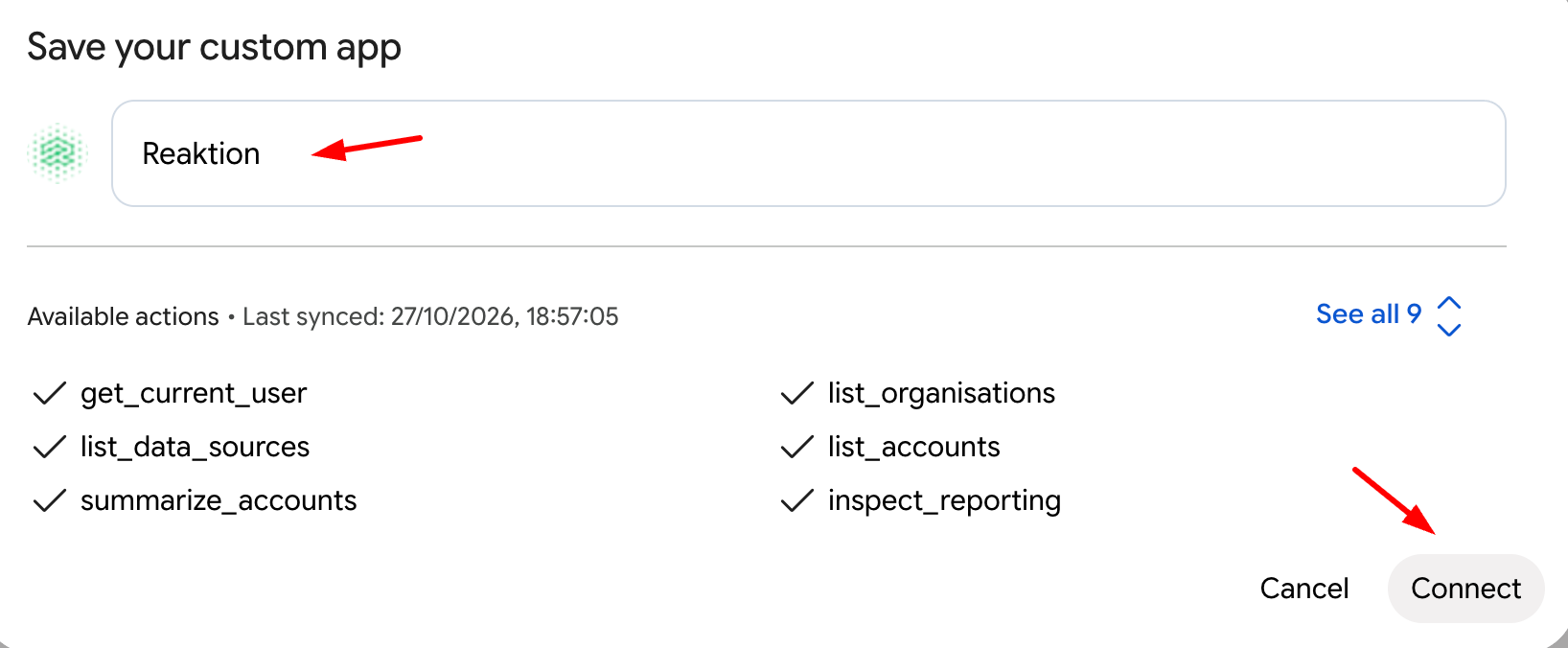
Save your MCP connection with a name and click 'Connect':
4) Test the MCP
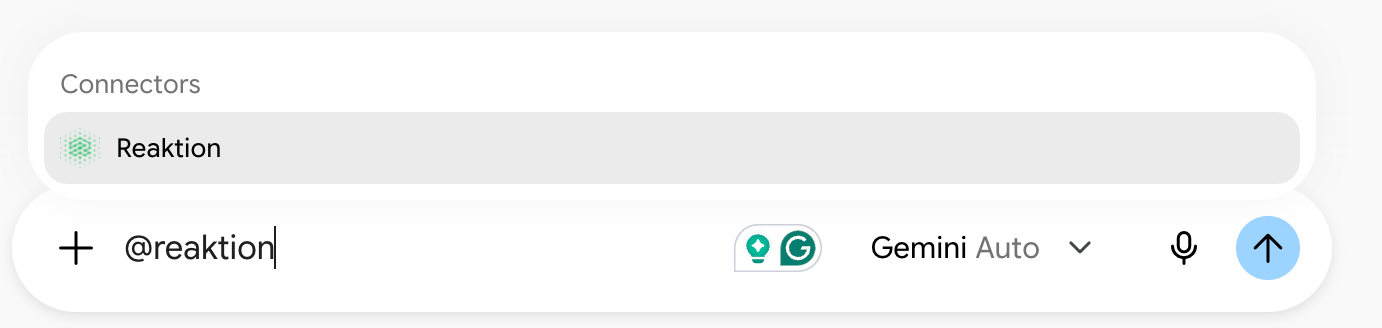
In a new chat, click + and "@Reaktion", and the MCP should pop up:
You're now ready to use the MCP. For example, ask “@Reaktion Which Google Ads campaigns had the lowest POAS last month?”
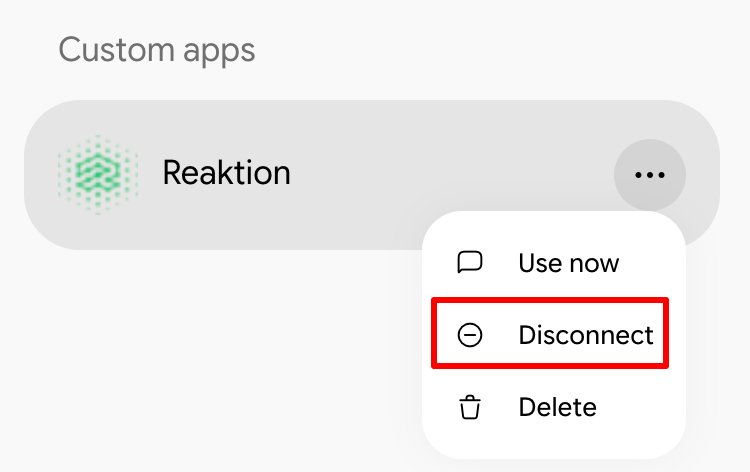
5) Switching Users: If you would like to switch users or connect another user and test out the MCP, always use 'Disconnect', not 'Delete'. Navigate to Settings > Personal Intelligence > Connected Apps > Custom Apps > Disconnect:
Points to Note about MCP data results:
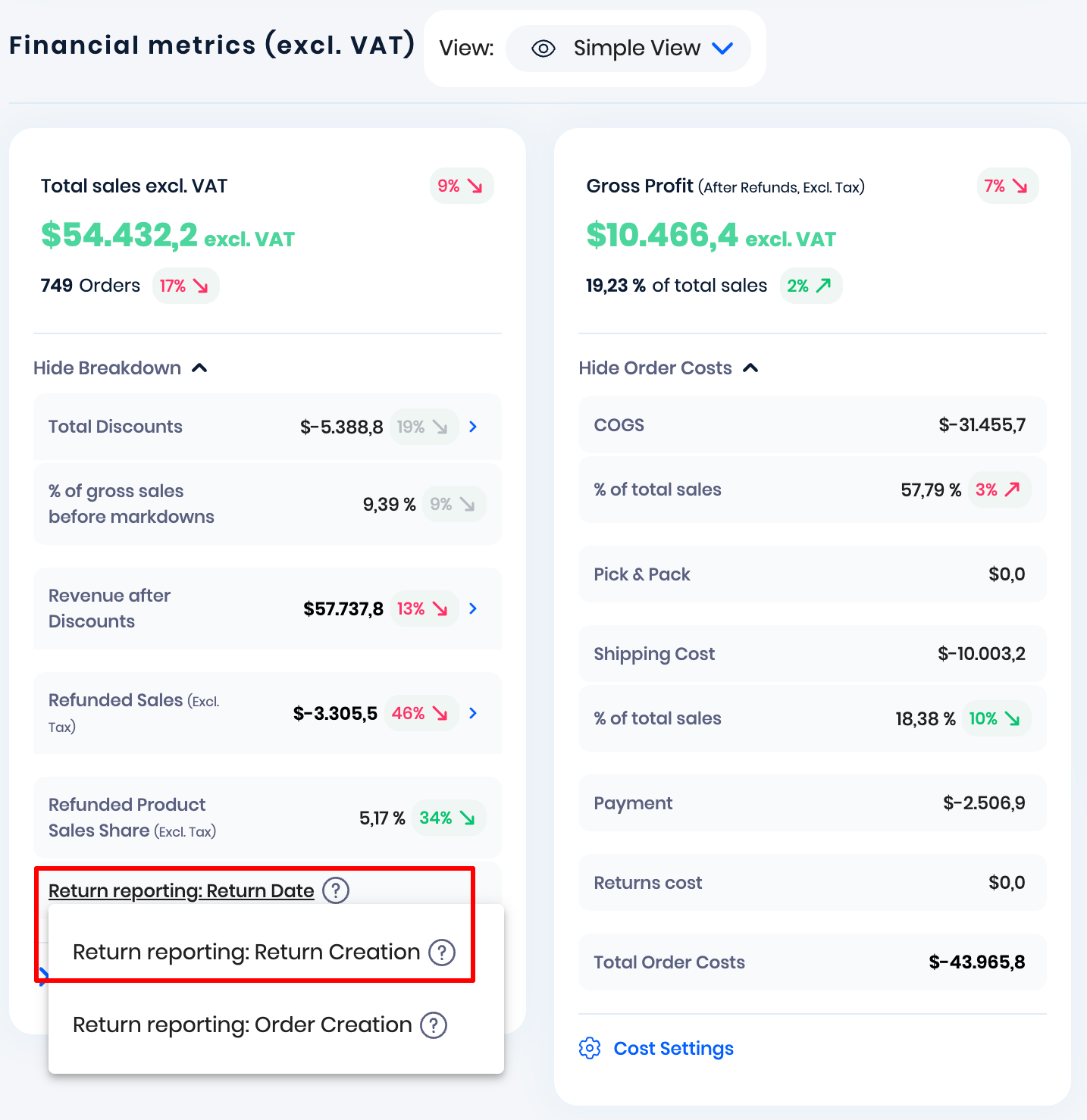
- Return Reporting: The MCP uses Return Creation Date as its return reporting method, and this is fixed and cannot be changed. When comparing MCP results with data in the Reaktion platform, make sure to set your return reporting method in Reaktion to Return Creation to ensure the data aligns:
 Good to know: Are you an agency and working with many clients in Reaktion MCP?
Reaktion MCP lets you ask questions across all your clients at once. When a question covers many clients, a long period, or lots of metrics, the answer can take a few minutes to arrive.
Why it can take time:
- Reaktion builds your report. We collect and calculate data across every client you include. More clients, longer periods, and more detailed breakdowns mean more data to process.
- Your AI assistant reads the result. Once the report is ready, your AI assistant fetches and analyses it. The speed and how much data it can handle in one conversation depend on the AI model and plan you use. Large reports also count more towards your AI plan’s usage limits.
Get faster answers:
- Include only the clients and metrics you need.
- Use shorter periods or weekly/monthly totals instead of daily data.
- Split big questions into smaller ones, e.g., one client group at a time.
- Start with an overview or top/bottom performers, then drill into specific clients.
If you have any issues with the data or encounter errors, please contact us at support@reaktion.com.
Was this article helpful?
That’s Great!
Thank you for your feedback
Sorry! We couldn't be helpful
Thank you for your feedback
Feedback sent
We appreciate your effort and will try to fix the article