It's very easy to connect your WooCommerce store to Reaktion.
Step 1: Download and activate our WooCommerce plugin
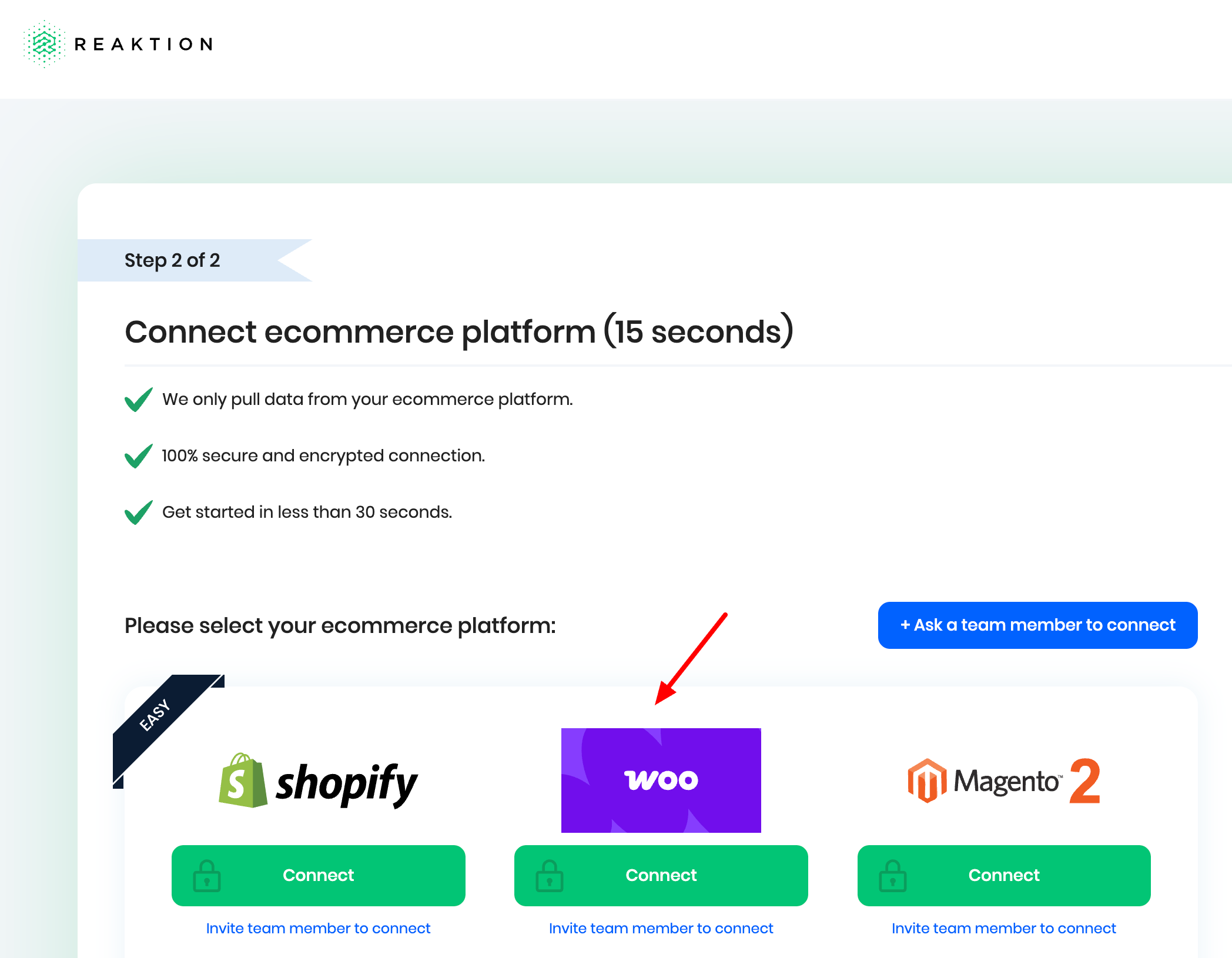
Click on "Connect" at the WooCommerce icon here:
Download our latest plugin by clicking the blue button:

Step 2: Upload the plugin to your WooCommerce store and activate it:

Step 3: Go back to Reaktion and proceed by clicking the green button:
Enter the domain of your shop.
Important: It should match the domain of your WooCommerce installation.
www.yourshop.com or yourshop.com (with or without www).

Step 4: You will be asked to authorise the connection by logging in. Please note that you need to have admin permissions in the store you're trying to connect.
In case the integration doesn't work for you, there's an alternative method - please check this guide to connect WooCommerce via an API key.
Step 5: Set COGS for your products - Guide here
We recommend that you use this plugin to set the costs for your products:
https://wordpress.org/plugins/cost-of-goods-for-woocommerce/
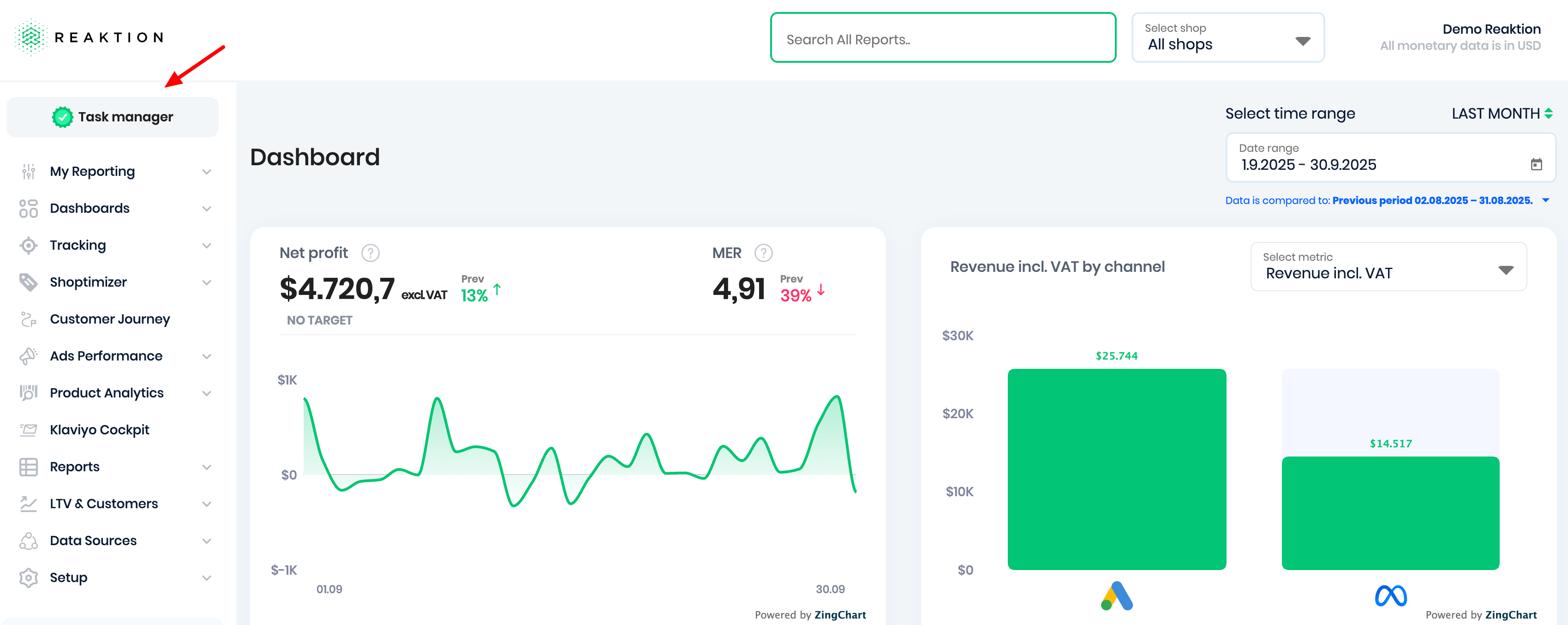
Step 6: Complete the tasks in your "Task Manager" (top left corner)
https://advertiser.reaktion.com/tasks
NOTE:
Do you have MULTIPLE stores/domains? YourShop.com and YourShop.dk as an example.
For the second/third/etc. shop, please go to Data Sources and repeat the process starting by clicking the WooCommerce icon here: https://advertiser.reaktion.com/data-sources/select
We only support multiple stores/domains if they are separate Wordpress installations or are based on Wordpress multisite network
If you have a WordPress multisite network setup with multiple stores, each store has to be added as a separate data source in Reaktion using the store's unique domain or URL structure (YourShop.com/dk-dk, for example).
When installing our plugin, it can be installed on each individual site or on a network level:

[Important setting for multi-store setup]
Account Mapping is a very important step if you have a multi-store setup. It ensures that data from your connected marketing data sources is reported under the correct store account.
We’ve created a dedicated step-by-step guide to help you set up Account Mapping properly.
Was this article helpful?
That’s Great!
Thank you for your feedback
Sorry! We couldn't be helpful
Thank you for your feedback
Feedback sent
We appreciate your effort and will try to fix the article