Reaktion enables advanced customer segmentation based on:
- Profitability
- Revenue
- Days since last purchase
- Shopify RFM
You can define customer segments using these criteria and automatically synchronize the customer data with Meta Ads audiences, including Lookalike Audiences and targeted remarketing audiences.
Audience data is synchronized once every 24 hours.
You can also export encrypted customer data as a CSV file formatted for use as an audience in Google Ads, Meta Ads, or Snapchat Ads.
To access this feature, navigate to LTV & Customers → Custom Audiences:
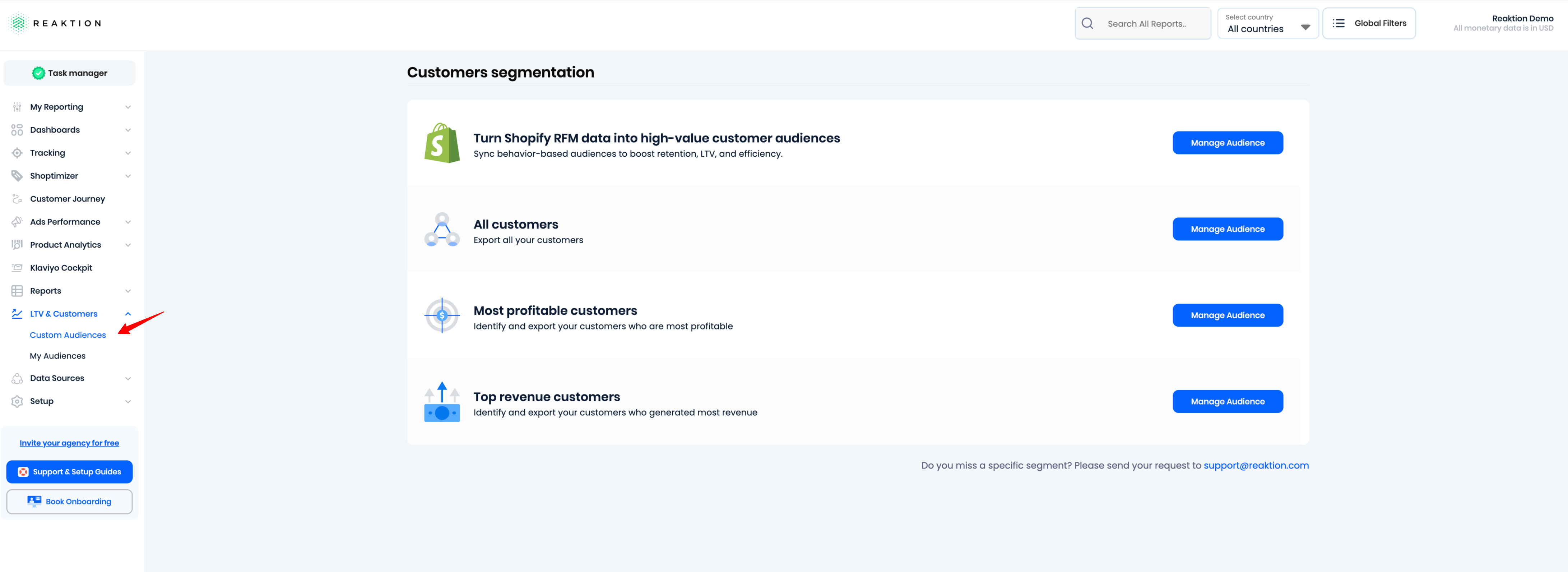
From this page, you can select the customer criteria for your audience:
- All customers
- Most profitable customers
- Top revenue customers
We recommend using Most profitable customers when creating high-value customer audiences.
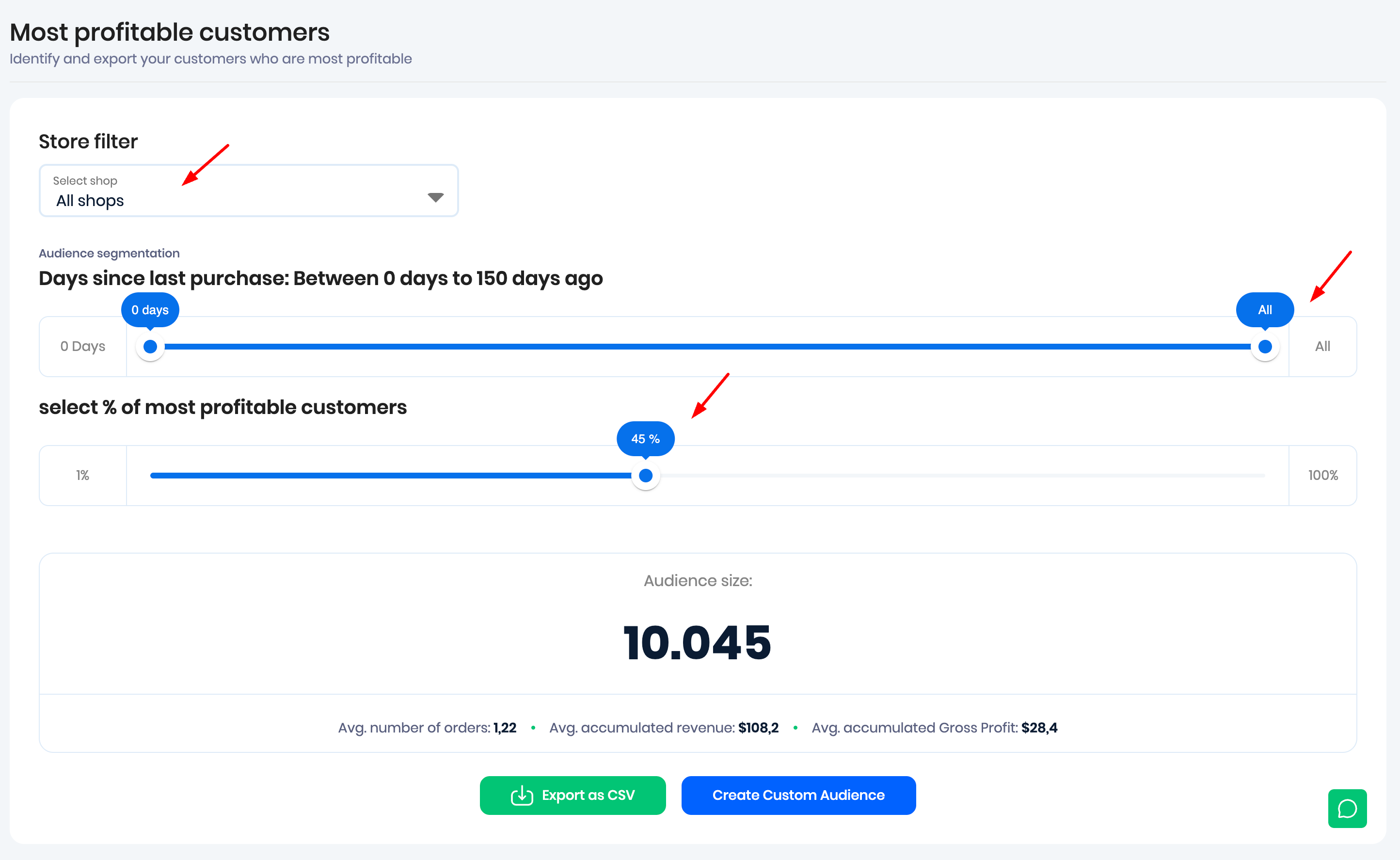
You can then define the following parameters:
- Shop or market: Select the store or market from which Reaktion should pull customer data. We recommend selecting a specific store or market.
- Days since last purchase: Select any value from 0 to 150 days, or move the slider all the way to the right to select All.
- Audience size: Select the percentage of customers you want to include in the audience.
Example
In the example above, Days since last purchase is set to All. This means the setting does not limit the audience based on when customers last purchased.
The audience size is set to 45%, meaning that only the top 45% of customers who generated the most gross profit for the selected store are included.
As you adjust the audience parameters, Reaktion provides estimates and insights such as:
- Estimated Lookalike Audience size
- Average number of orders per customer
- Average accumulated revenue per customer
- Average accumulated gross profit per customer
Export or Synchronize Your Audience
Once you have defined your audience, you can either:
- Export a CSV file containing encrypted customer data, ready to be imported into Meta Ads, Google Ads, or Snapchat Ads.
- Create a Custom Audience for Meta Ads or Klaviyo.
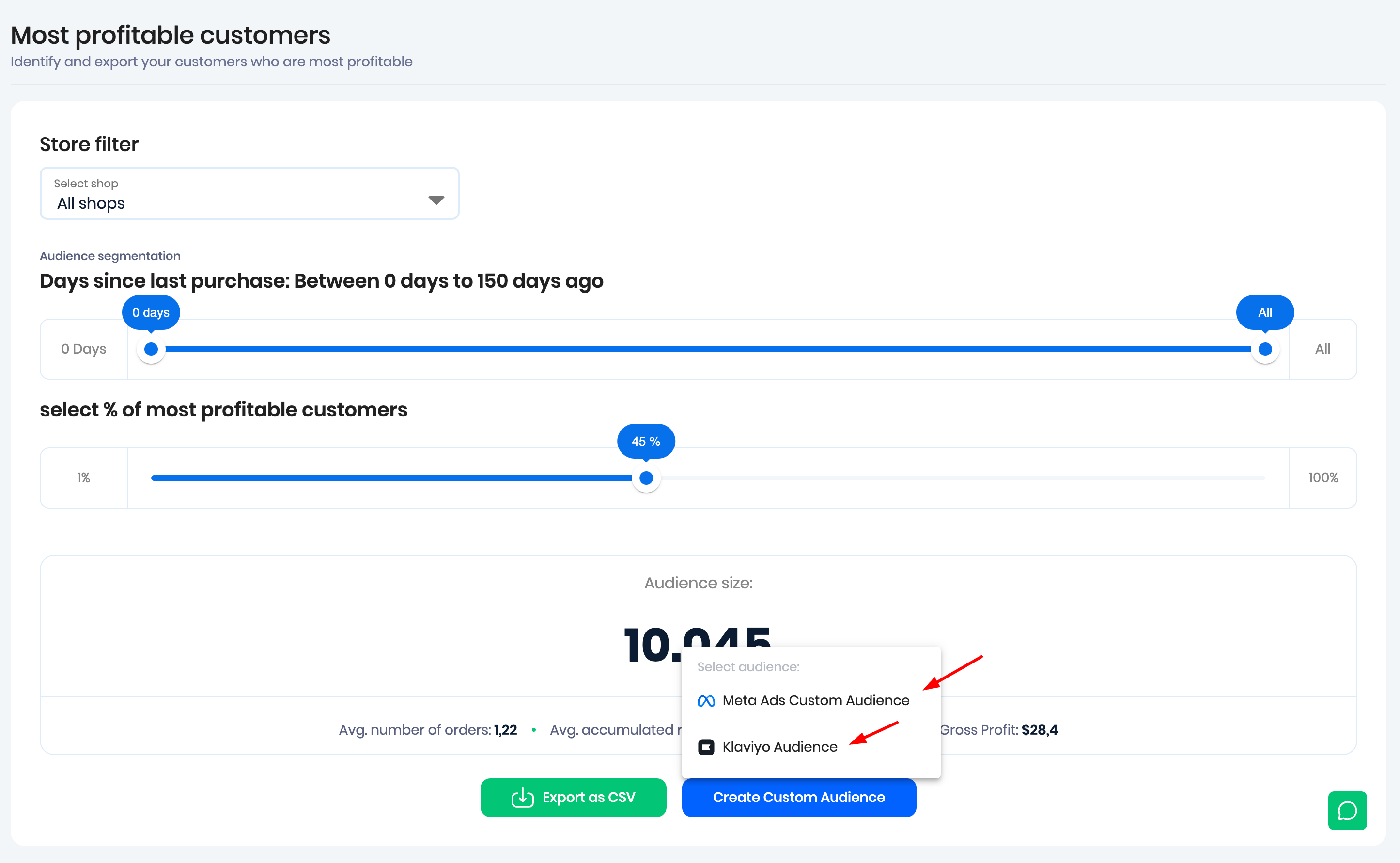
Sync with Meta Ads
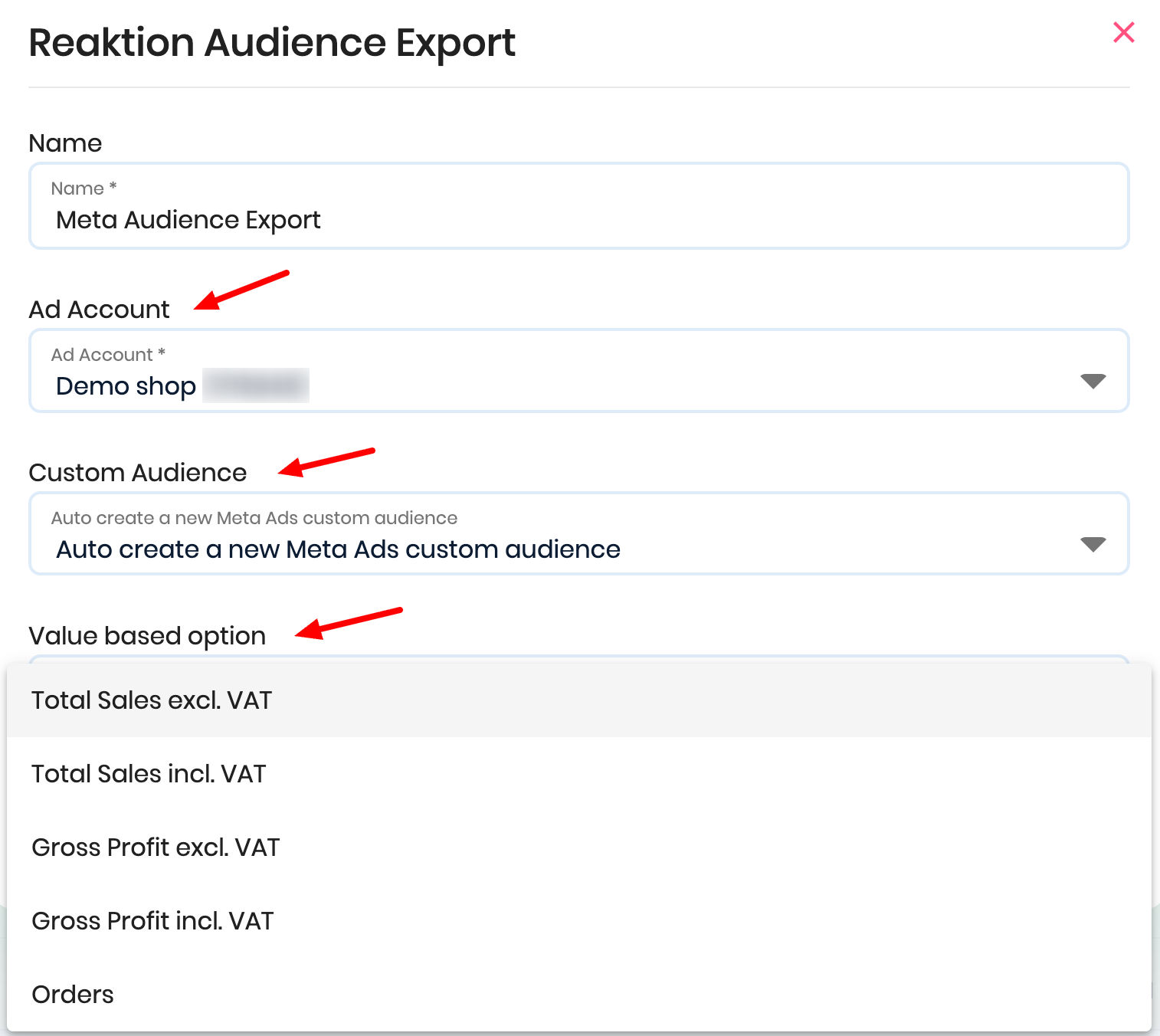
If you choose to synchronize the audience with Meta Ads:
- Select the relevant ad account.
- Select Auto create a new Meta Ads custom audience. We recommend creating a new audience.
- Under Value based option, select the metric you want to use for the audience.
Click Save Custom Audience and allow up to 24 hours for the audience to be fully synchronized.
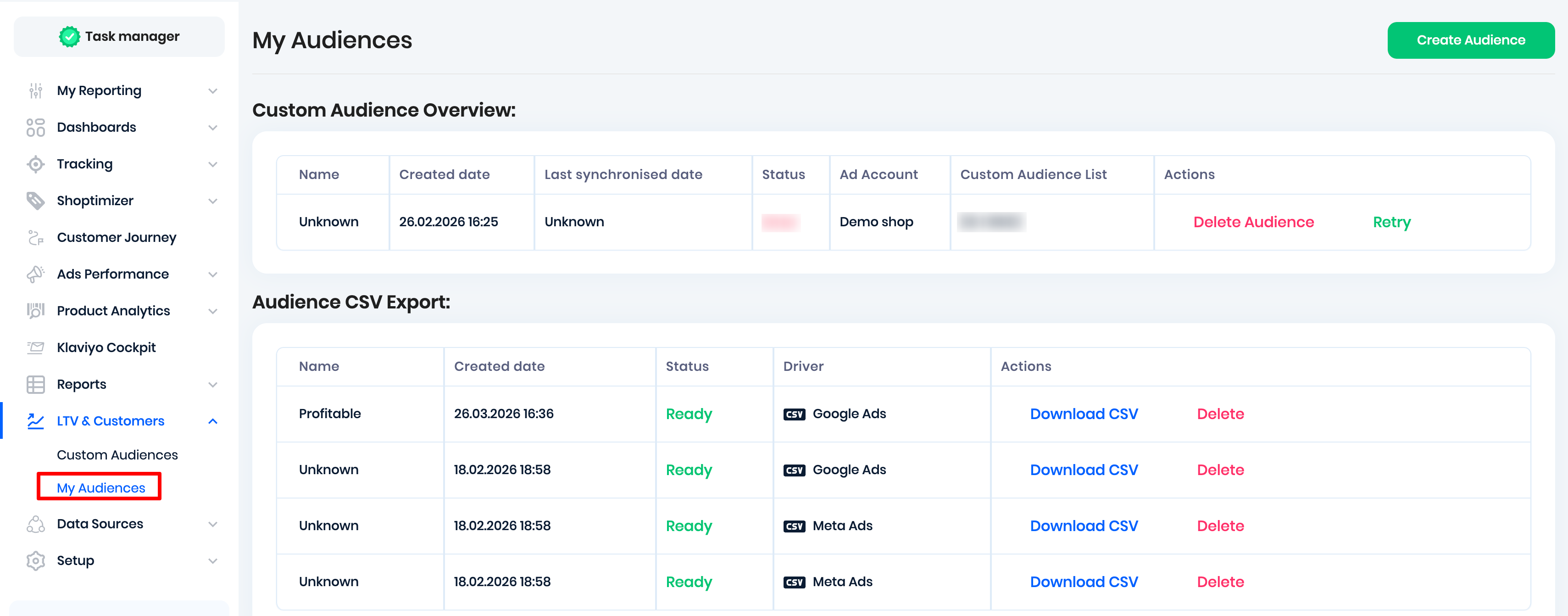
To view all audiences created in Reaktion, go to My Audiences:
Dynamic Audience Synchronization
Synced Meta Ads audiences are dynamic.
Reaktion checks the audience criteria daily and automatically adds or removes customers based on the latest available customer data. This ensures that the audience stays up to date without requiring you to manually recreate it.
Turn Shopify RFM Data into Custom Audiences
Reaktion also supports creating high-value customer audiences based on your Shopify RFM data.
RFM stands for:
- Recency – How recently the customer purchased
- Frequency – How often the customer purchases
- Monetary value – How much the customer spends
RFM is a customer segmentation method that helps you understand who your most valuable customers are and how likely they are to purchase again.
This allows you to tailor your marketing to different customer segments instead of sending the same campaign to everyone.
For example:
- Champions → VIP offers and loyalty programs
- At risk → Win-back campaigns
- New customers → Onboarding flows
- One-time buyers → Second-purchase incentives
In Reaktion, you can turn your Shopify RFM segments into automatically synchronized audiences for Meta Ads and Klaviyo.
Create an RFM Audience
Navigate to: LTV & Customers → Custom Audiences
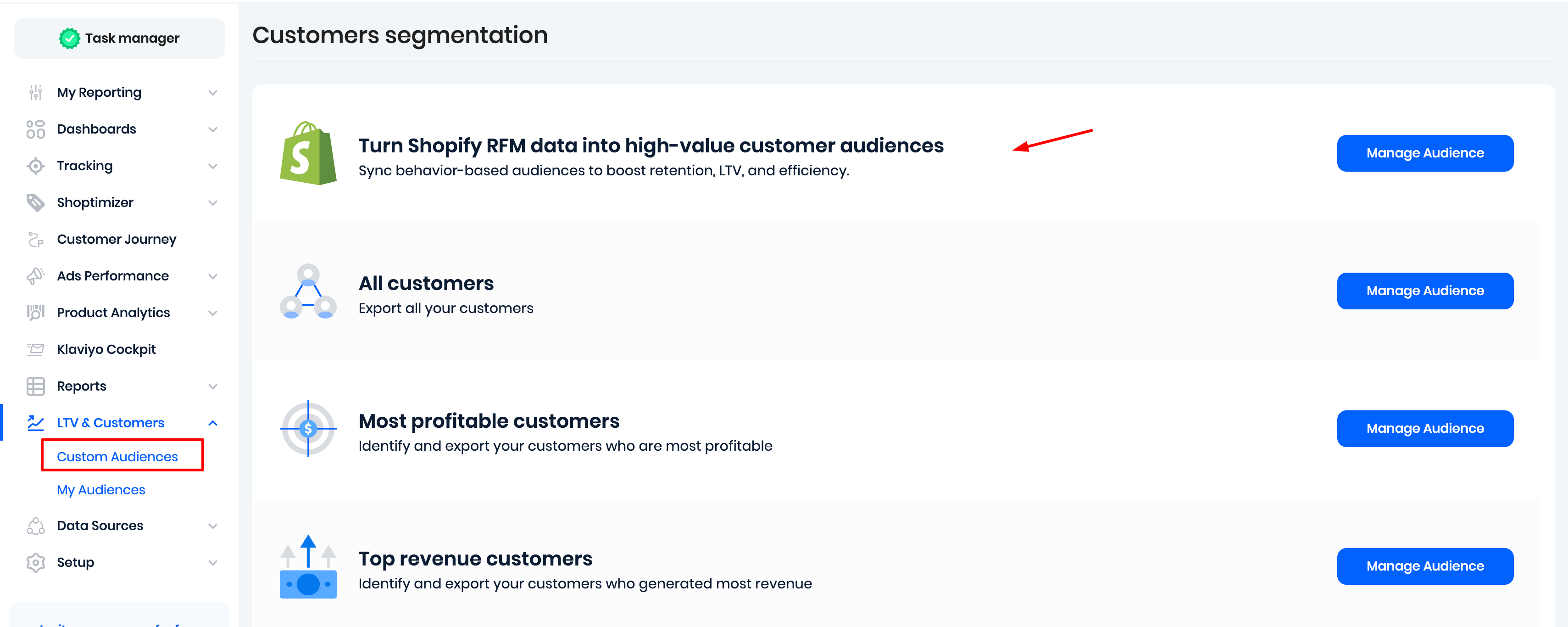
Click Manage Audience.
If you have a multi-store setup, select the relevant store/market, then select one or more RFM segments.
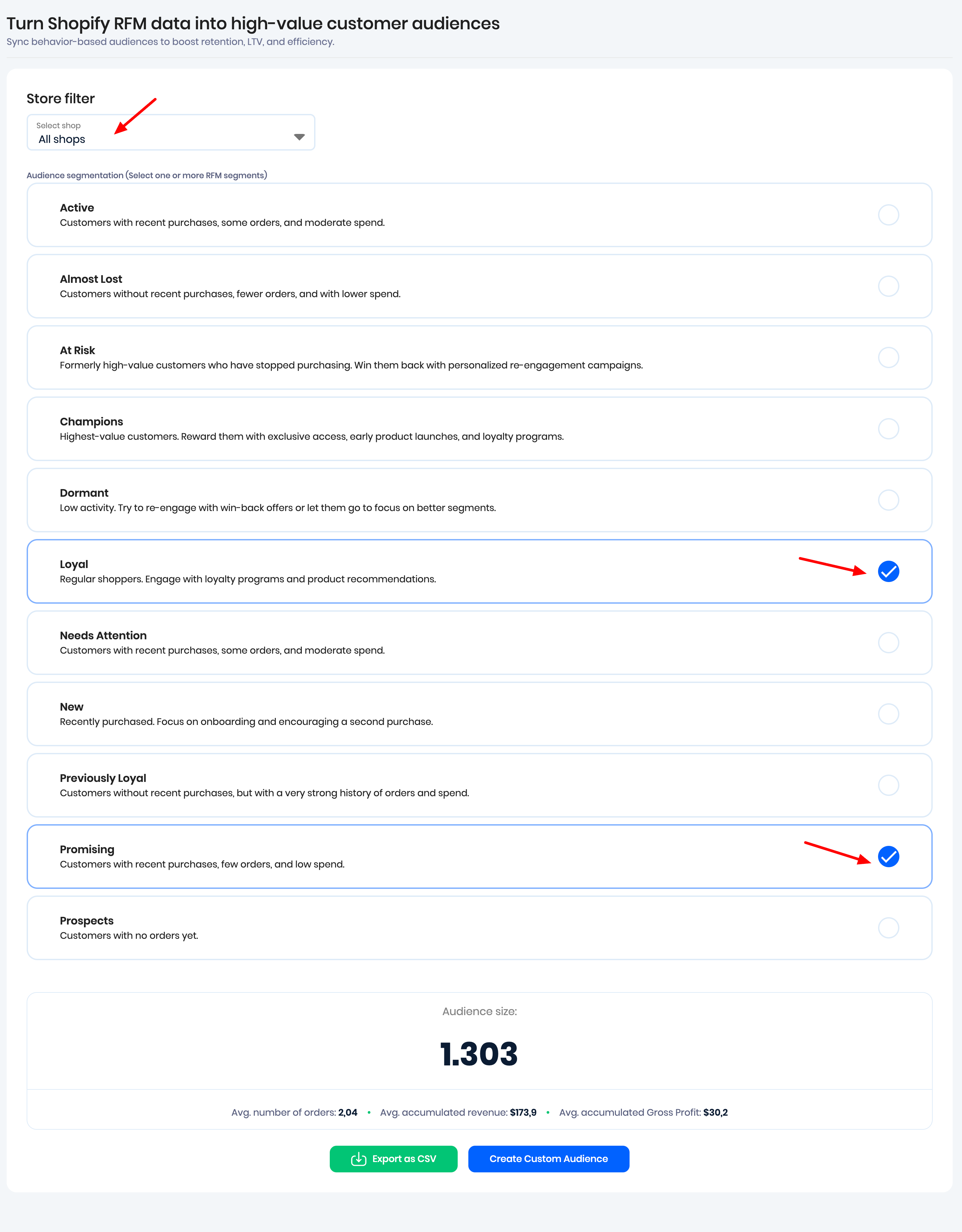
You can then:
- Export a CSV file containing encrypted customer data, ready to be imported into Meta Ads, Google Ads, or Snapchat Ads.
- Create a Custom Audience for Meta Ads or Klaviyo.
Once the audience has been created, Reaktion synchronizes the audience data once every 24 hours.
Was this article helpful?
That’s Great!
Thank you for your feedback
Sorry! We couldn't be helpful
Thank you for your feedback
Feedback sent
We appreciate your effort and will try to fix the article