A supplemental feed is a secondary data source used to provide more details or update existing details, such as required or optional product attributes, that may be missing from your primary feed.
Important: Please note these two points:
1) Supplemental feed language has to match the primary feed language,
2) Supplemental feed primary feed choice has to be valid - it is possible to select an auto-generated Google Merchant Center feed (created by Google via browsing the site).
How to insert a supplemental feed in your Google Merchant Center:
Step 1 – Log in to Google Merchant Center and navigate to the Feed overview
Click Products in the left-hand menu, then click Feeds.
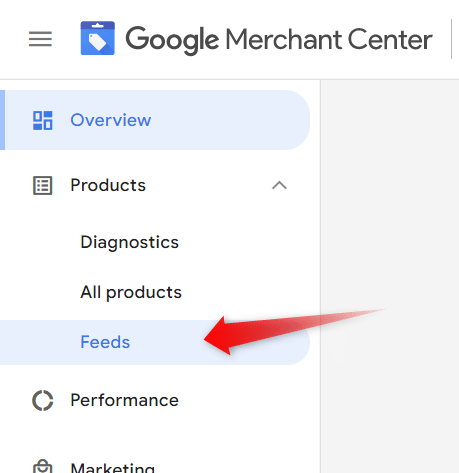
This will show you an overview of all the feeds associated with this GMC account.
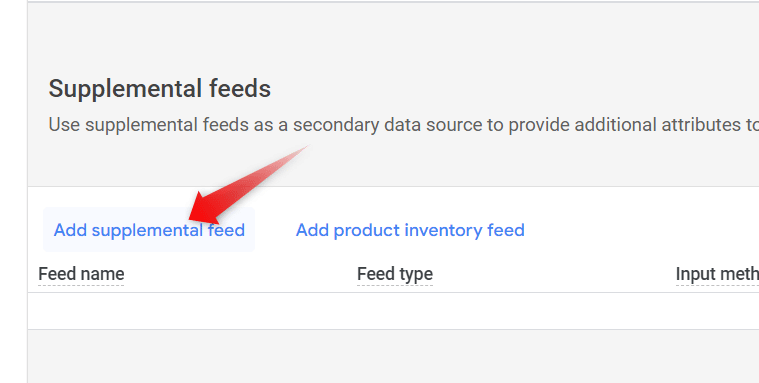
On the bottom half of the page, you will see the Supplemental feeds section.
There, click “Add supplemental feed”.
Step 2 – Add a name for the supplemental feed
First, add a name for your feed. Make sure it’s descriptive of which feed you want to update and what attributes you’re planning on changing.
For example: "Reaktion-hero-feed."
Step 3 – Choose the input method
Select "Scheduled Fetch"

Step 4 – Fetch the feed every night at 3 am
Was this article helpful?
That’s Great!
Thank you for your feedback
Sorry! We couldn't be helpful
Thank you for your feedback
Feedback sent
We appreciate your effort and will try to fix the article