For accurate profit analysis, it's crucial to input detailed cost data into Reaktion. This approach is essential for understanding the economics of your e-commerce business. If specific costs aren't set, you'll still enjoy improved tracking, revenue overview, etc., but detailed input leads to more precise insights.
In short, the better the input, the better the output.
Here is a short video on how to set up the Cost Settings:
Link to setting costs: https://advertiser.reaktion.com/setup/cost-settings
You can find the "Cost settings" in the left-side menu. Click on "Setup" > "Cost Settings". You can always edit the costs, and it will take effect after saving.
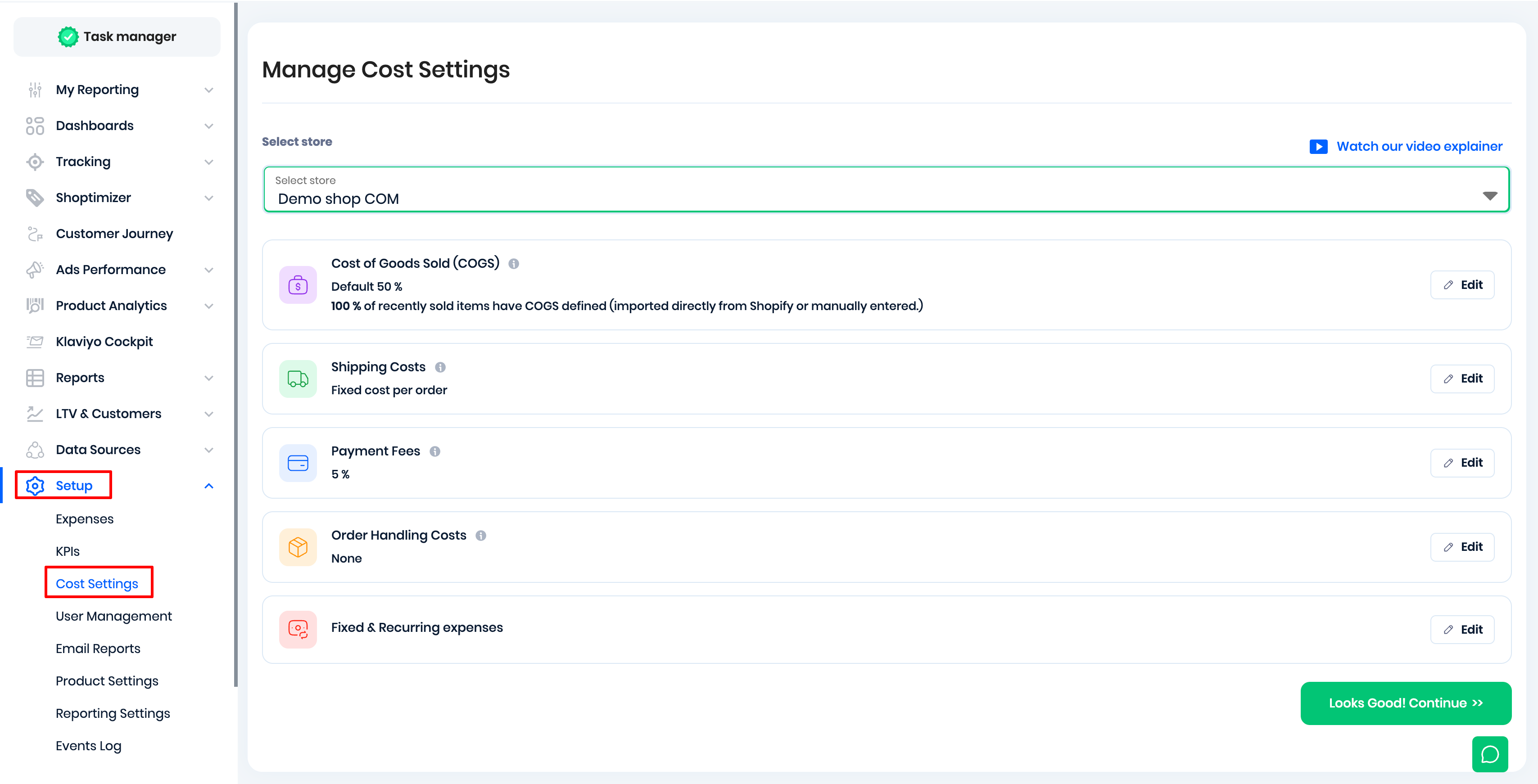
Please note you can set this for all your shops. Ex., if you have different product costs or shipping costs for your different shops/markets.
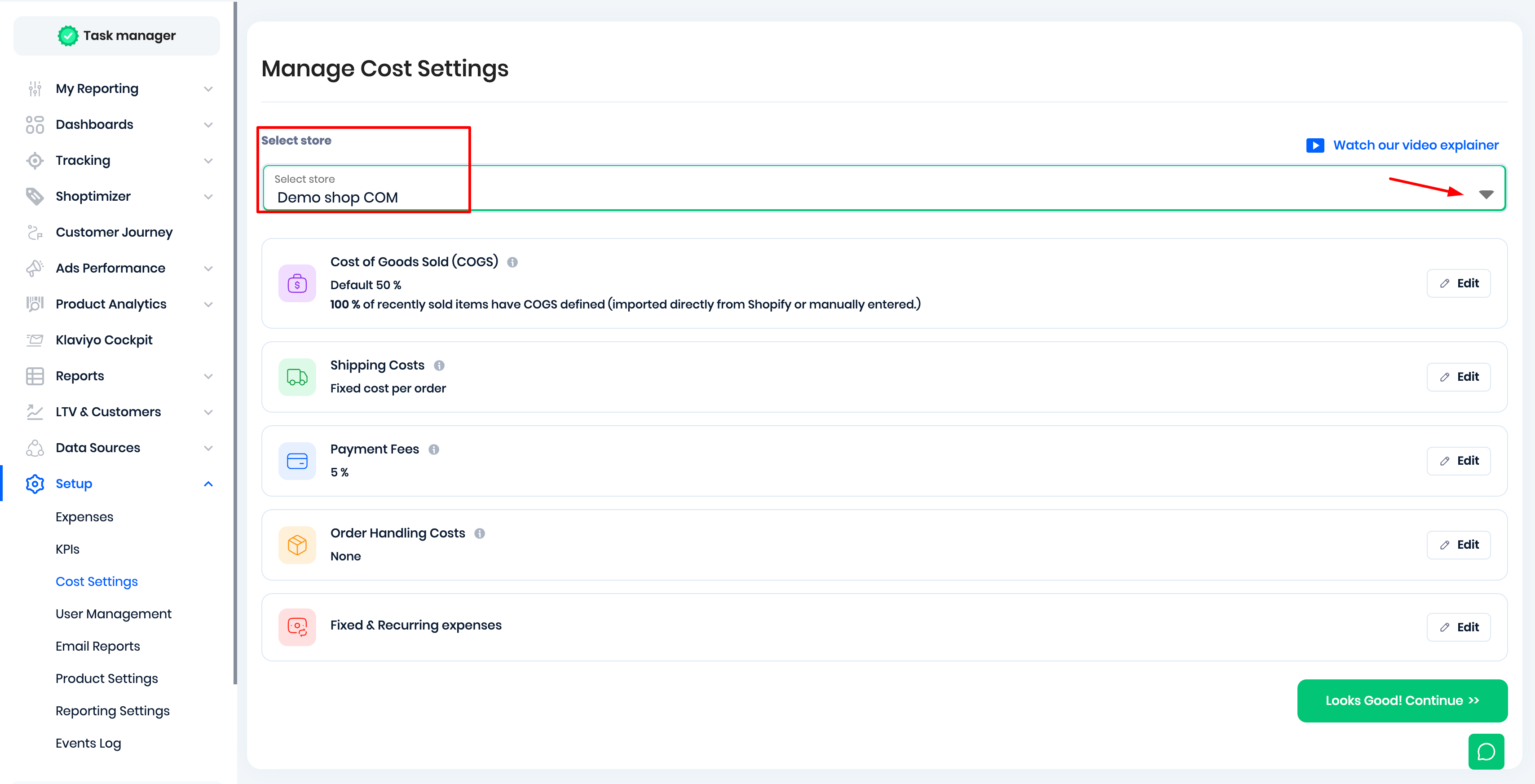
1. COGS / Cost of Goods Sold / Product costs:
Link: https://advertiser.reaktion.com/setup/cost-settings?step=1
Here is a short video on the various ways to set up COGS in Reaktion:
Definition: Cost of Goods Sold (COGS) refers to the expenses incurred for a product by distributors, manufacturers, or retailers. Note: COGS should be set excl. VAT.
Integration with E-commerce Platforms: If your COGS data is available on platforms like Shopify, Magento2, or WooCommerce, we can seamlessly import it into Reaktion. Our system refreshes COGS four times daily, ensuring that all pricing updates are automatically synchronized. For information on platform-specific COGS data, you can find our help guides here (Folder).
Alternative Data Sources: In cases where COGS is managed through a different system, you can provide the data to us in two ways:
1. CSV File: Share a CSV file containing your SKU number, retail price, and COGS.
2. XML Feed: Send an XML feed with the necessary product information (Help Guide).
Handling Products Without COGS: For items that lack specific COGS data, you have the option to apply a default "Cost of Goods Sold" percentage. This ensures that all your products are accounted for in the cost analysis. The Fallback COGS calculation source can be calculated either based on the Sale Price or Retail Price:
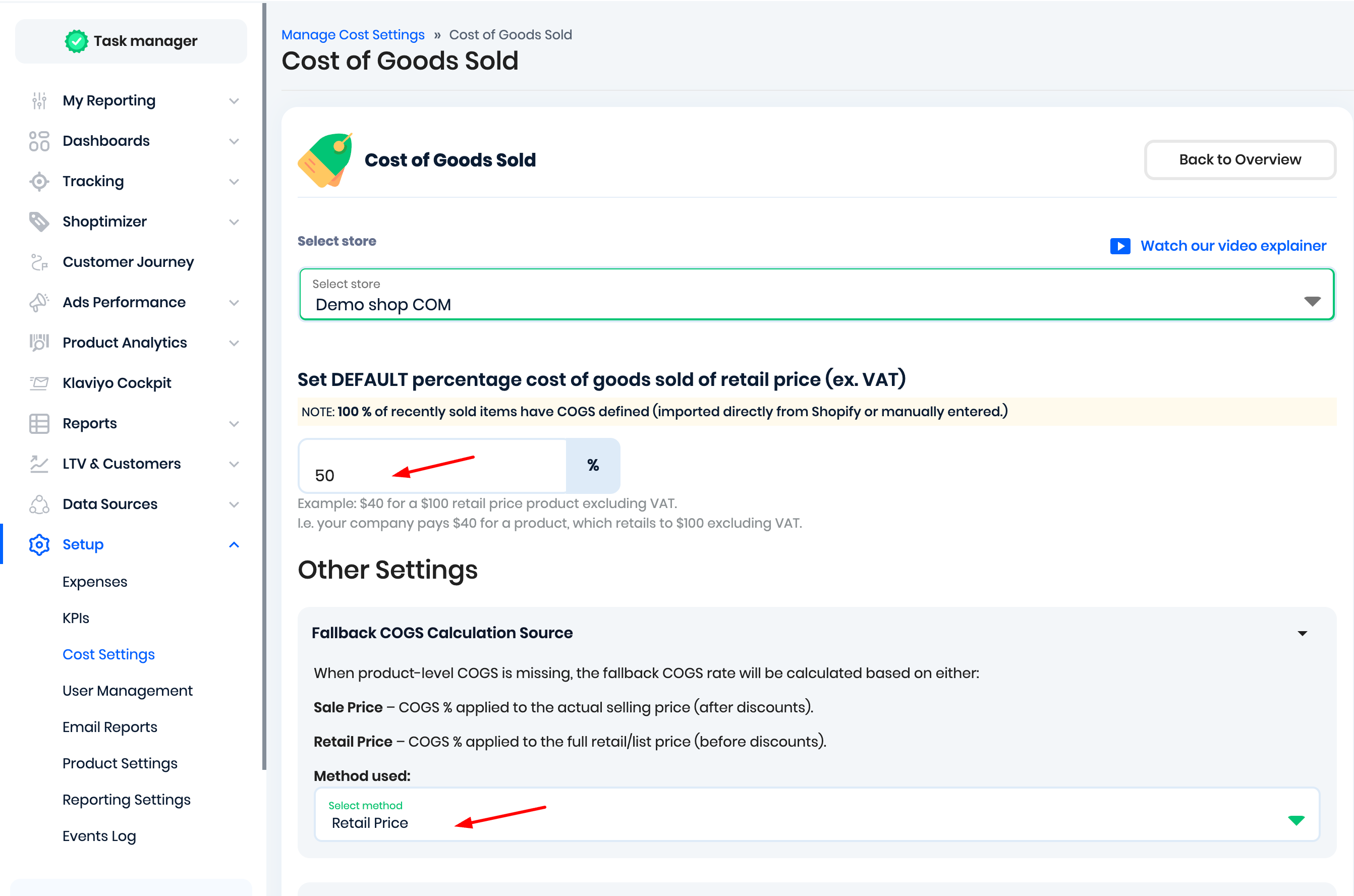
If a product doesn't have a product-level cost, we will use the "backup/default" COGS percentage. After the initial sync, you can also view the status of the COGS data import here:
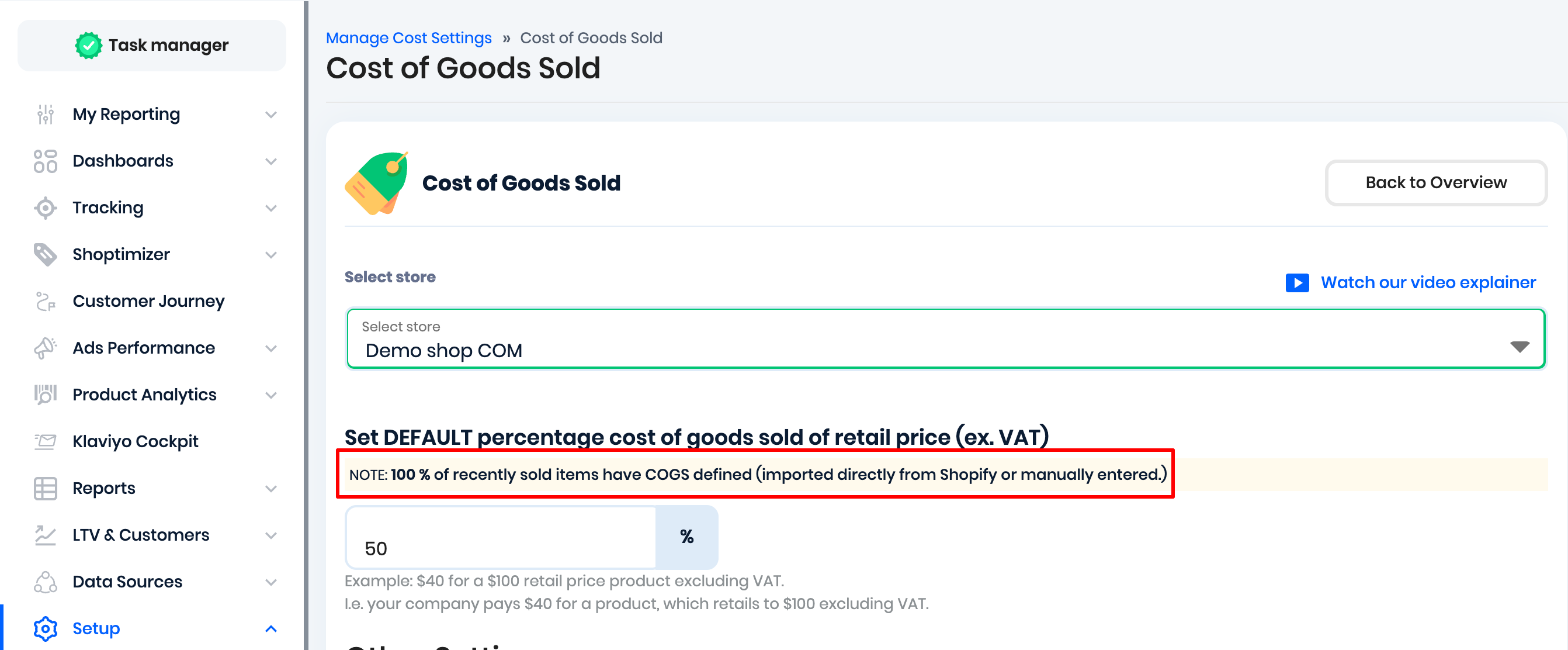
This analysis is based on sold-item data from the last 30 days. This allows users to instantly understand how their COGS are being populated, whether from an e-commerce store, a fallback percentage, an XML feed, etc.
Once you have set the costs, you can verify the product-level costs here:
https://advertiser.reaktion.com/setup/product-settings
2. Shipping Costs:
Link: https://advertiser.reaktion.com/setup/cost-settings?step=2
You can select your default shipping cost method here, which is the cost incurred to ship orders to customers. There are two options to choose from:
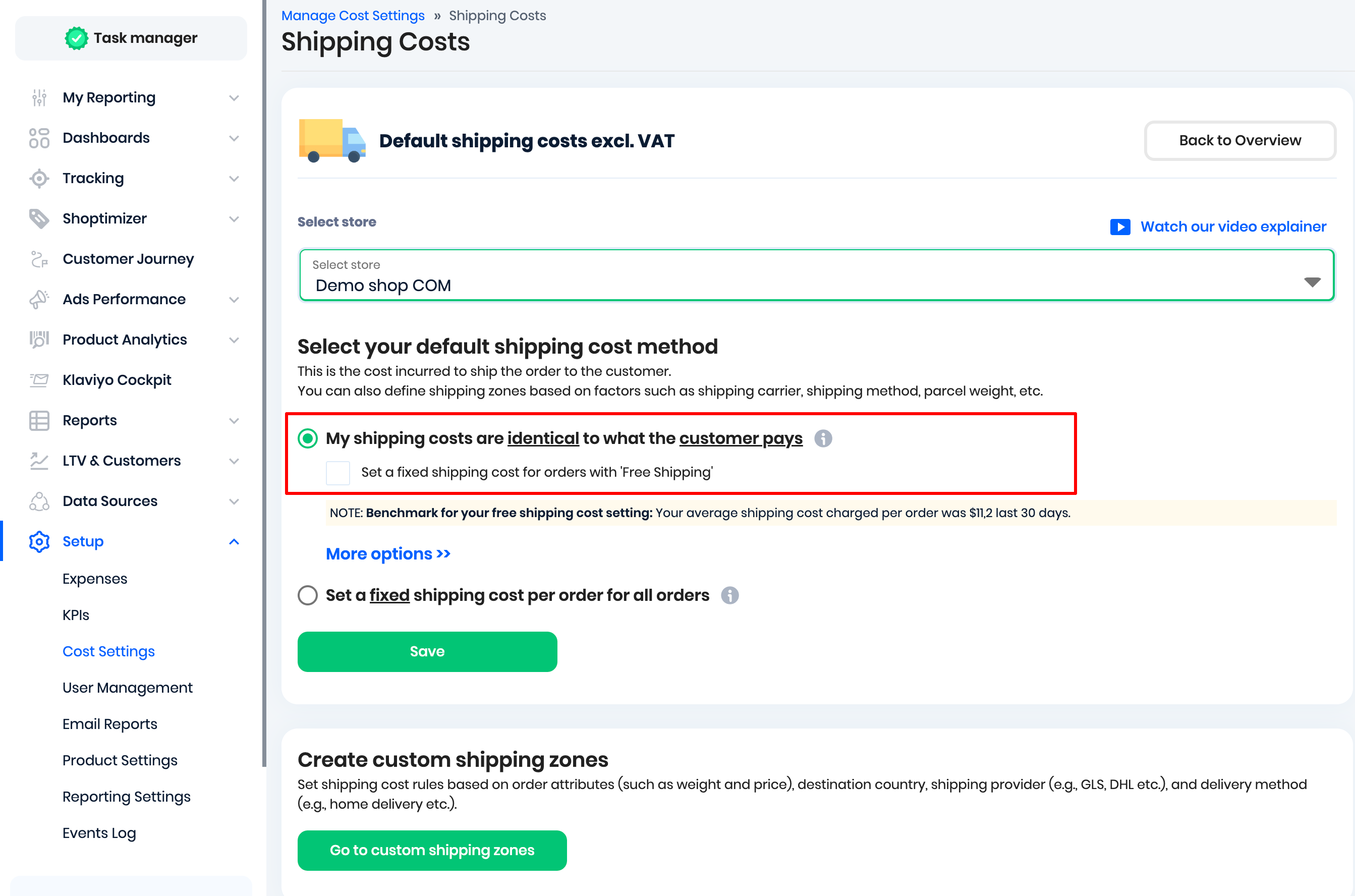
Option 1: My Shipping costs are identical to what the customer pays
We calculate the shipping costs based on the amount charged to the customers for shipping. This means the shipping revenue collected from the customer is used as the estimated cost of fulfilling the shipment. For free shipping orders, you can define an average shipping cost to use instead:
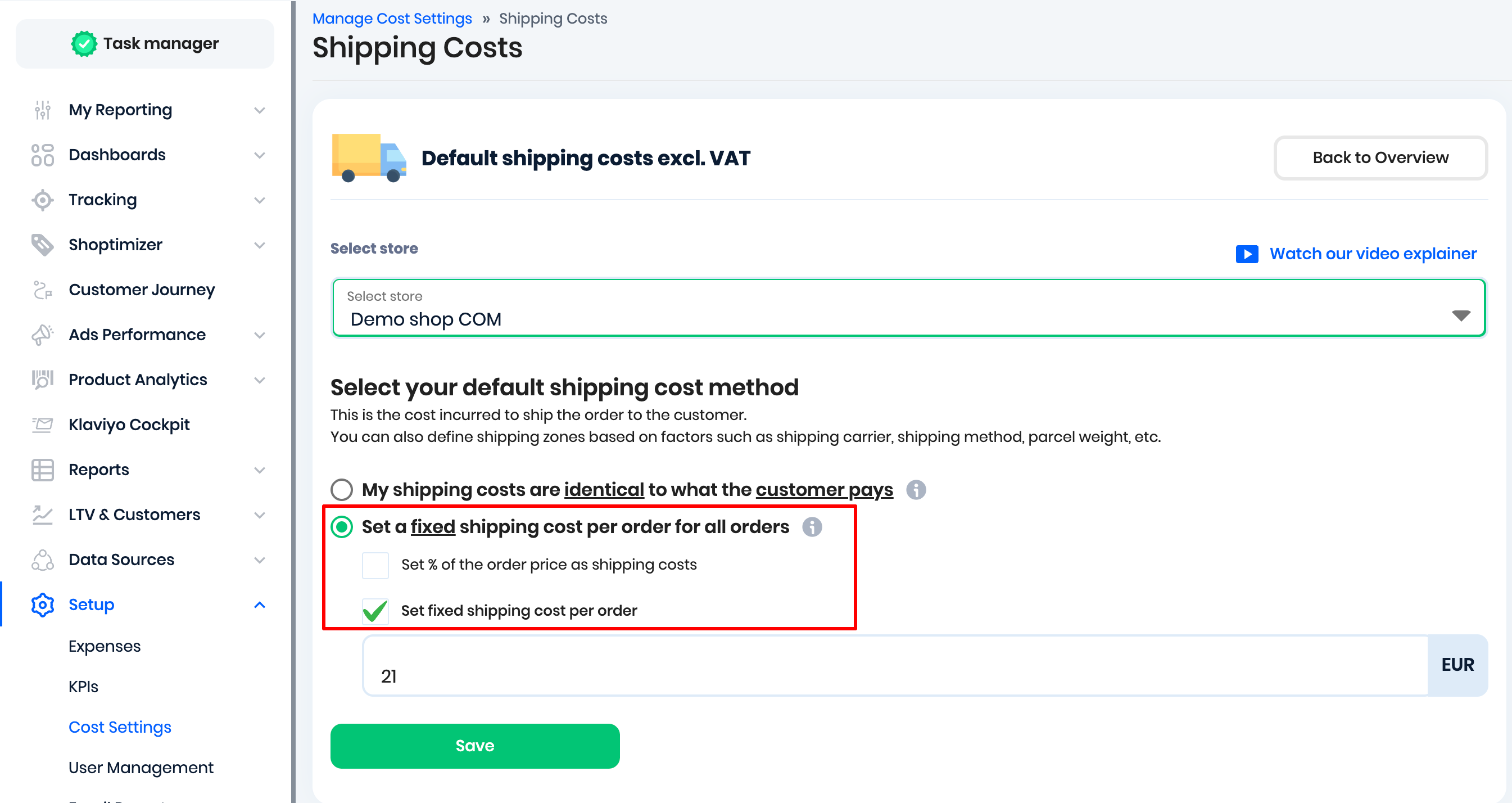
Option 2: Set a fixed shipping cost per order for all orders
For this shipping cost method, you can either set a fixed shipping cost per order or define the shipping cost as a percentage of the order value:
You can also create Custom Shipping Zones. These let you define tailored shipping costs based on specific providers, order values, weights, or destinations, so you can offer precise, flexible shipping options for your customers.
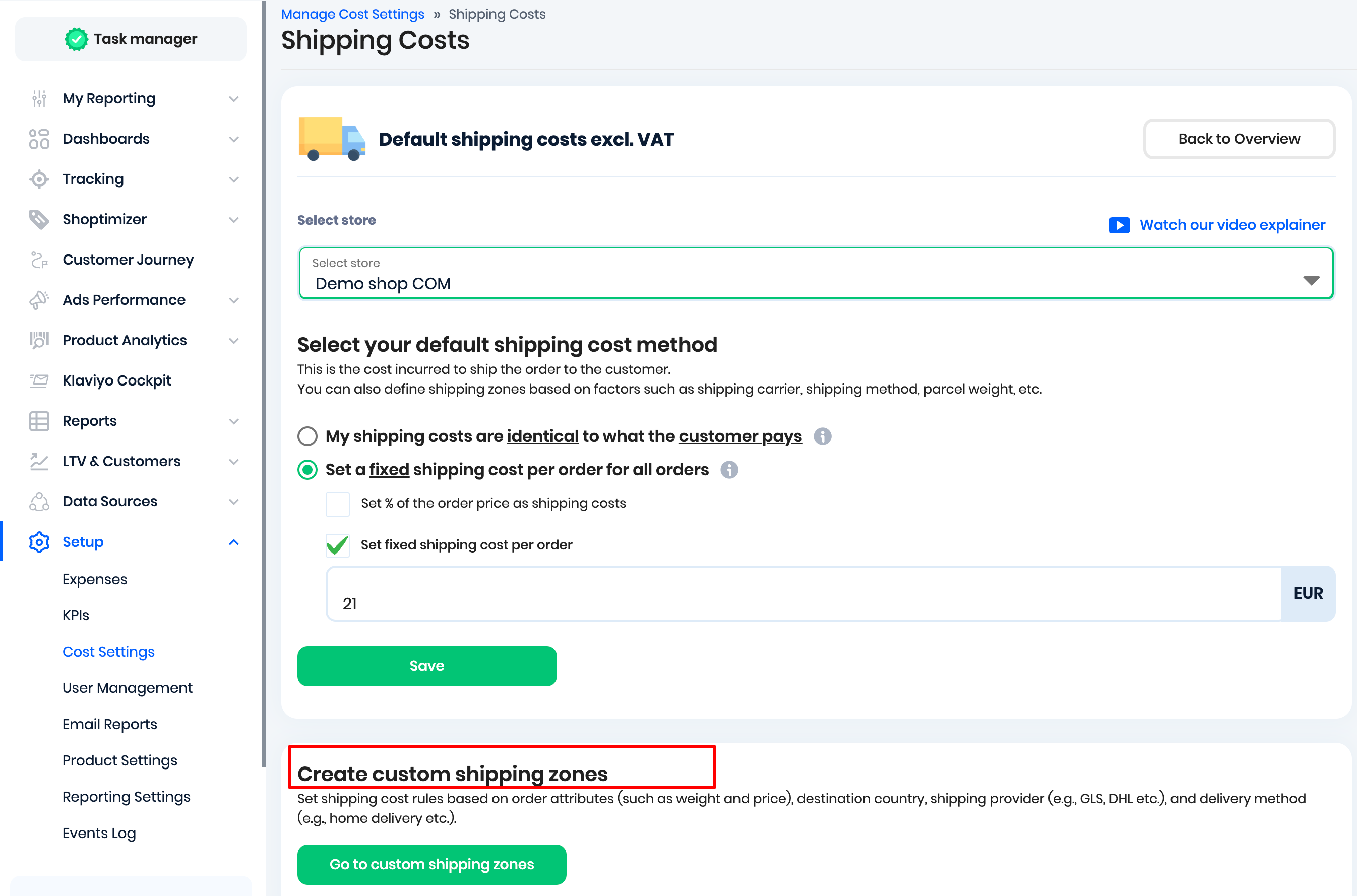
Please refer to this detailed guide on how to set up custom shipping zones.
3. Payment fees:
Link: https://advertiser.reaktion.com/setup/cost-settings?step=5
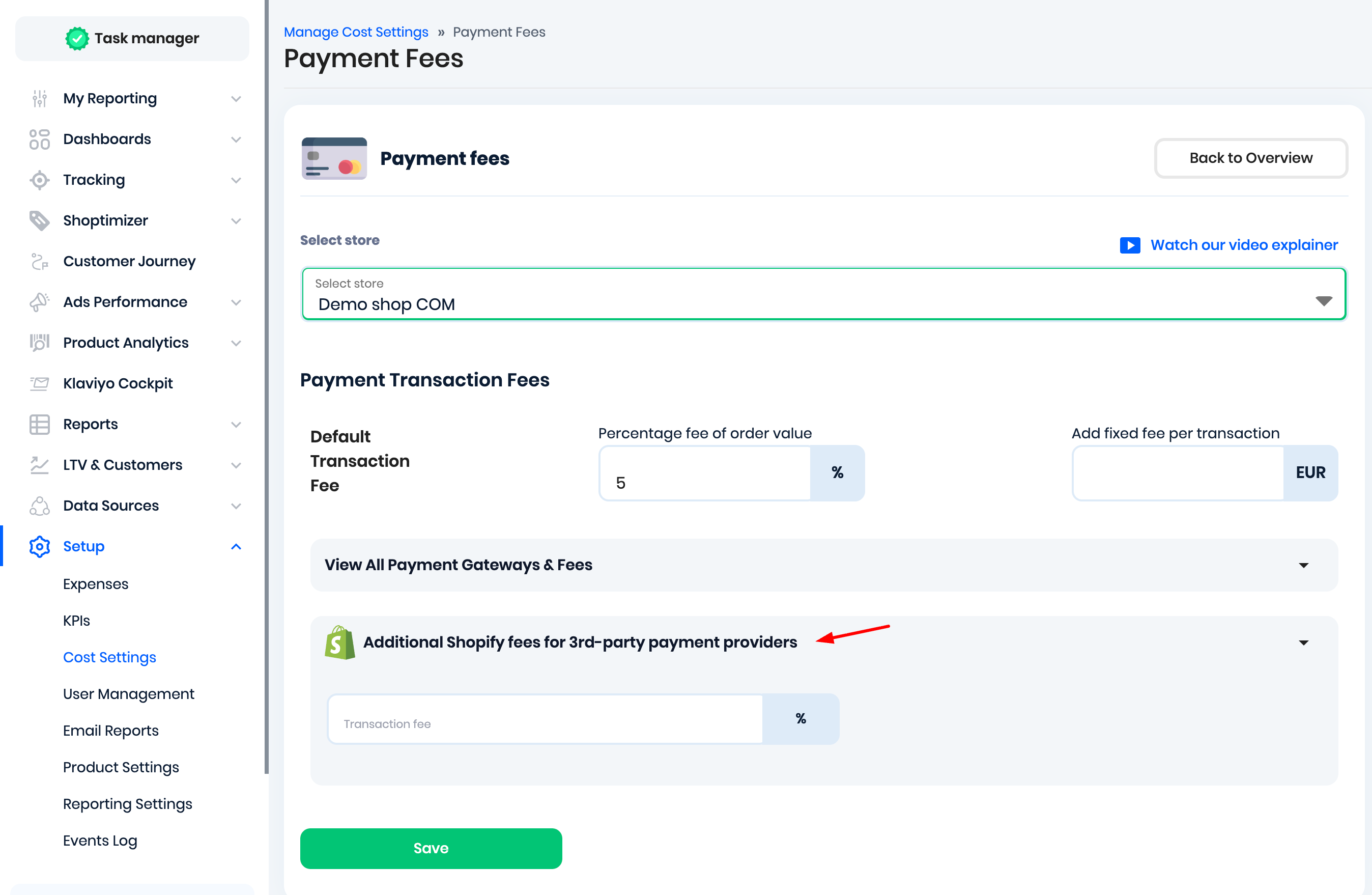
You can define a default payment transaction fee, or you can define the fees per payment gateway:
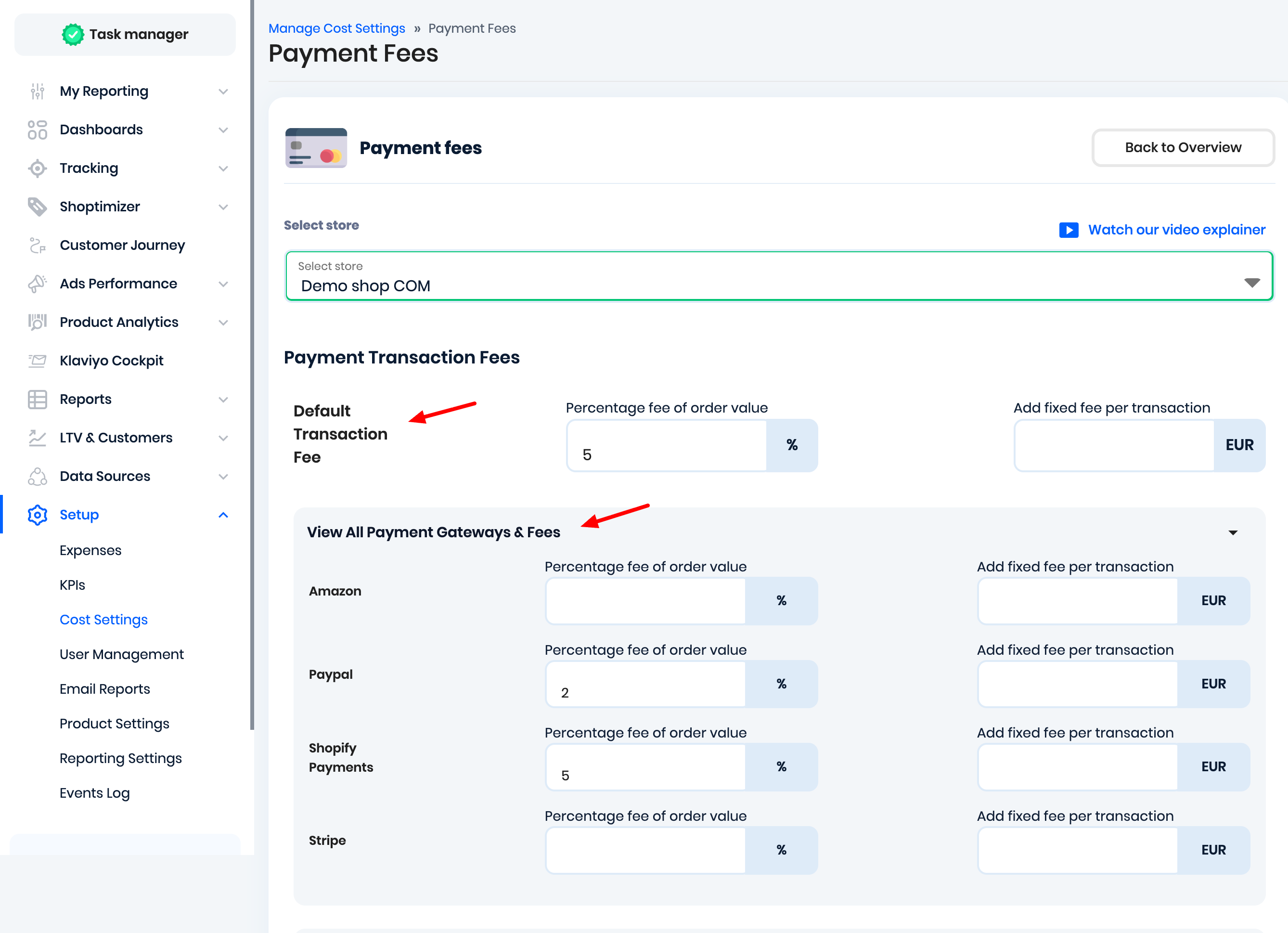
Additionally, if you are using Shopify, then you can also define the transaction fee percentage that Shopify charges from their end for using third-party payment providers:
4. Order Handling Costs
Link: https://advertiser.reaktion.com/setup/cost-settings?step=4
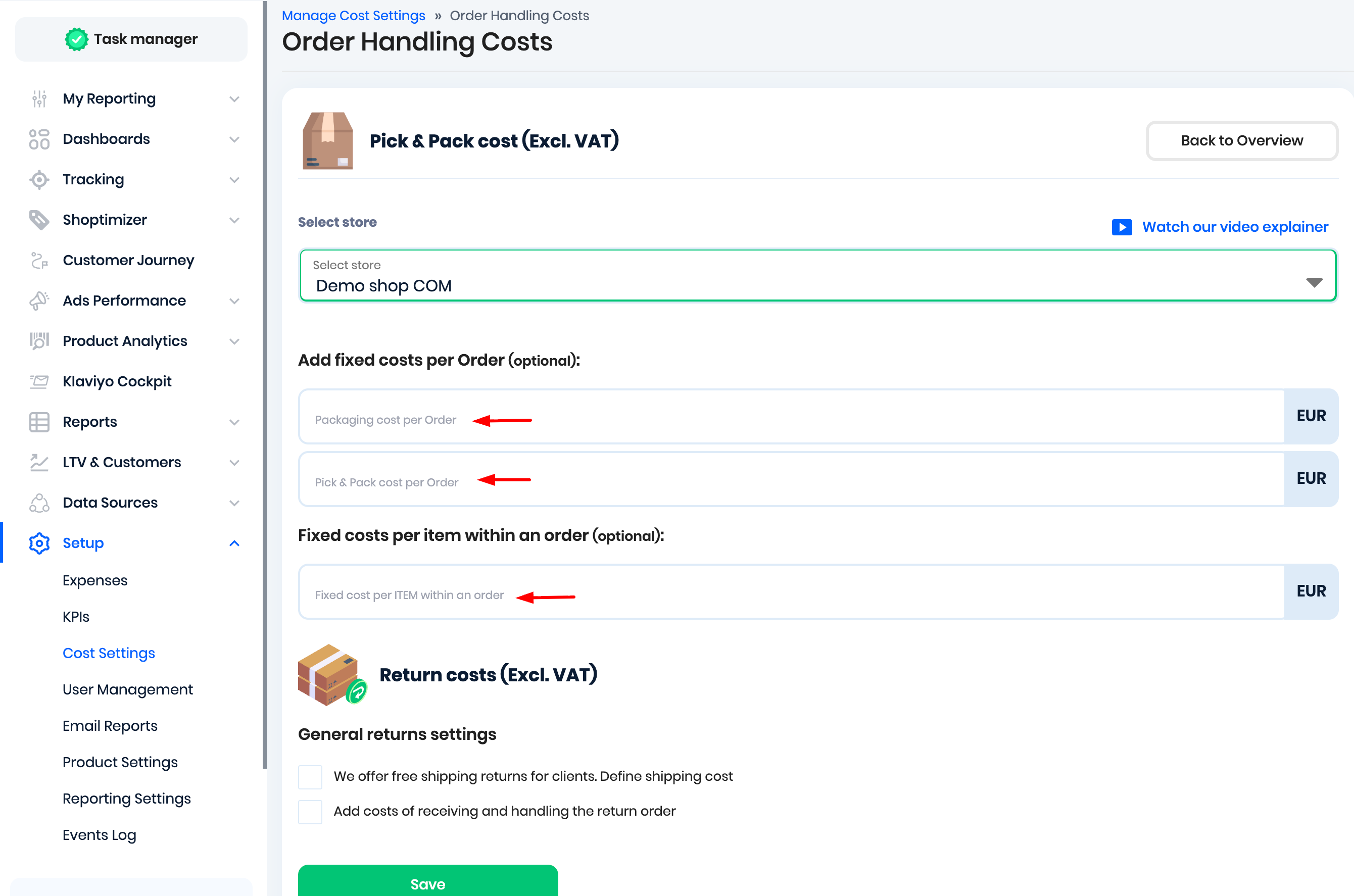
Set packaging costs, pick & pack per order, and optionally set a fixed cost per item in an order:
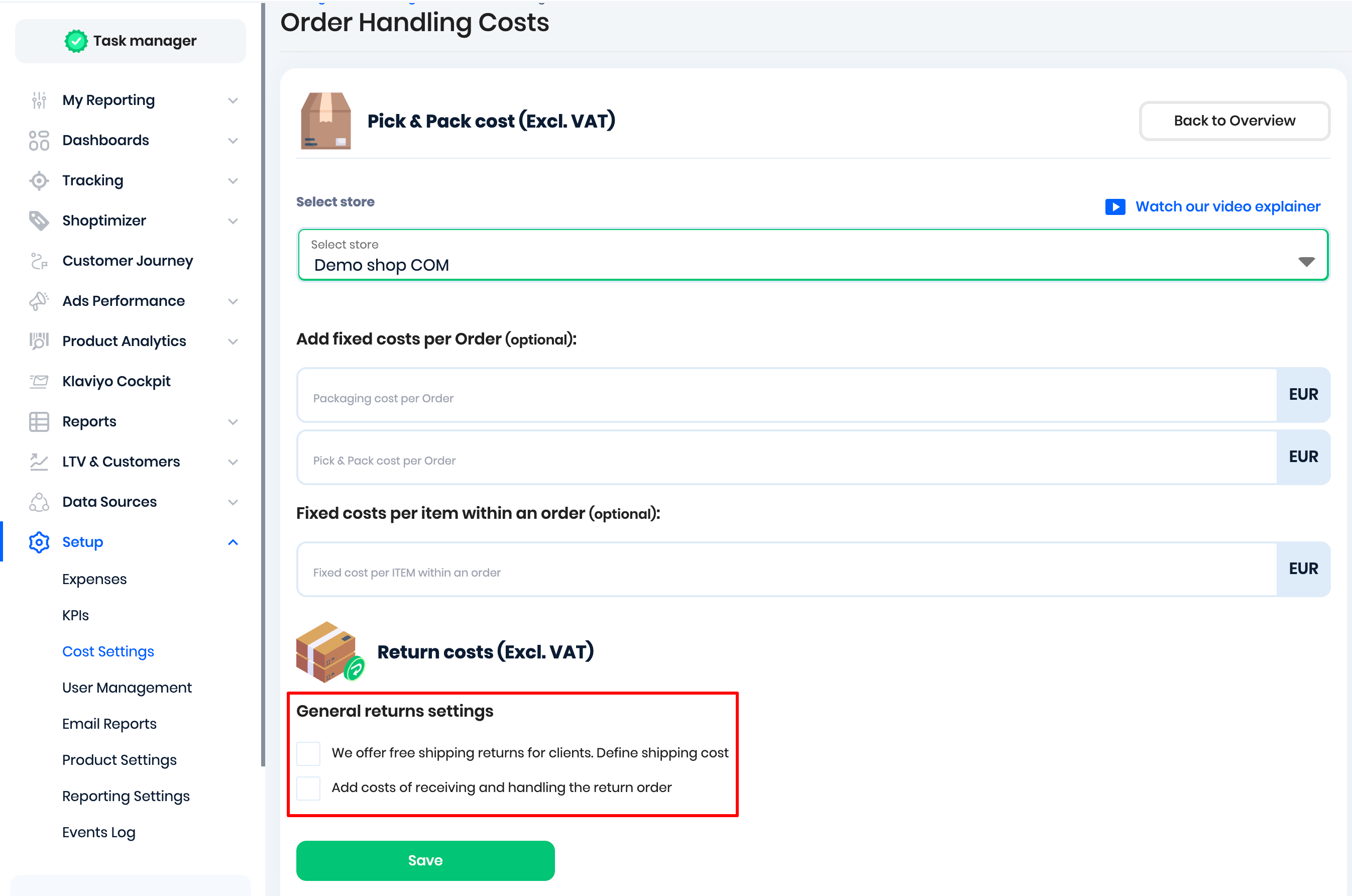
Also, define your return costs. Choose between offering free shipping returns for your customers or setting a cost for receiving and handling return orders:
5. Fixed and recurring expenses:
Link: https://advertiser.reaktion.com/setup/expenses
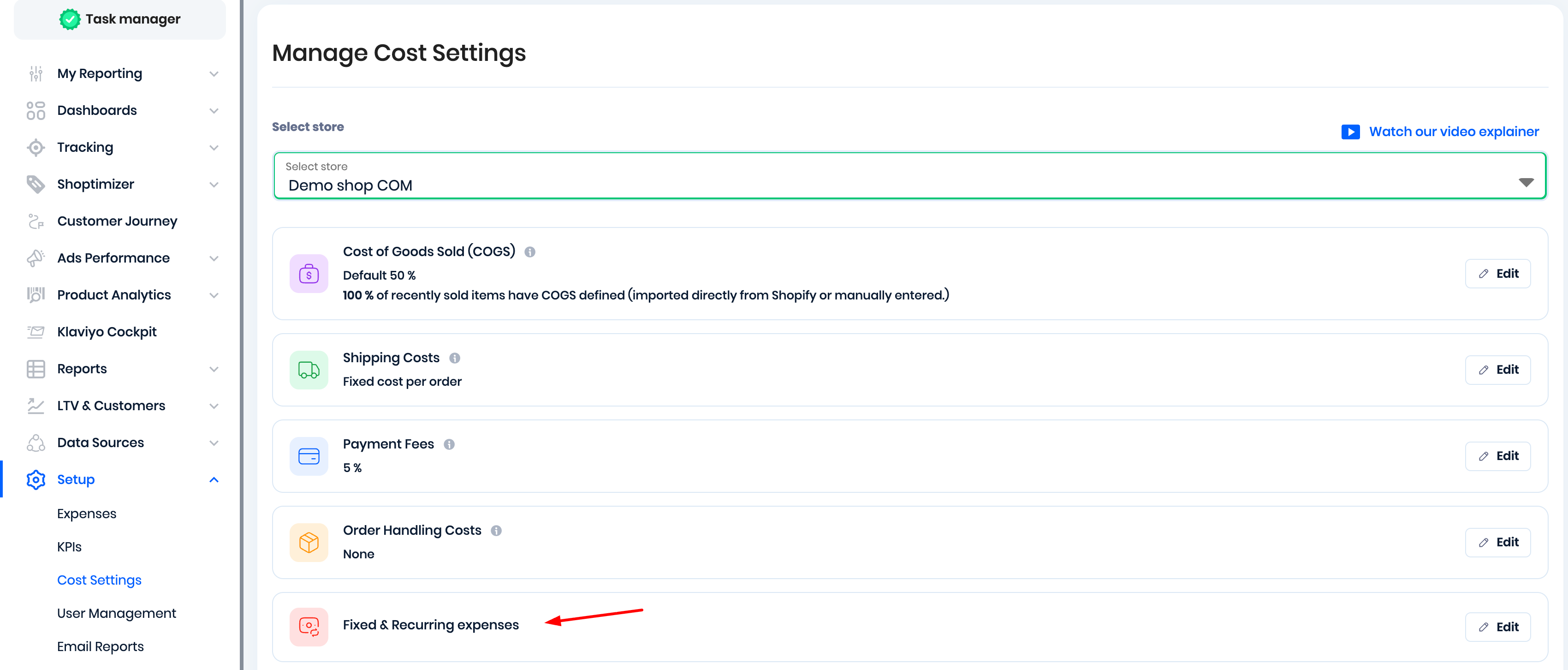
The Expenses feature in Reaktion allows you to set up one-time or recurring costs at both the store and market level, with flexible scheduling (e.g., monthly, yearly). For a detailed guide on creating expenses, check out our dedicated solution article here.
Was this article helpful?
That’s Great!
Thank you for your feedback
Sorry! We couldn't be helpful
Thank you for your feedback
Feedback sent
We appreciate your effort and will try to fix the article