#1 Plugin - RECOMMENDED SOLUTION
Download this plugin:
https://wordpress.org/plugins/cost-of-goods/
After you install the plugin, you will see an additional product cost attribute for all the products in WooCommerce. After adding the COGS on the product level, we are able to pull this data directly from Woo.
We will import the costs of each SKU / product variant. This can be verified here:
https://advertiser.reaktion.com/setup/product-settings
#2 XML Feed
Please see this guide:
https://reaktion.freshdesk.com/en/support/solutions/articles/101000466413
#3 Set COGS directly in Reaktion
Please see this guide:
https://reaktion.freshdesk.com/en/support/solutions/articles/101000464868
Set a fallback "% COGS share" for all products without COGS prices
You can also manage a Fallback COGS cost % for all the products for which you haven't set an exact COGS. Please read this guide
NOTE: Under Setup > Cost Settings > Cost of Goods Sold (COGS) section, you can view the status of the COGS data import. After the initial sync, you can see the status here:
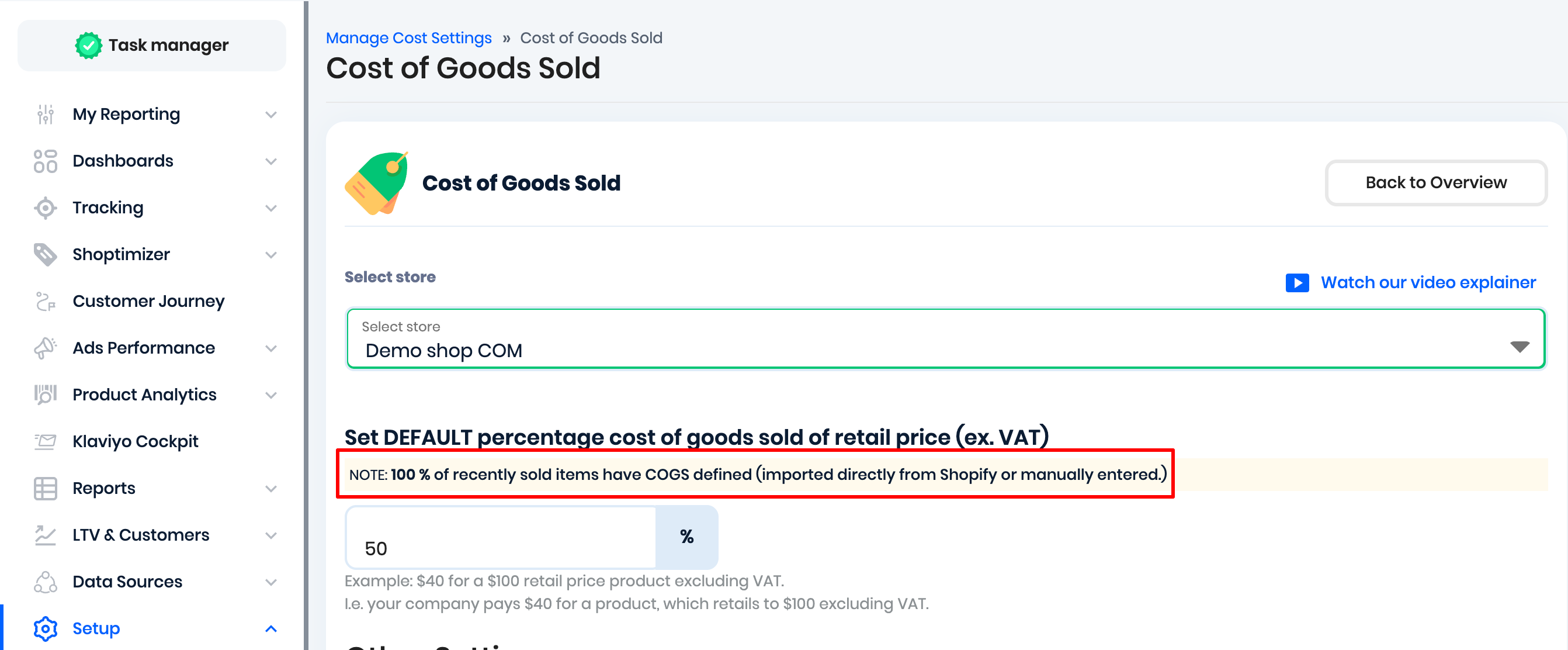
This analysis is based on sold-item data from the last 30 days. This allows users to instantly understand how their COGS are being populated, whether from an e-commerce store, a fallback percentage, an XML feed, etc.
Was this article helpful?
That’s Great!
Thank you for your feedback
Sorry! We couldn't be helpful
Thank you for your feedback
Feedback sent
We appreciate your effort and will try to fix the article