You can create both recurring expenses and one-time expenses in Reaktion for your entire profit & loss overview.
The steps to create an expense (both recurring and one-time expenses):
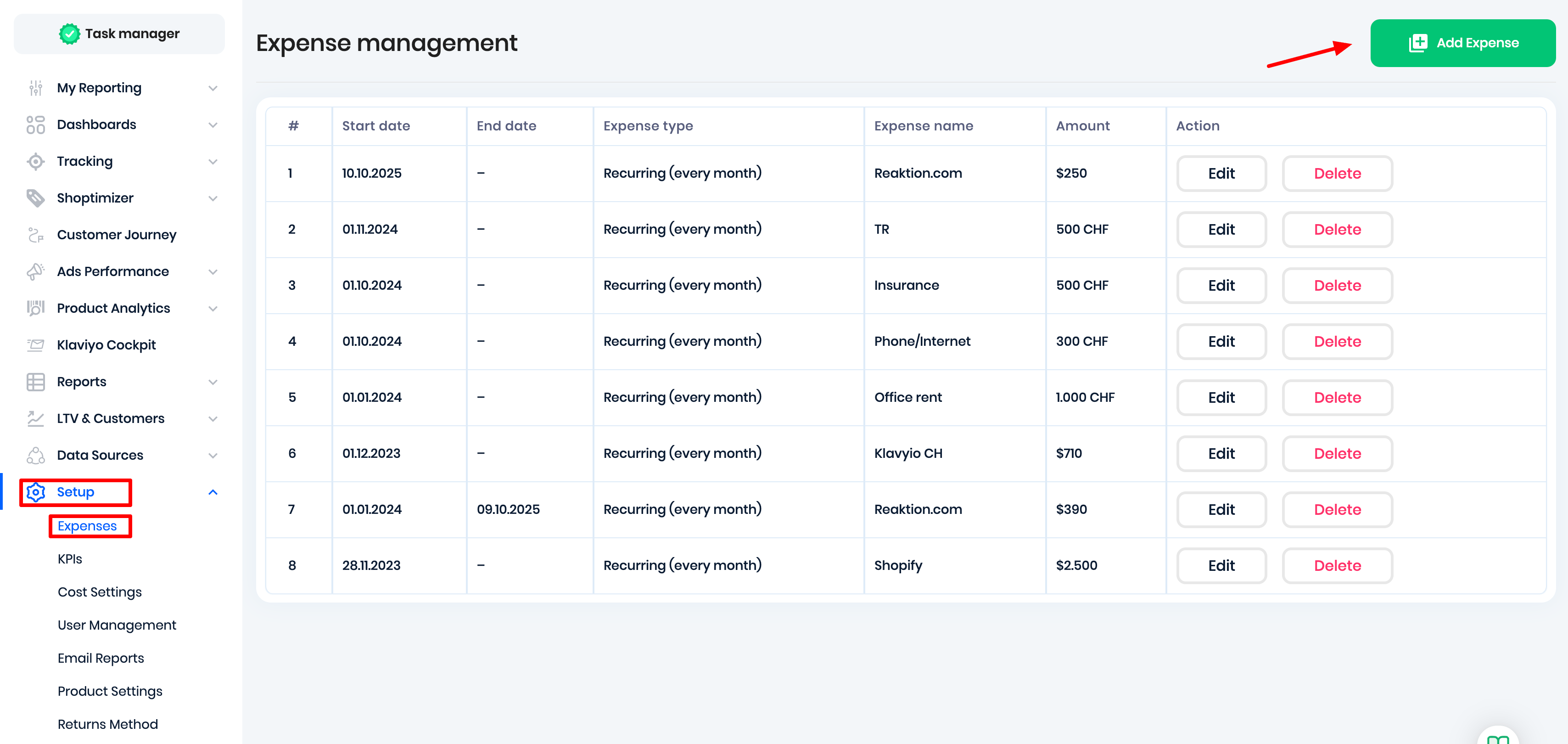
1. Click on "Setup" in the left-side menu and then "Expenses" or click on Setup > Cost Settings > Fixed & Recurring Expenses:
2. Click the "Add Expense" button
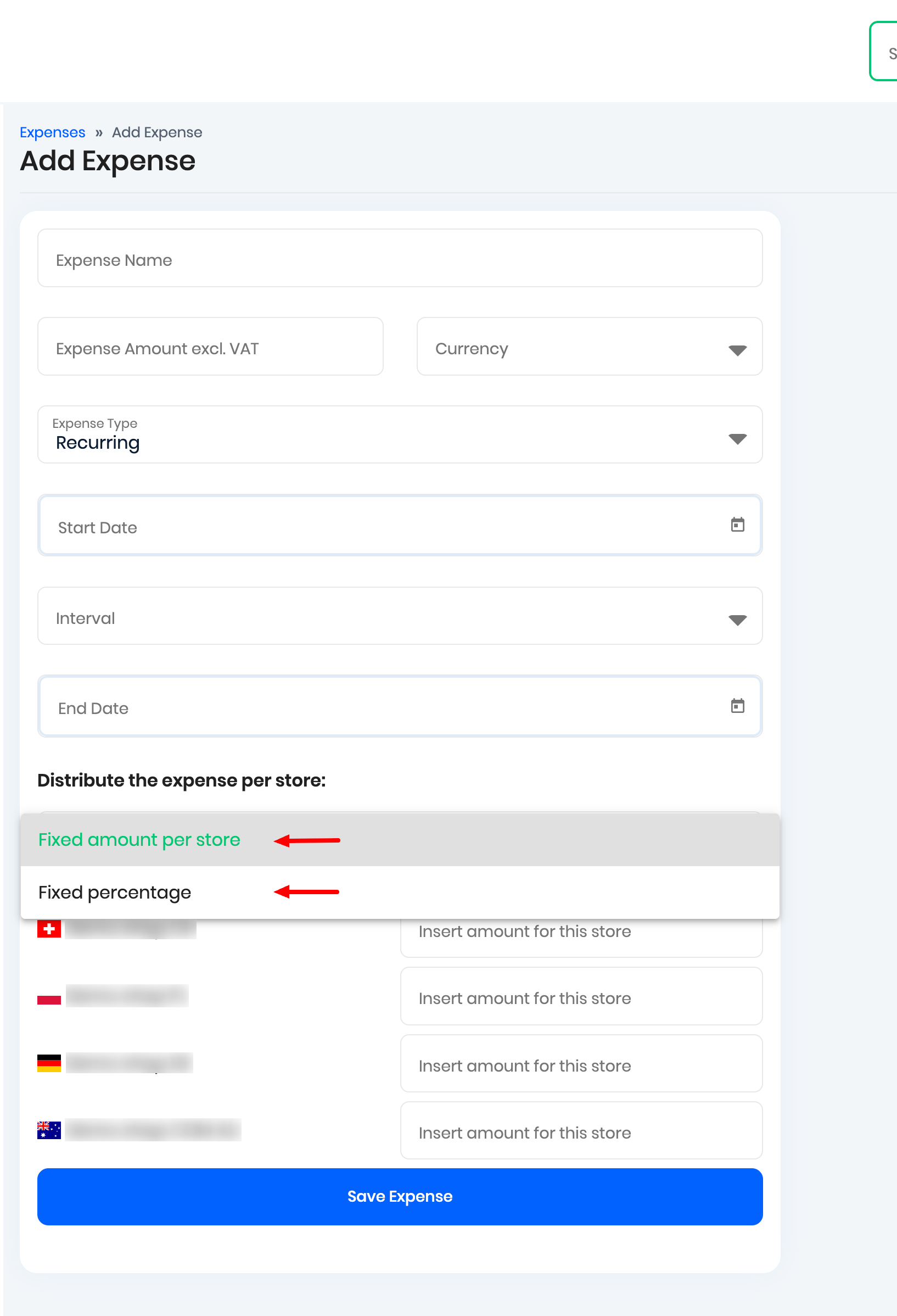
3. Give your expense a name (ex., office rent) and fill in the rest. Ex., for a monthly office rent expense, select recurring, then the 1st and monthly. Click Save.
All recurring expenses are then calculated and distributed to a daily cost. For example, Office rent is divided by the number of days in the particular month. Then you can see your profitability down to a daily interval, even taking into account your recurring expenses.
Note: If you are using a multi-store setup, when creating an expense, you can distribute it across all your different stores based on a fixed percentage or fixed amount share per store. This comes in handy if you are looking to distribute common fees like office rent, agency fees, etc.
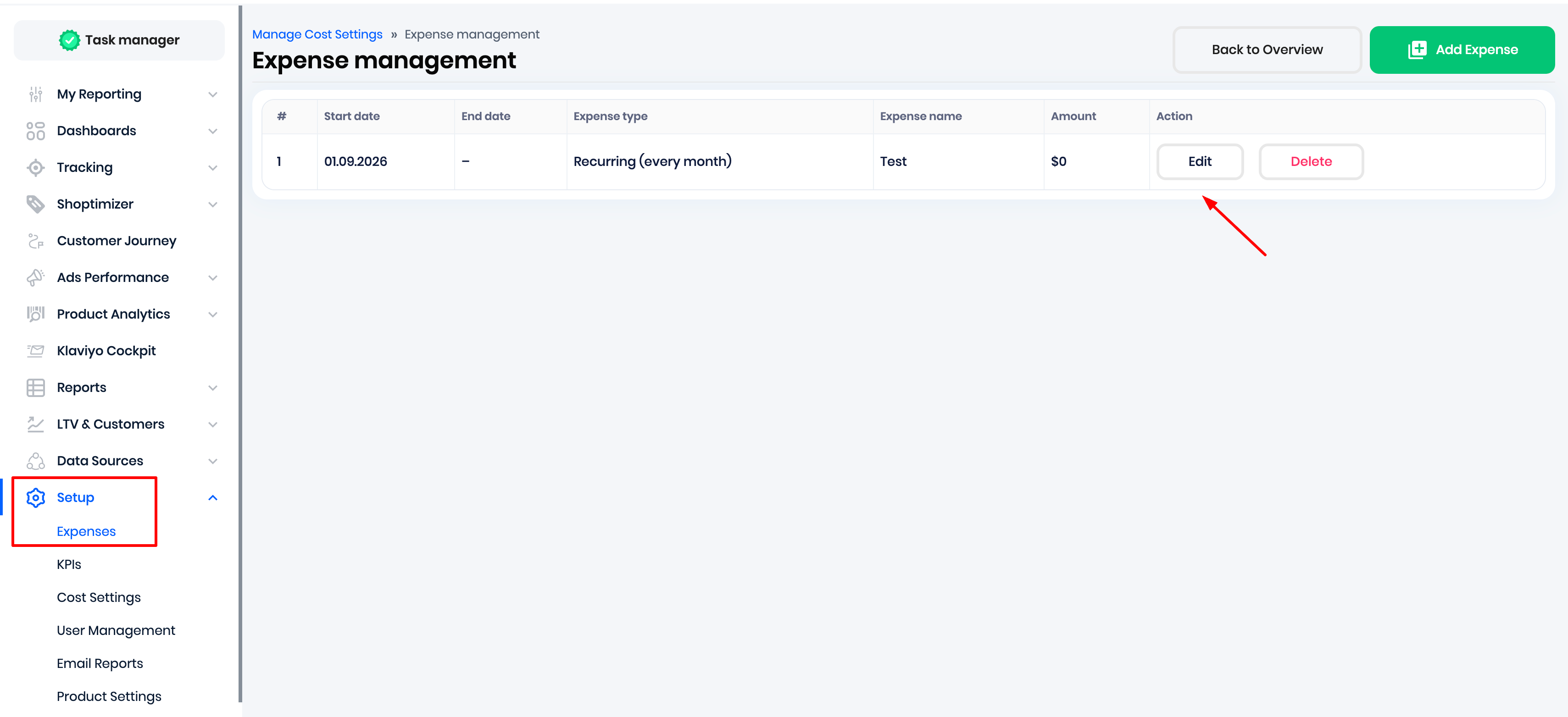
Editing expenses: You can edit your expenses from the Expenses page here:
When editing an expense, you have two options for how to apply the changes:
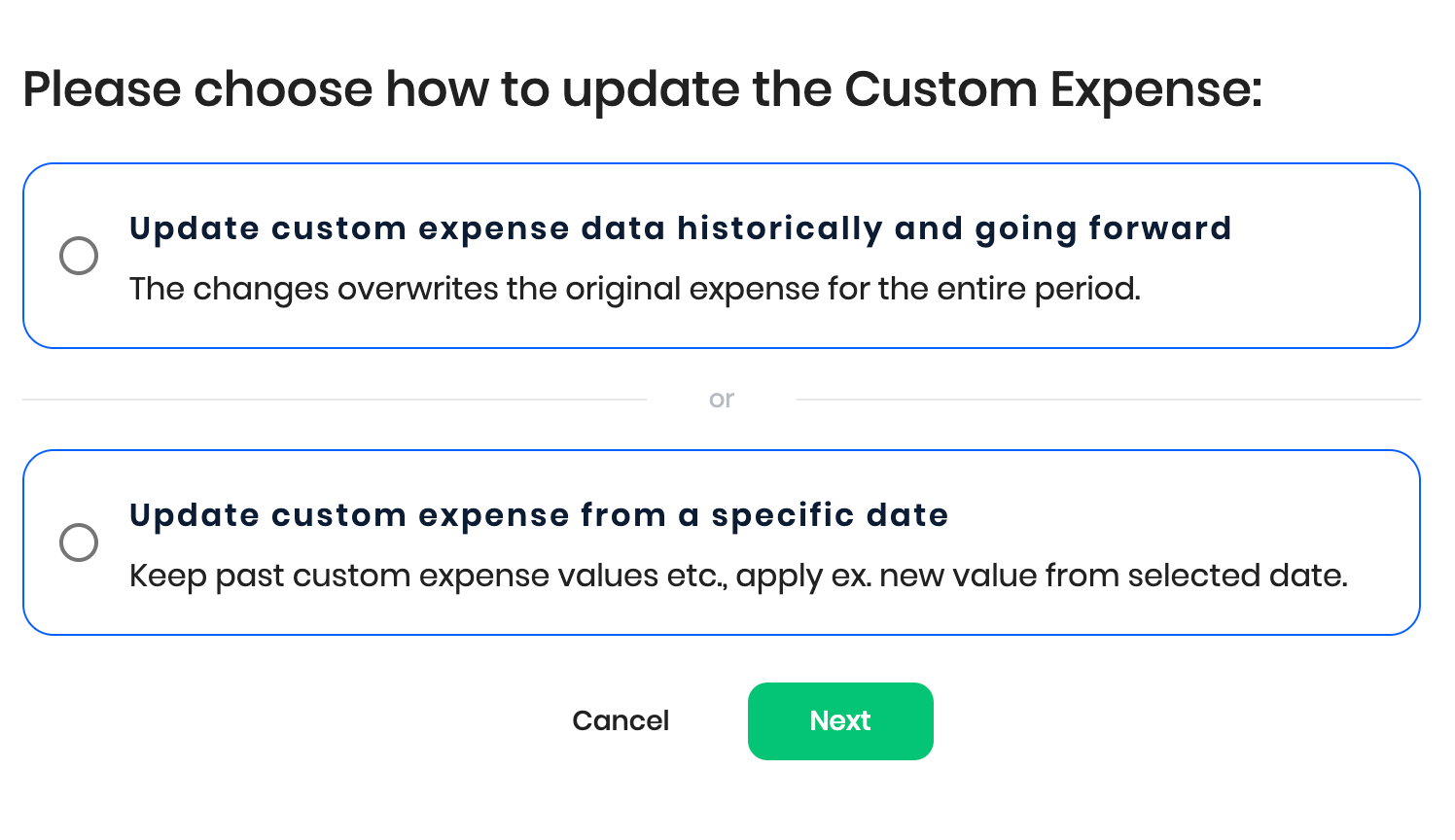
Update custom expense data historically and going forward: Use this option when you want to apply the new expense amount changes to all historical data and going forward.
Update custom expense from a specific date: Use this option when you want to retain the historical data as it is, but only apply the new expense amount changes from a selected date.
This option is especially useful when you have an expense that requires constant modifications, like a variable monthly cost, but you would prefer the historical data to have no impact.
Was this article helpful?
That’s Great!
Thank you for your feedback
Sorry! We couldn't be helpful
Thank you for your feedback
Feedback sent
We appreciate your effort and will try to fix the article