1. Log in to your store.
2. Copy the store URL from your browser address bar.
3. Go to Advanced Settings.
4. Click API Accounts.
5. Click Create API Account.
6. Type the name of the user in the Username box.
7. There you will find the API Path box. Copy the part of the value that is placed between api.bigcommerce.com and /v3/ as shown.
8. The permissions for the API should be as below:
- Customers Login – Login
- Products — Modify
- Orders — Modify
- Order transactions — Modify
- Customers — Modify
- Marketing — Modify
- Content — Modify
- Carts — Modify
- Checkouts — Modify
- Store Inventory — Modify
- Information & settings — Modify
- Channel settings — Modify
- Channel listings — Modify
- Sites & routes — Modify
Other settings — Minimum access available (Read-Only, instead of None)
9. Click the Save button. There will be a window with the BigCommerce API credentials with Client ID and Access Token.
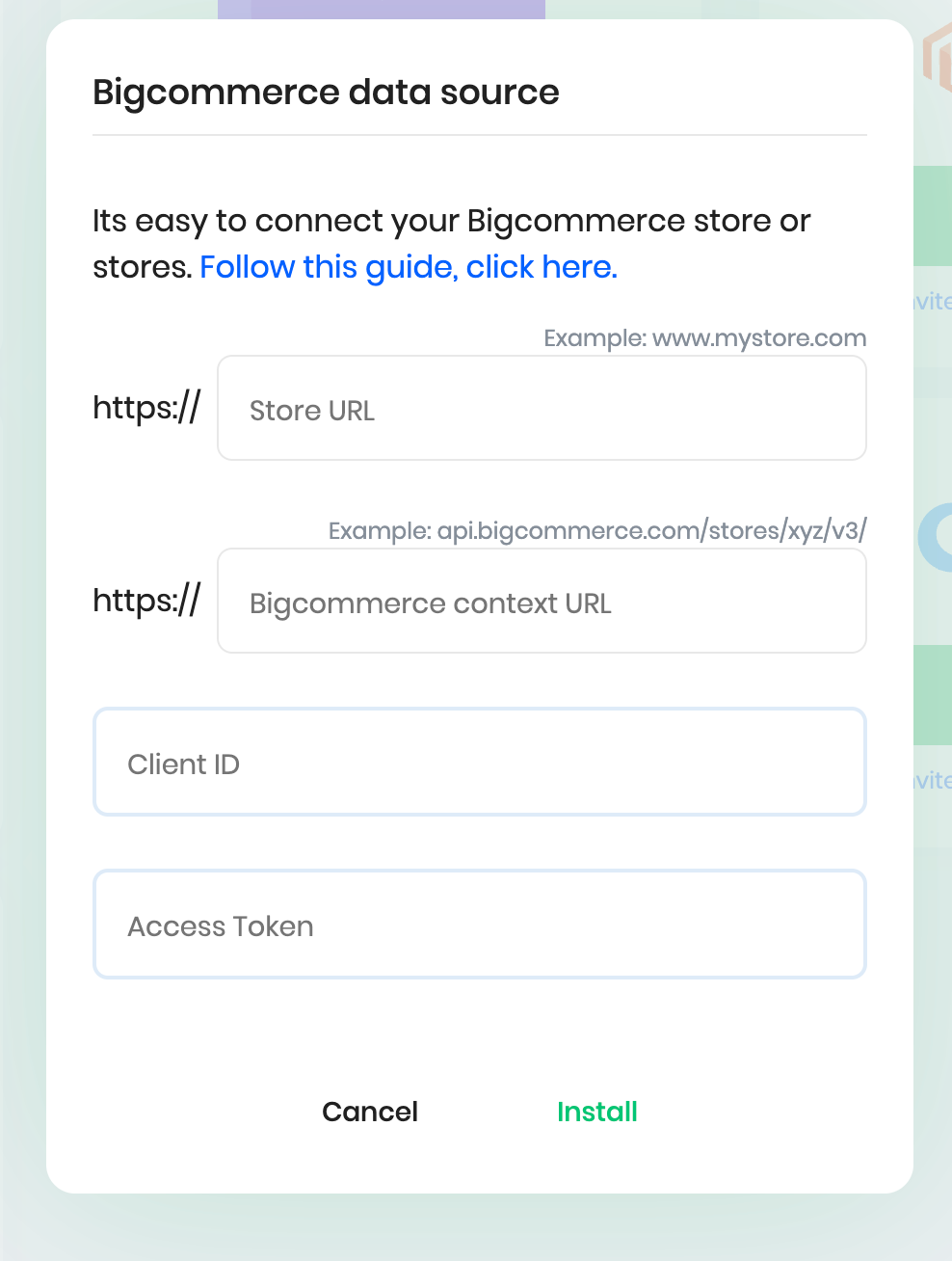
10. Now copy the API Path (that you got in step 2), Client ID, and Access Token (that you got from step 9).
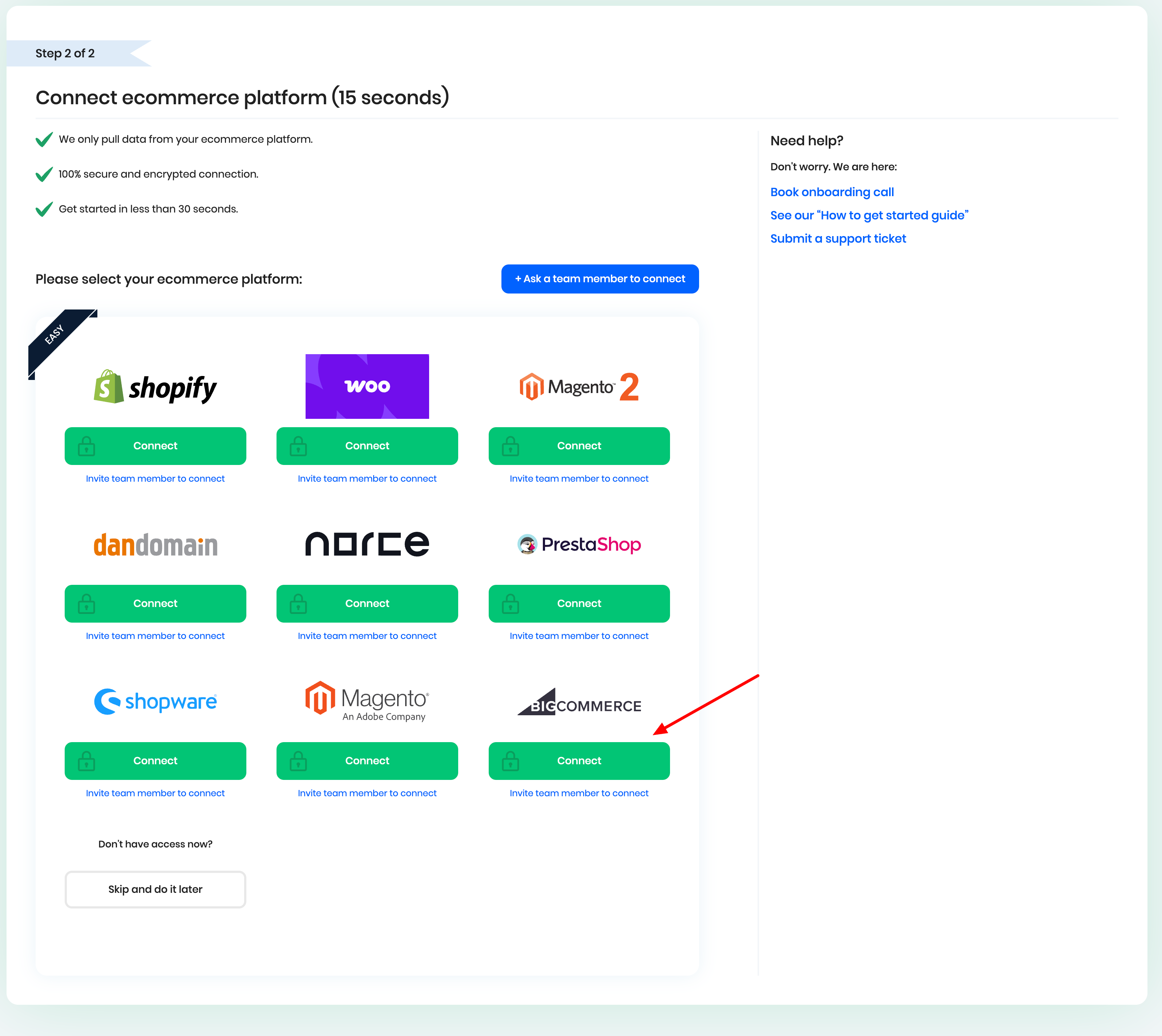
11. If you are a new user connecting your BigCommerce store to Reaktion, please click on the 'Connect' button in Step 2 of the onboarding process:
Paste the above credentials from Step 10 in the pop-up box:
If you are an existing user, please navigate to the left panel in your Reaktion account > click on Data Sources > Add New Store > BigCommerce > Connect and paste the credentials.
Was this article helpful?
That’s Great!
Thank you for your feedback
Sorry! We couldn't be helpful
Thank you for your feedback
Feedback sent
We appreciate your effort and will try to fix the article