If your business operates multiple physical stores using Shopify POS, all orders are stored in the same Shopify backend. While this makes order management simple, it can make it harder to report on the performance of individual POS locations.
Our platform imports all Shopify POS orders automatically. However, to accurately report on store-level performance, each order must contain a location identifier. The most reliable way to achieve this is by using Shopify Flow to automatically tag orders based on the POS location where they were created.
Although Shopify records the POS location internally, this information is not always easily accessible for external reporting tools during data synchronization. By automatically adding a location tag to each order, you ensure that our platform can:
Attribute sales to the correct POS store
Generate store-level performance reports
Compare performance across multiple locations
To start, log in to your Shopify Admin, open the Shopify Flow app and click Create workflow.
Trigger: Order created
Condition: Order source name = pos
Action: Add tag POS:{{order.location.name}}
From now on, all new orders will be tagged automatically based on the location name, for example POS:Copenhagen
To tag your historical orders:
Go to Orders
Filter by Location (for example Copenhagen)
Click the checkbox at the top of the item list, and then in the 50 selected dropdown, click Select all results. This selects all items that match your current filter criteria.
Click “Select all results”
Click Bulk actions at the top of the table
Choose Add tags
Enter the tag, for example POS:Copenhagen
Click Save
Repeat the process for you other locations.
Now, when you create a custom report in Reaktion, click the button Table Settings or Tile Settings:

From there, you can apply a filter:
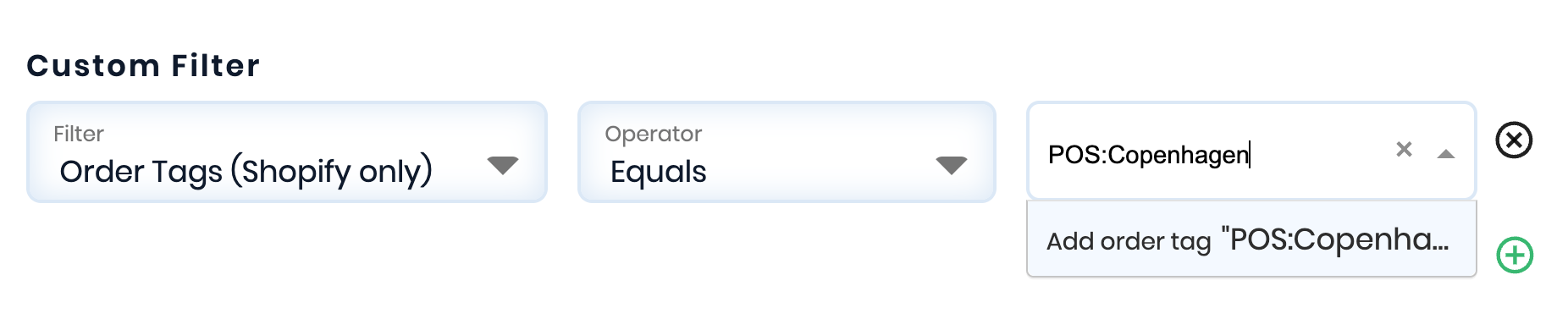
With the filter enabled, only data from orders that include the specific order tag will be shown.
You can then build another section of the report and use another Order Tag filter.
Please note that only Ecommerce metrics are supported with this filter type.
Was this article helpful?
That’s Great!
Thank you for your feedback
Sorry! We couldn't be helpful
Thank you for your feedback
Feedback sent
We appreciate your effort and will try to fix the article
