Important Note:
a. Google Sheets Sync (Export) is currently available only for Table Reports.
b. Each Table within the Custom Report will be exported to its own separate tab in Google Sheets.
c. Column-level filtering is not supported for Google Sheets Sync (Export) feature yet.
Guide:
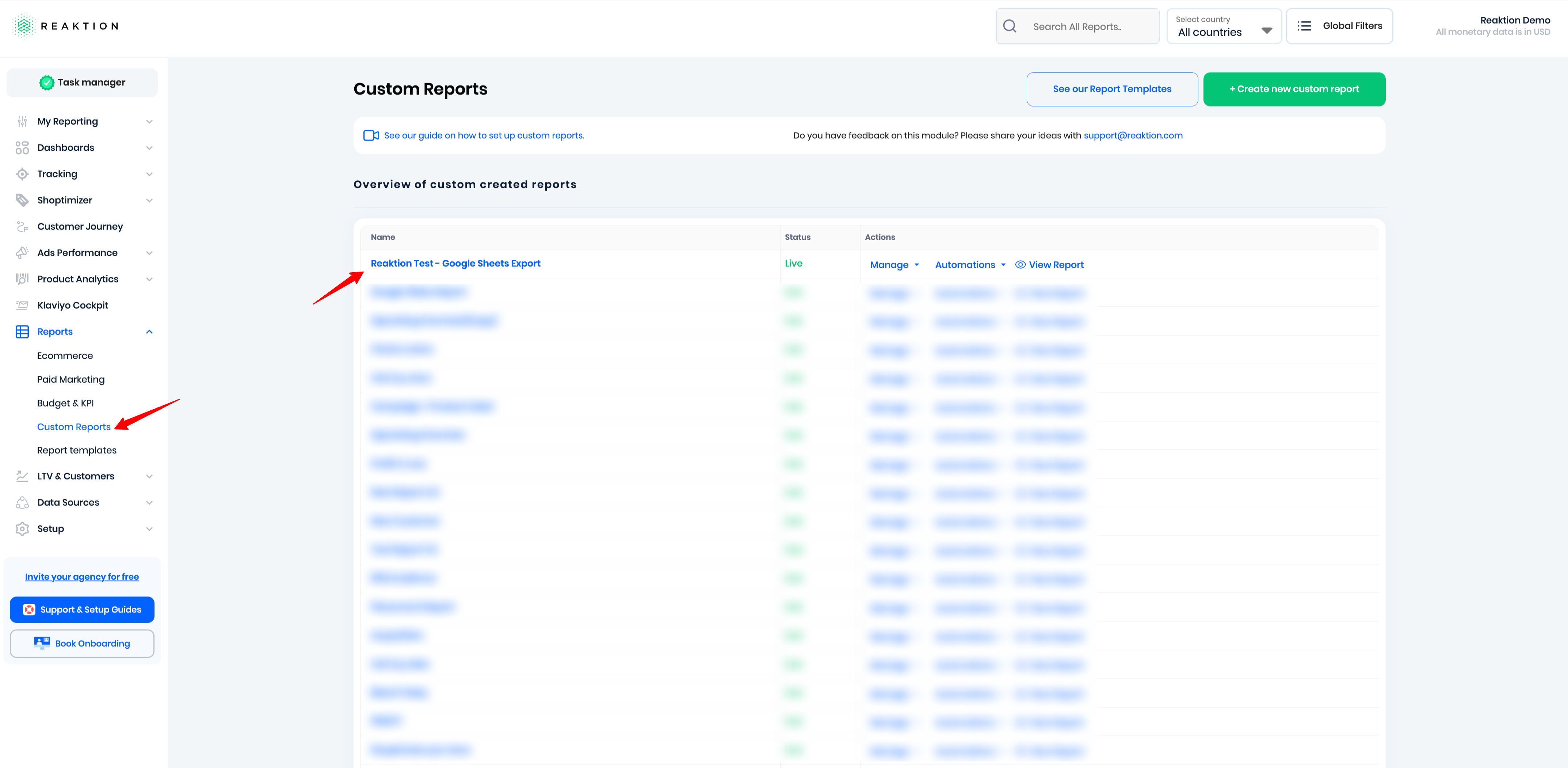
1. Create a Custom Report
Create a Custom Report in Reaktion and select Table as the report type.
For step-by-step instructions on how to create a Custom Report, please refer to the guide here.
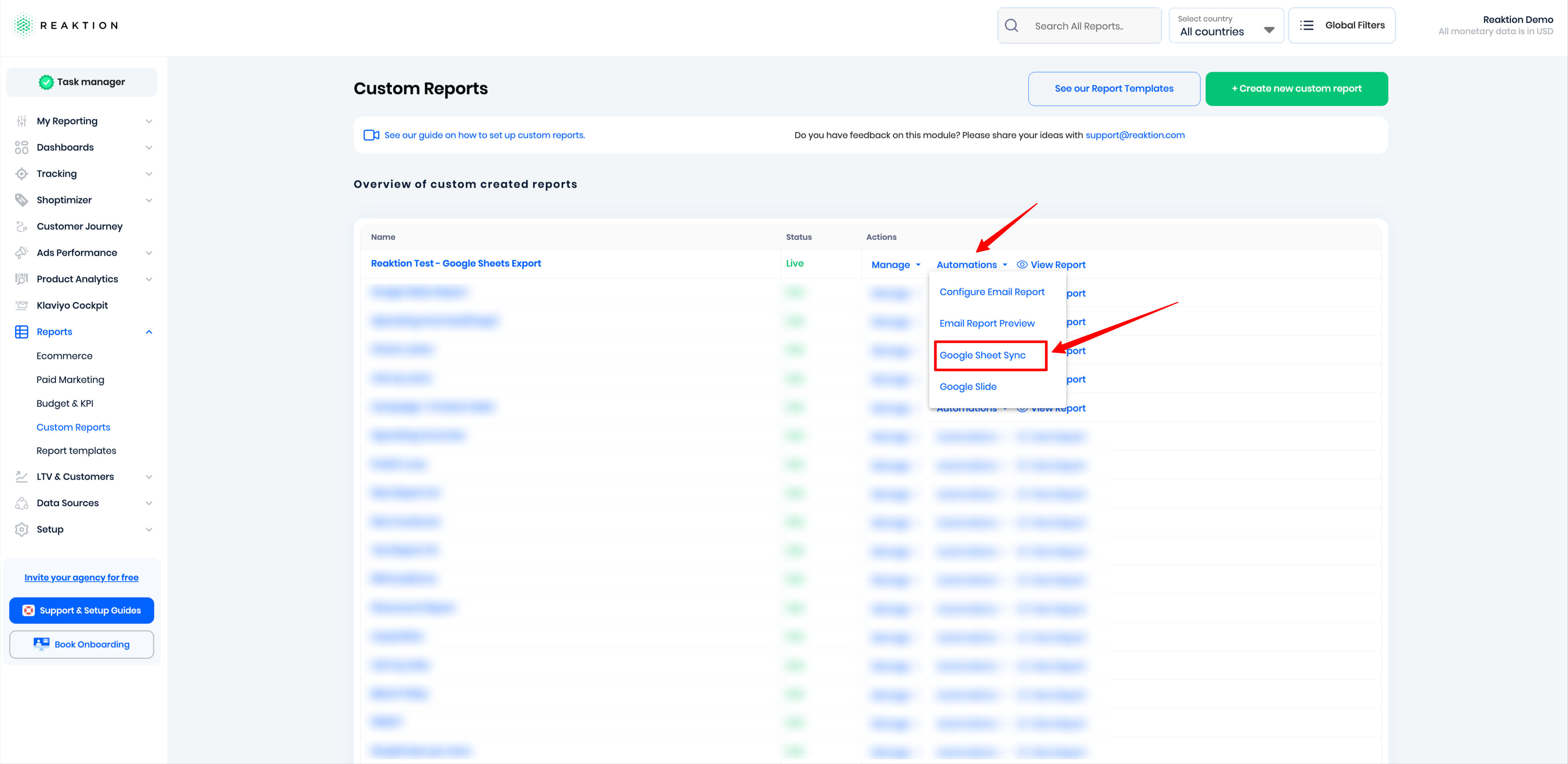
2. Open Google Sheet Sync
Go to Automations → Google Sheets Sync.
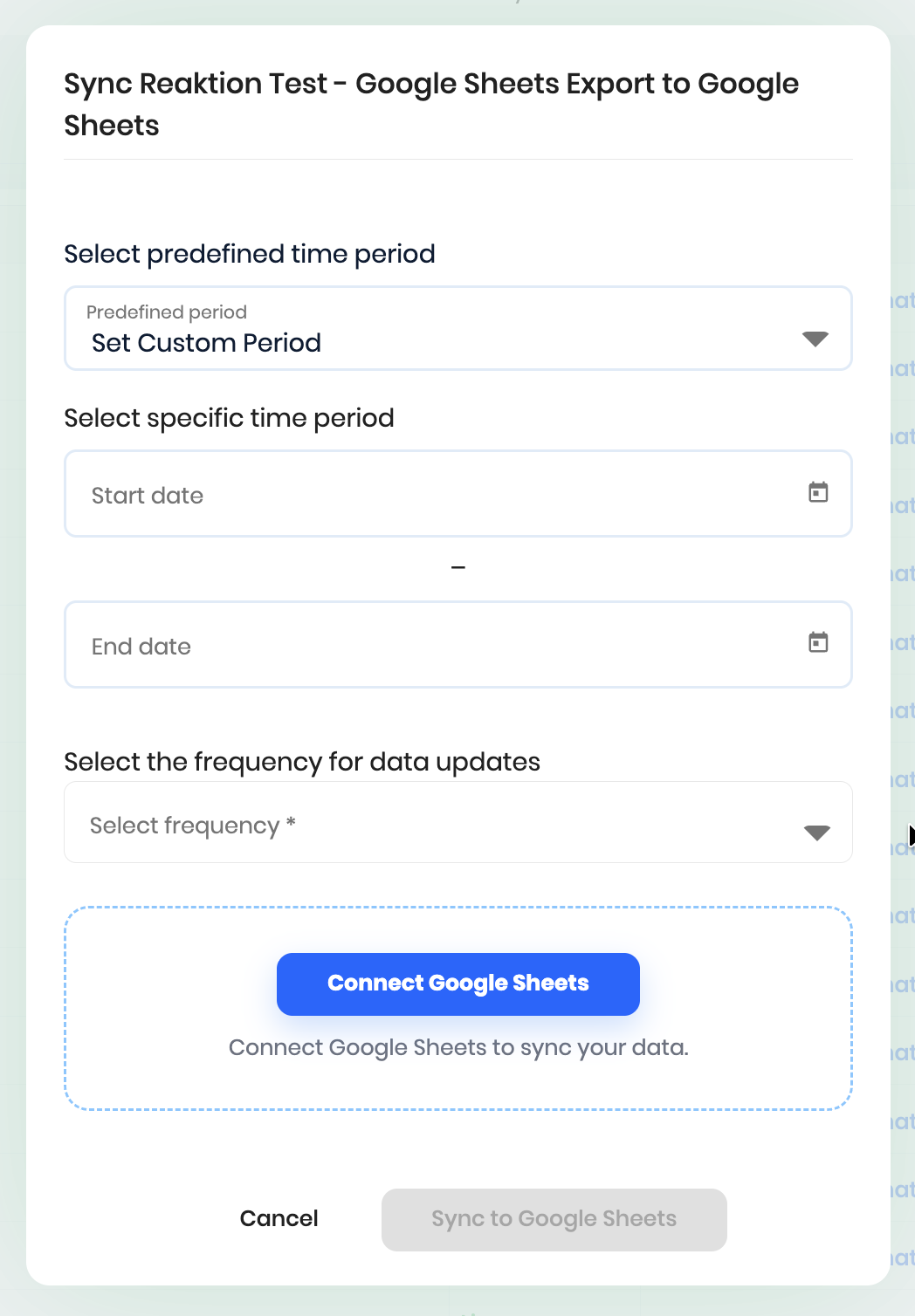
3. Configure the Sync
Select the date range you want the data to cover and choose how frequently you want the data to be updated.
Then, click Connect Google Sheets.
4. Connect Your Google Sheet
Follow the instructions shown in the pop-up window, then click Connect Sheet.
Once the pop-up closes, click Sync to Google Sheets.
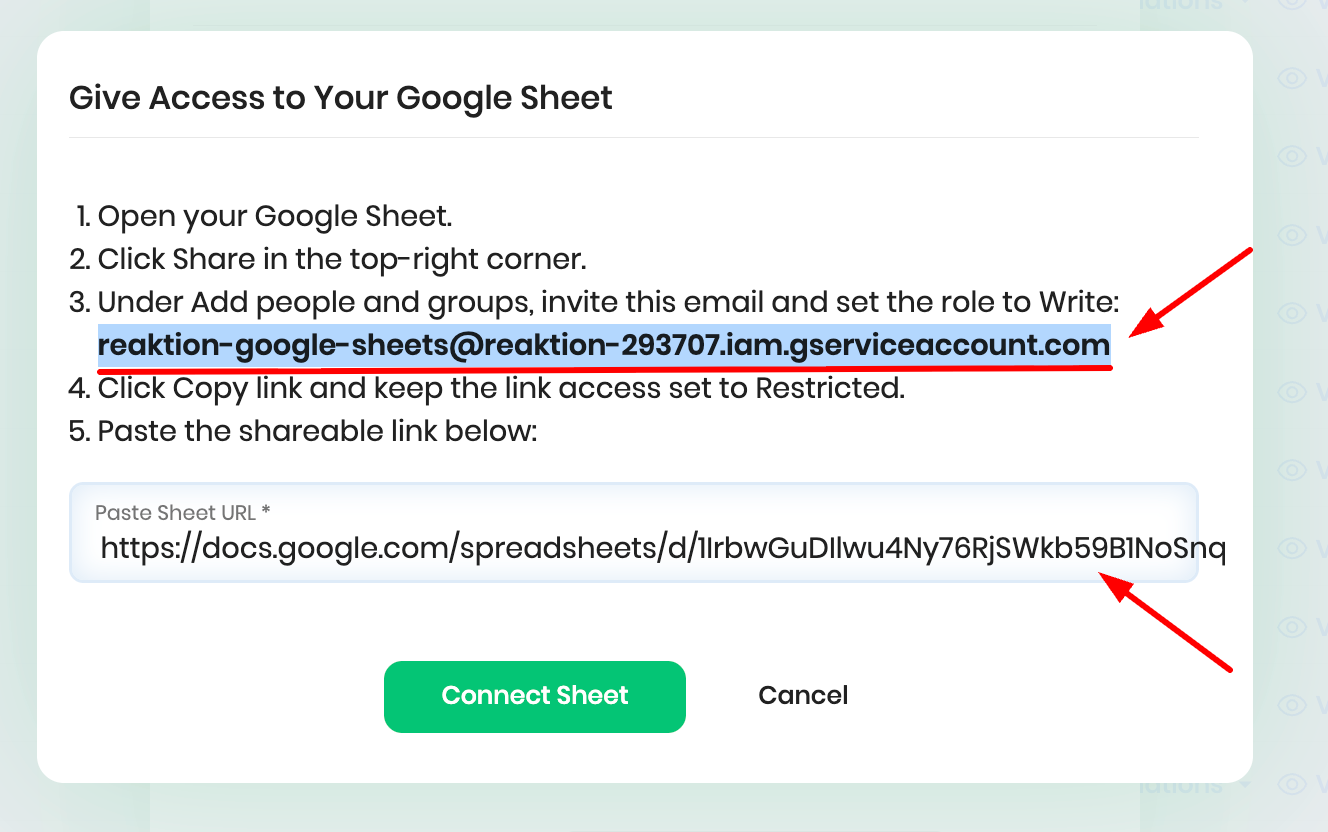
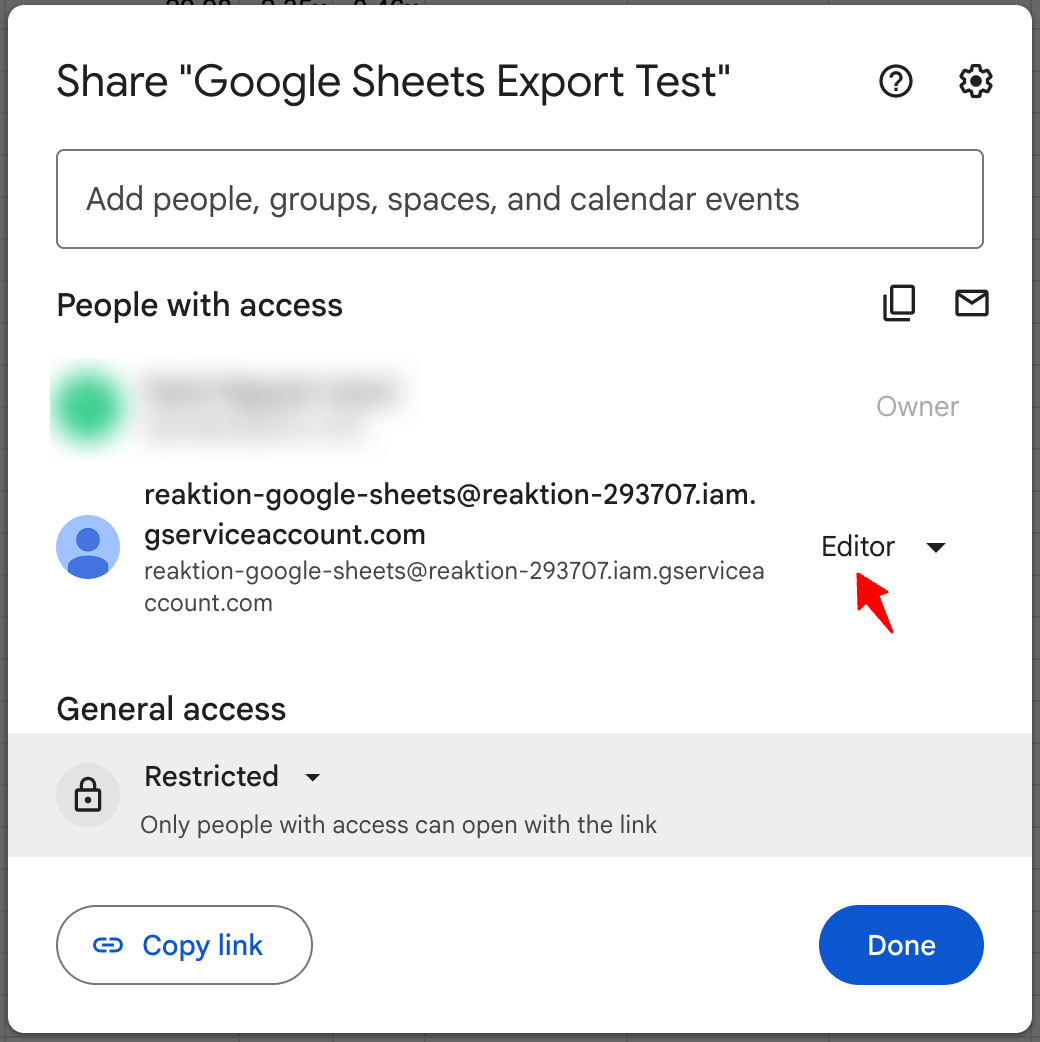
Note: To allow Reaktion to export data to your Google Sheet, make sure the following email address is added as an Editor: reaktion-google-sheets@reaktion-293707.iam.gserviceaccount.com
5. Export and Update Your Data
Your report data will now be exported to your connected Google Sheet according to the update frequency you selected.
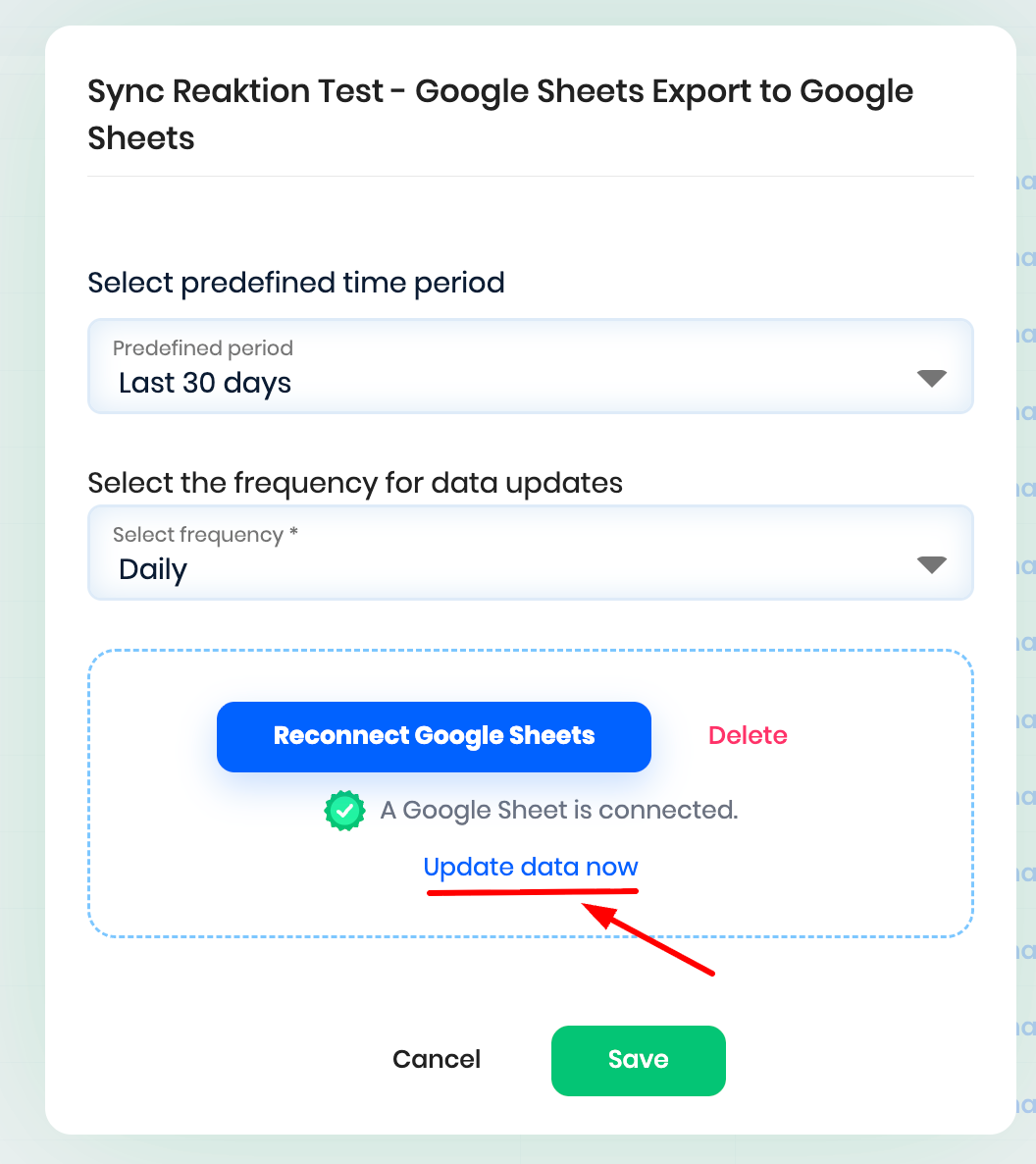
If you want to update the data immediately instead of waiting for the next scheduled sync, go to:
Automations → Google Sheet Sync → Update data now
Was this article helpful?
That’s Great!
Thank you for your feedback
Sorry! We couldn't be helpful
Thank you for your feedback
Feedback sent
We appreciate your effort and will try to fix the article