If you have access to multiple Google Ads or Meta Ads accounts, then you can easily and securely connect a data source to Reaktion with your standard login details and follow the authentication flow.
After the connection is established, you will see a list of all the ad accounts you have access to, as shown in the screenshot below.
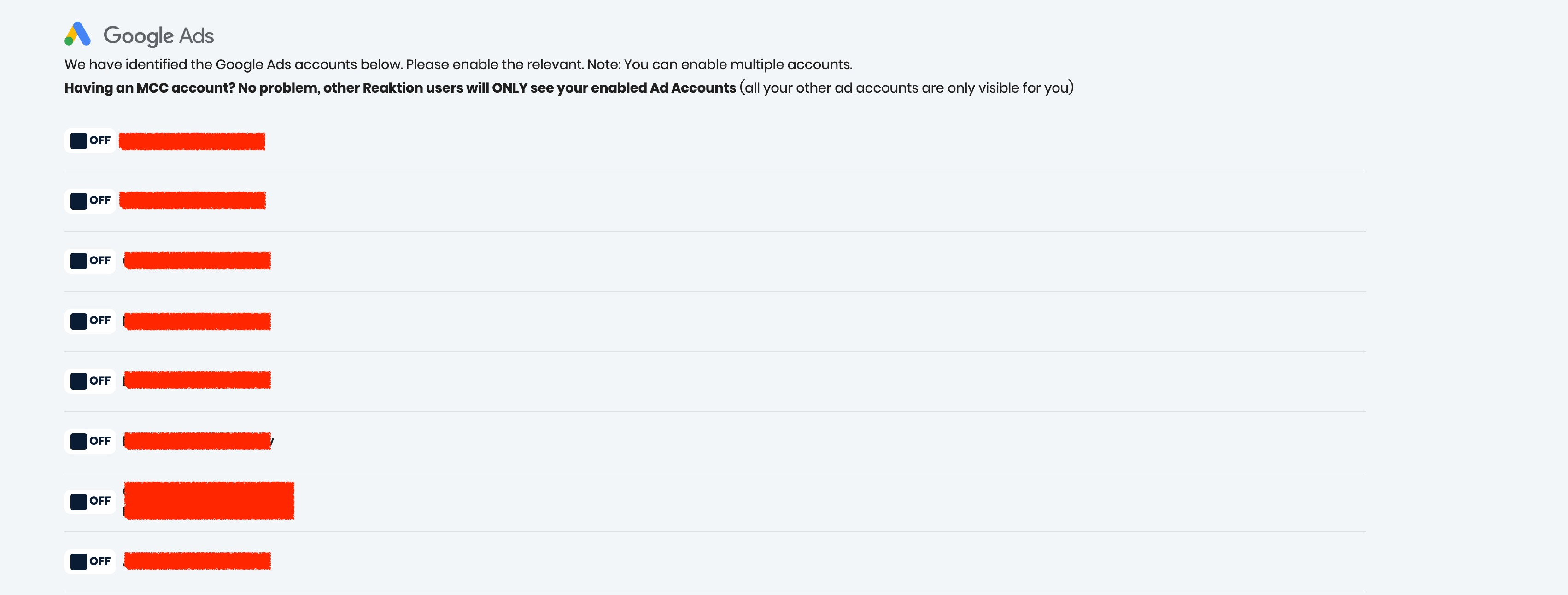
Please note that it might take several minutes for all ad accounts to load.
If you want to edit the connected data sources and ad accounts, you can always find them under My Data Sources, then click Manage next to a specific data source.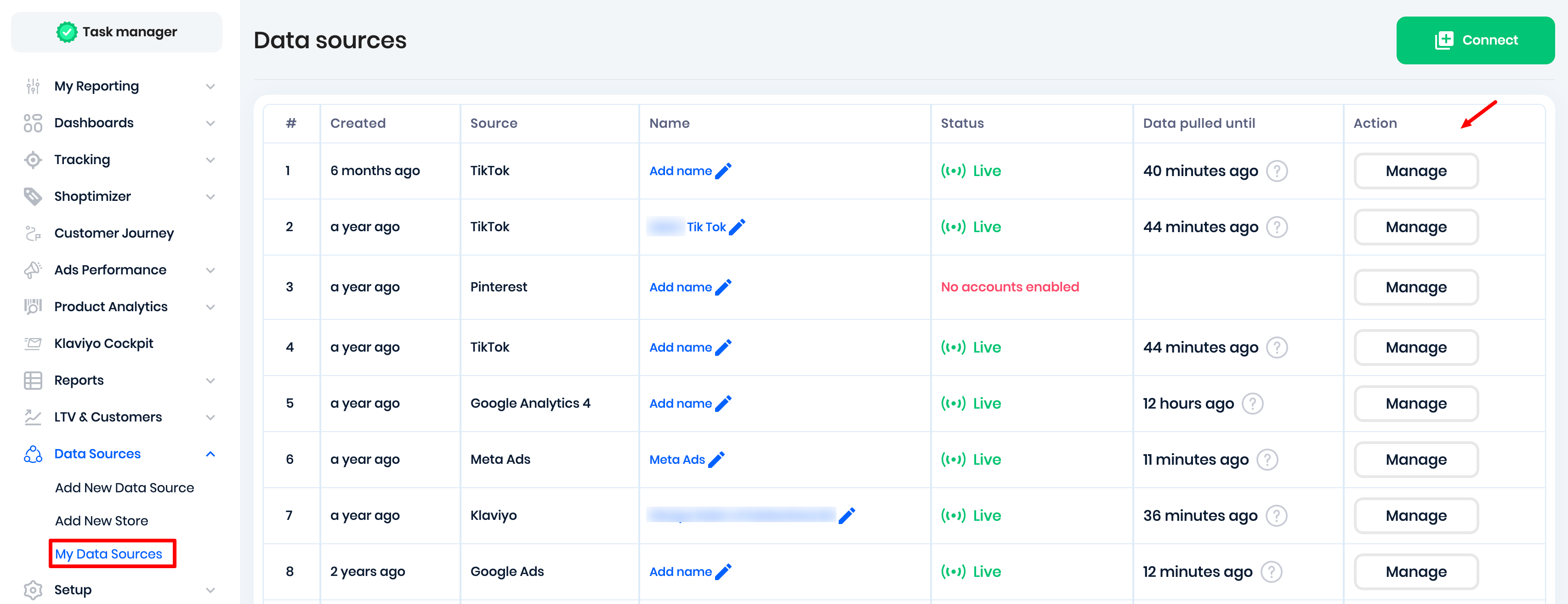
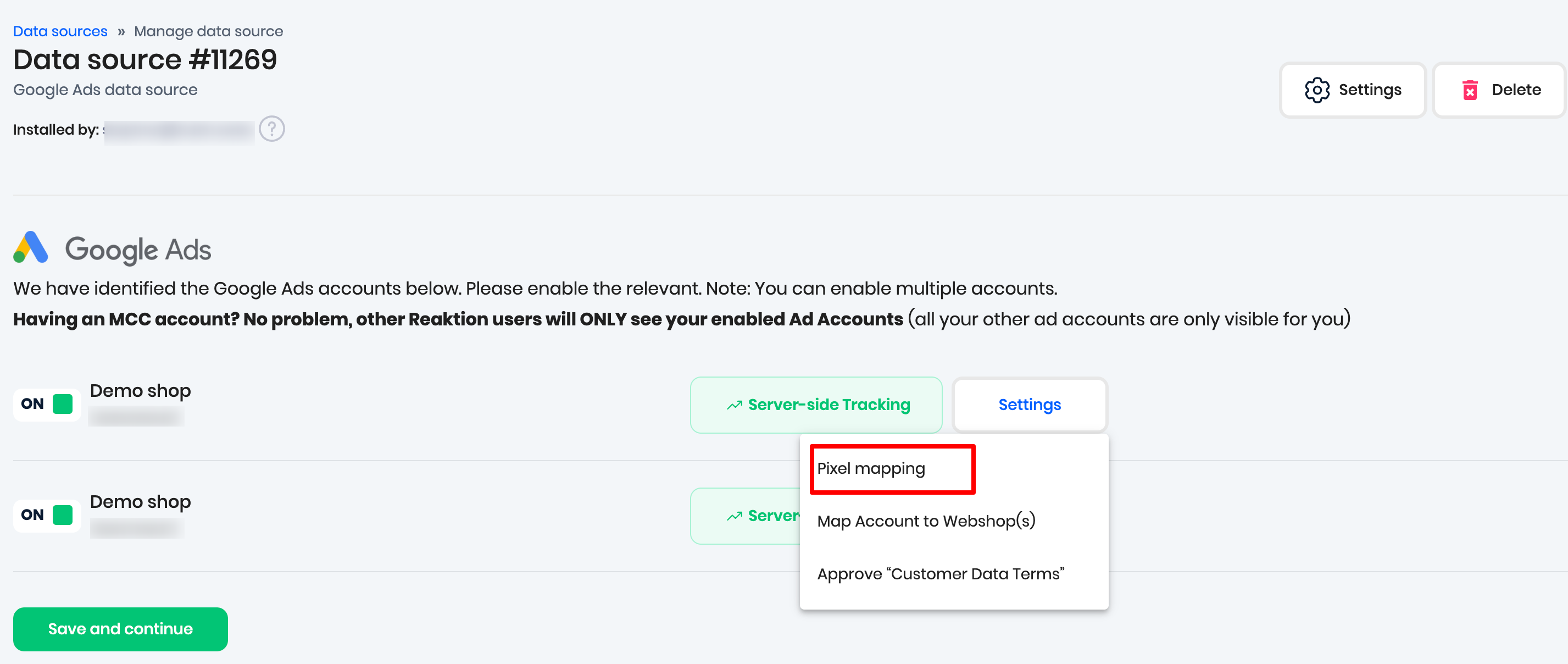
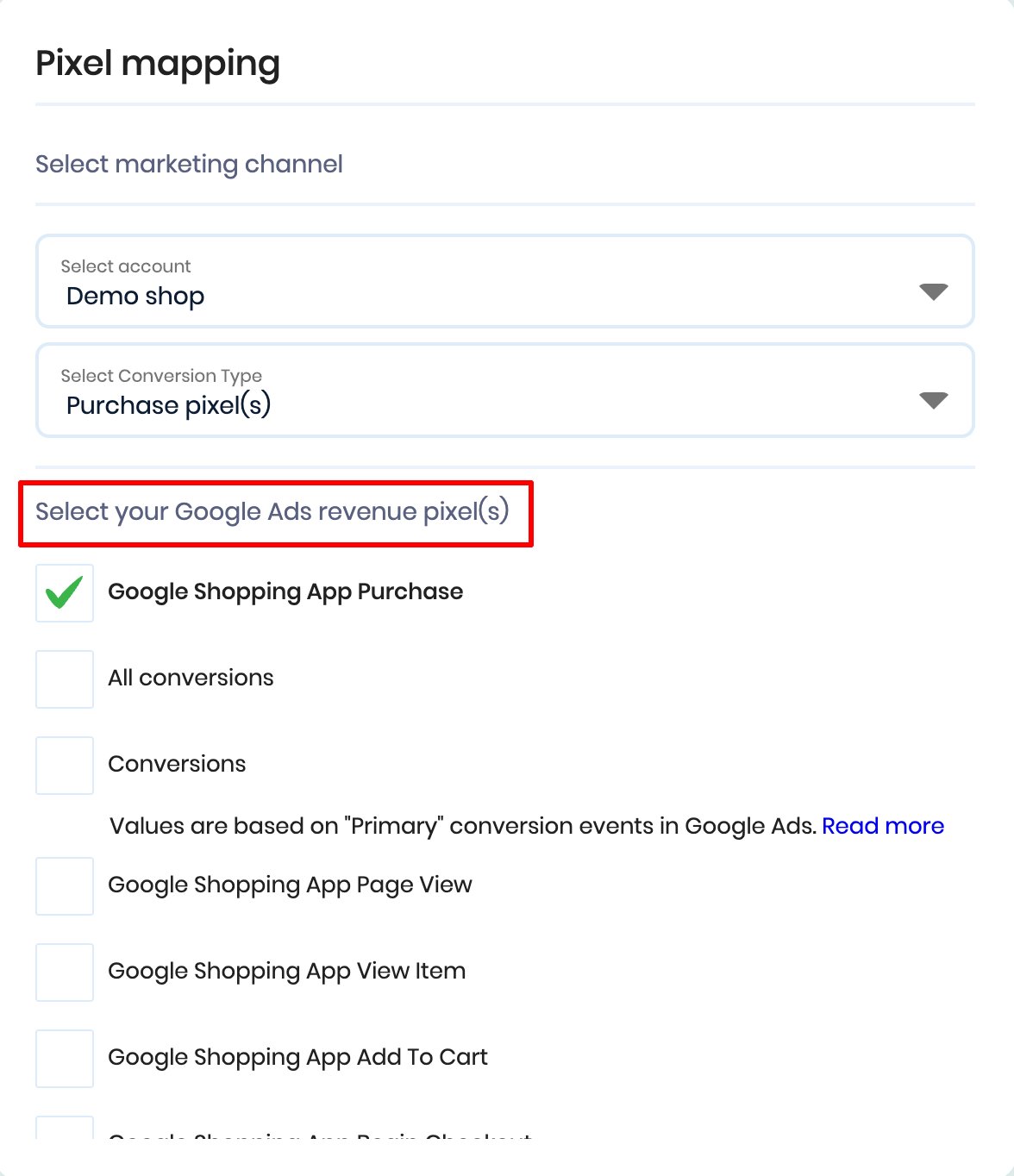
Now simply toggle on the ad accounts that you wish to connect to the Reaktion account, and then click the Pixel mapping button to select the conversion event you are currently using as the primary purchase event.
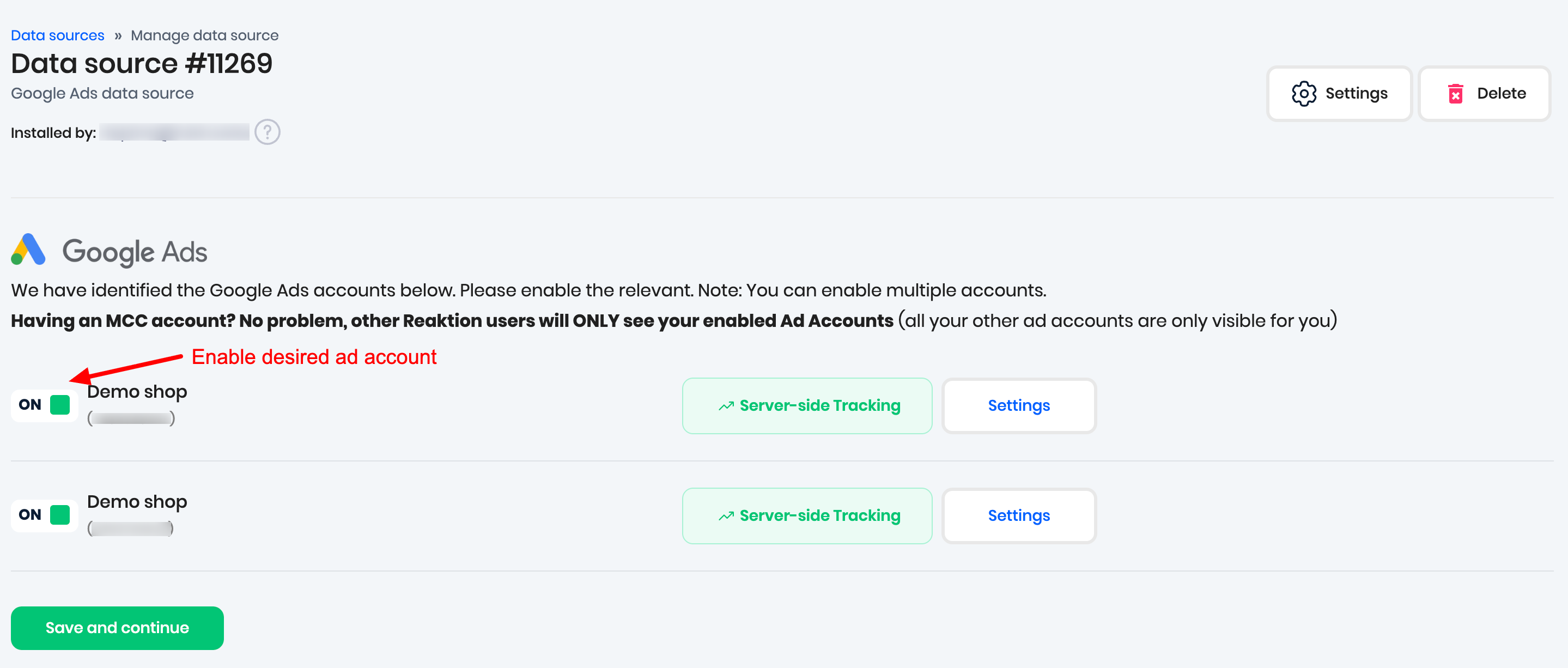
We are now synchronising all the historical marketing data for the enabled ad accounts, and our server-side tracking is also enabled.
Our tracking does not affect your existing tracking setup or campaigns. We only send data to our custom conversion events, so it is completely safe to enable!
NOTE: All ad accounts in your MCC account that are not enabled will not be visible to other users.
IMPORTANT: If you are connecting an MCC account, please make sure you also have admin access to every individual ad account that you want to integrate with Reaktion - not just admin access to the MCC account.
Was this article helpful?
That’s Great!
Thank you for your feedback
Sorry! We couldn't be helpful
Thank you for your feedback
Feedback sent
We appreciate your effort and will try to fix the article