If you have already integrated Klaviyo, but Reaktion Klaviyo tracking is not working, please check step #9 of this guide.
If Klaviyo has not yet been integrated, please start by:
1. Going to Data sources in Reaktion and Add new Data Source
https://advertiser.reaktion.com/data-sources/select
2. Click Connect on the Klaviyo logo.

3. Open Klaviyo, navigate to Settings → API keys →
4. Click Create Private API Key.
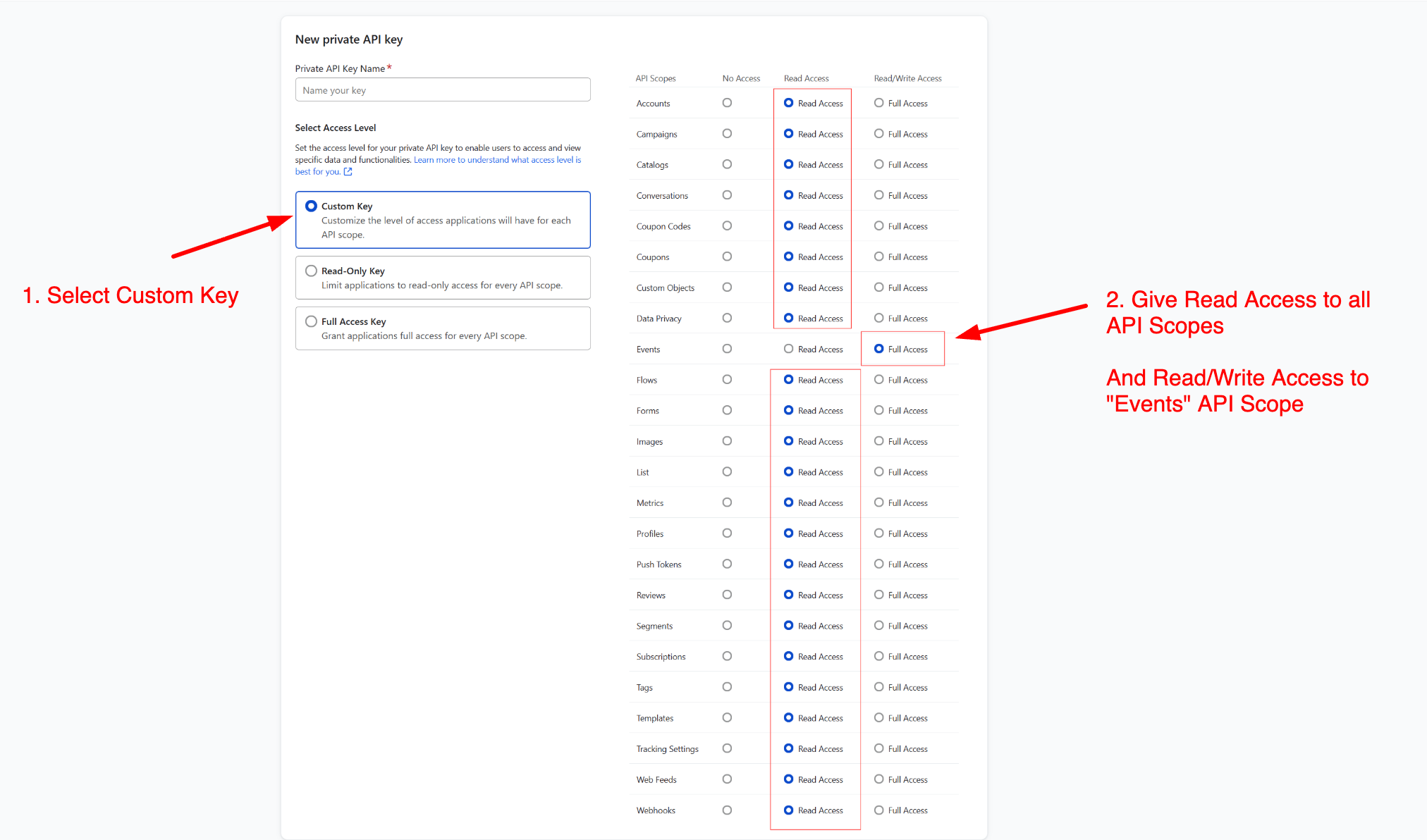
Name the API key "Reaktion" and make sure to select the correct API permissions:
- Select access level → Custom Key
- API Scopes → Read Access to all
- API Scopes for Events → Read/Write Access
5. Copy the API key generated in Klaviyo.
6. Go back to Reaktion and paste your private Klaviyo API key in Reaktion:

7. Click Install. We are now connecting to your Klaviyo account.
8. We will start to pull all your Klaviyo data into Reaktion. This can take up to several hours.
You will see additional pages in the Reaktion interface, like the Klaviyo Tracking Monitor. From there, you can switch to Reaktion Klaviyo Tracking as the source of data for reporting Klaviyo performance.
The Klaviyo Cockpit is where you will find all the campaign and flow performance metrics.
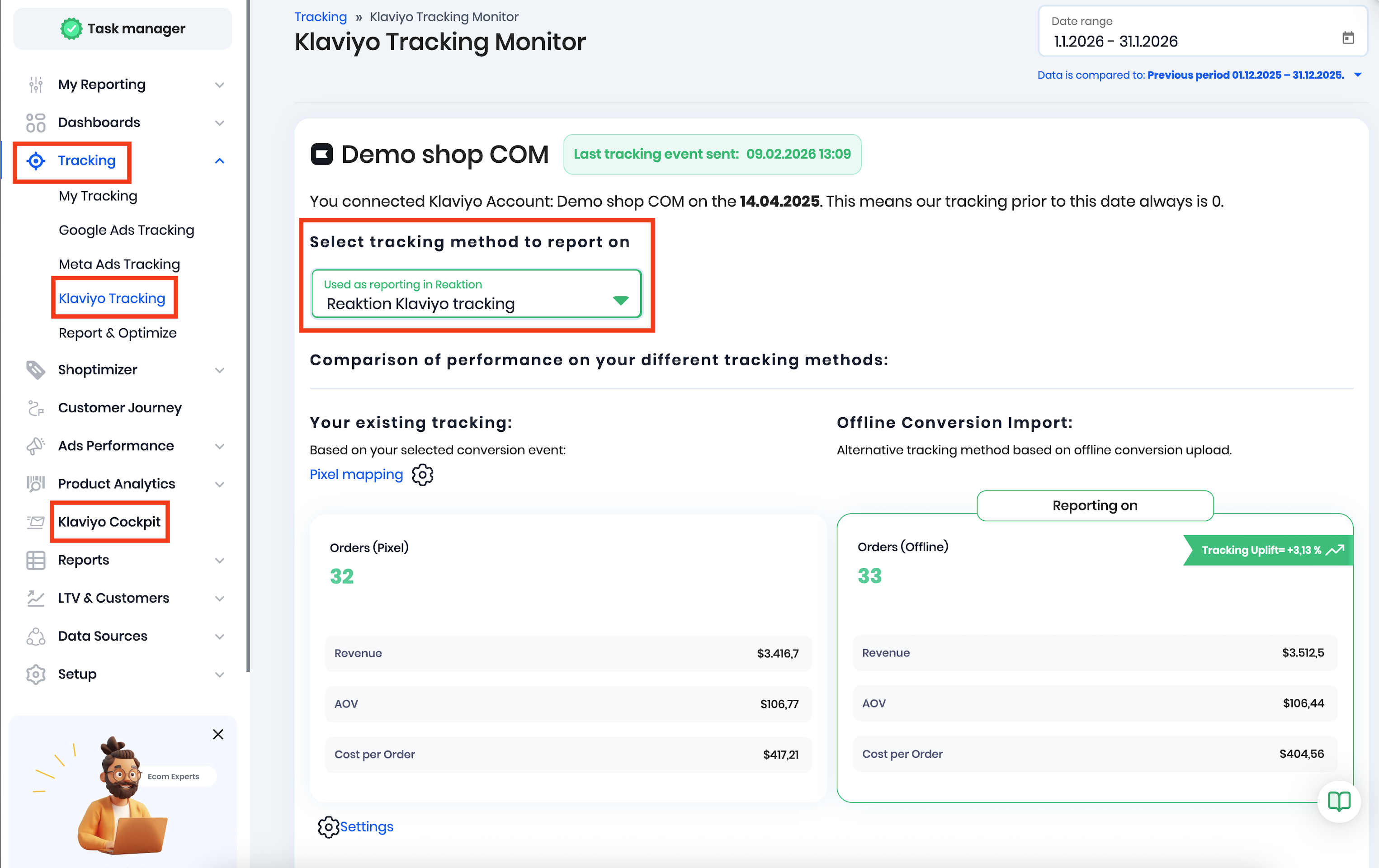
Enabling Reaktion Klaviyo tracking will give you access to Reaktion's exclusive Klaviyo Business Insights, with multiple ecommerce-specific metrics, such as:
- Gross Profit (including and excluding VAT)
- Orders (With Discount code)
- Orders (No Discount code)
- Ratio: % Orders with Discount code
- New Customer Orders
- New Customer Revenue incl. VAT
- New Customer Gross Profit incl VAT
- Rate of discount code usage among new customers
- Revenue (On-sale items)
- Revenue (Not On-sale items)
- Ratio: % Revenue from on-sale items
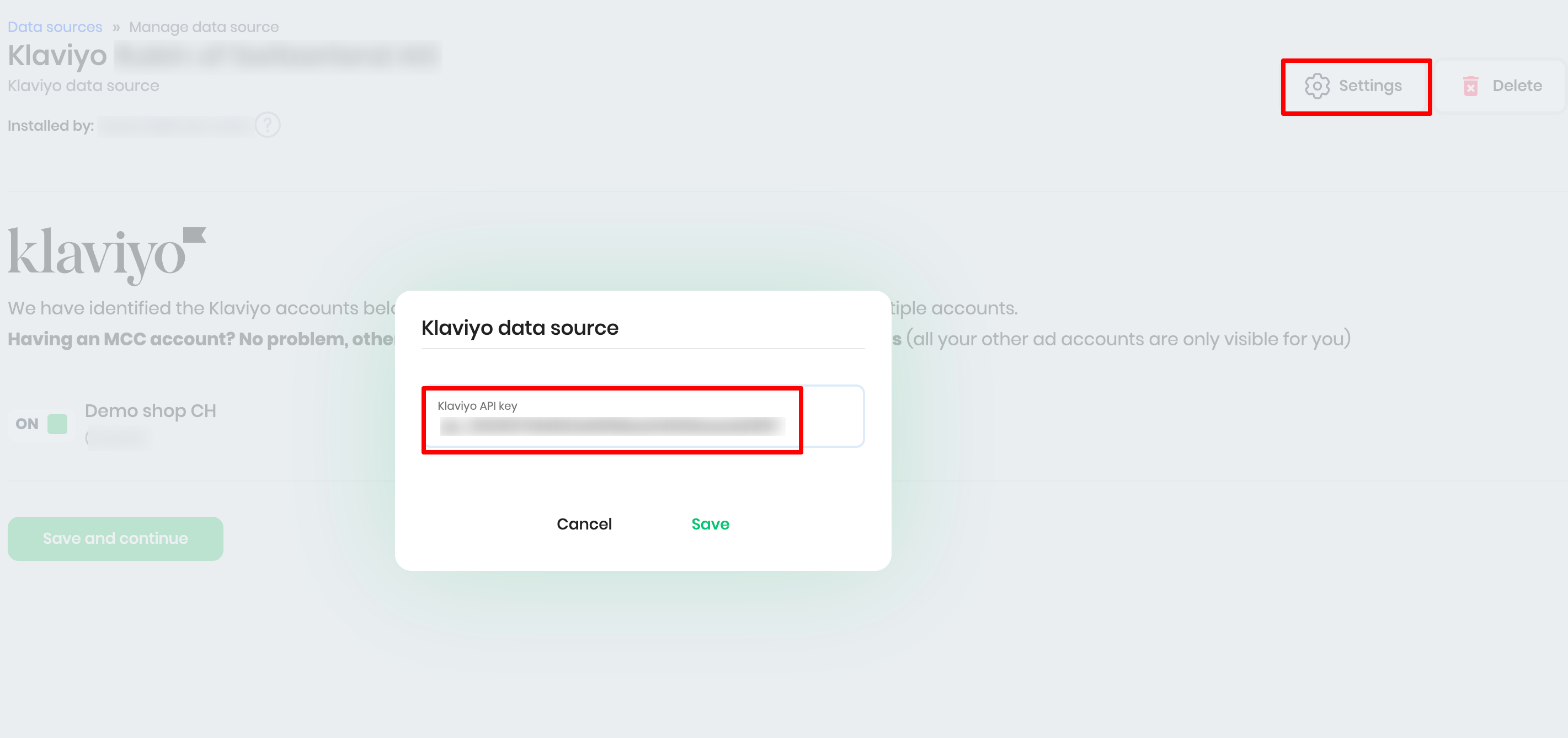
9. If you have previously generated an API key in Reaktion, but without Full access to Events, please generate a new API key with correct permissions and update the Klaviyo data source settings in Reaktion:
- Go to https://advertiser.reaktion.com/data-sources/overview
- Click Manage next to the existing Klaviyo data source, and then Settings
- Open Klaviyo and generate a new API key with Full Read/Write access to Events
- Delete the existing API key in Reaktion and replace it with the newly generated key, and click Save
- Reaktion Klaviyo tracking data will be available moving forward
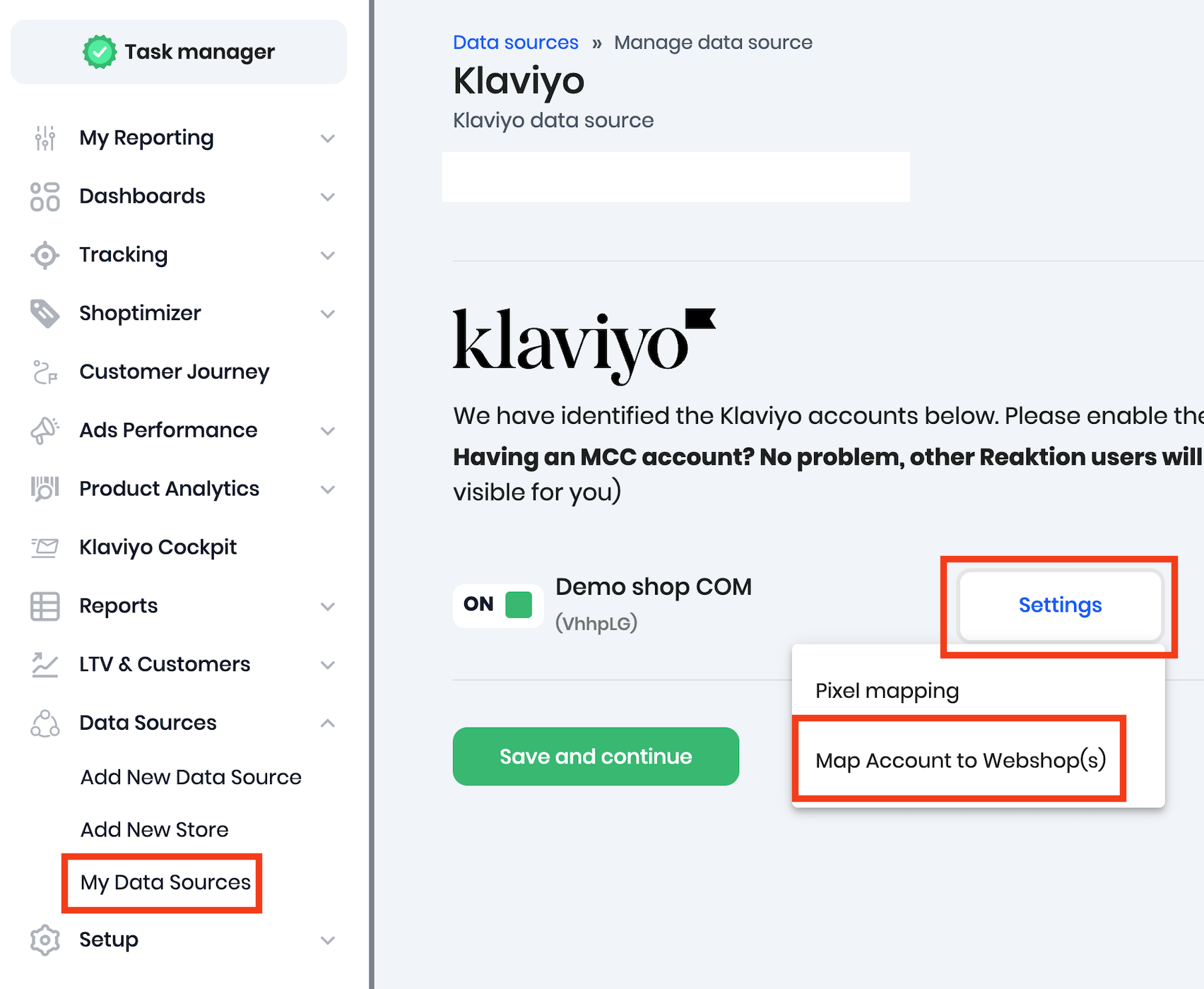
NOTE: Please note that we currently support only mapping one Klaviyo account to one webshop.
If you would like to add a second Klaviyo account and map it to another webshop in a multi-store setup, you would need to add a Klaviyo data source and repeat the above steps with a new Klaviyo account.
Please ensure that each Klaviyo account is mapped to the correct shop in the Data Source settings:
Was this article helpful?
That’s Great!
Thank you for your feedback
Sorry! We couldn't be helpful
Thank you for your feedback
Feedback sent
We appreciate your effort and will try to fix the article