Take your Google Shopping to the next level by allocating your budget to the right products at the right time using close to real time product level performance data.
You can dynamically create and assign custom labels to your products advertised on Google Shopping.
Step 1: Create a Supplemental Feed
Navigate to: Shoptimizer → Labelizer → Create Custom Label Feed (Supplemental)
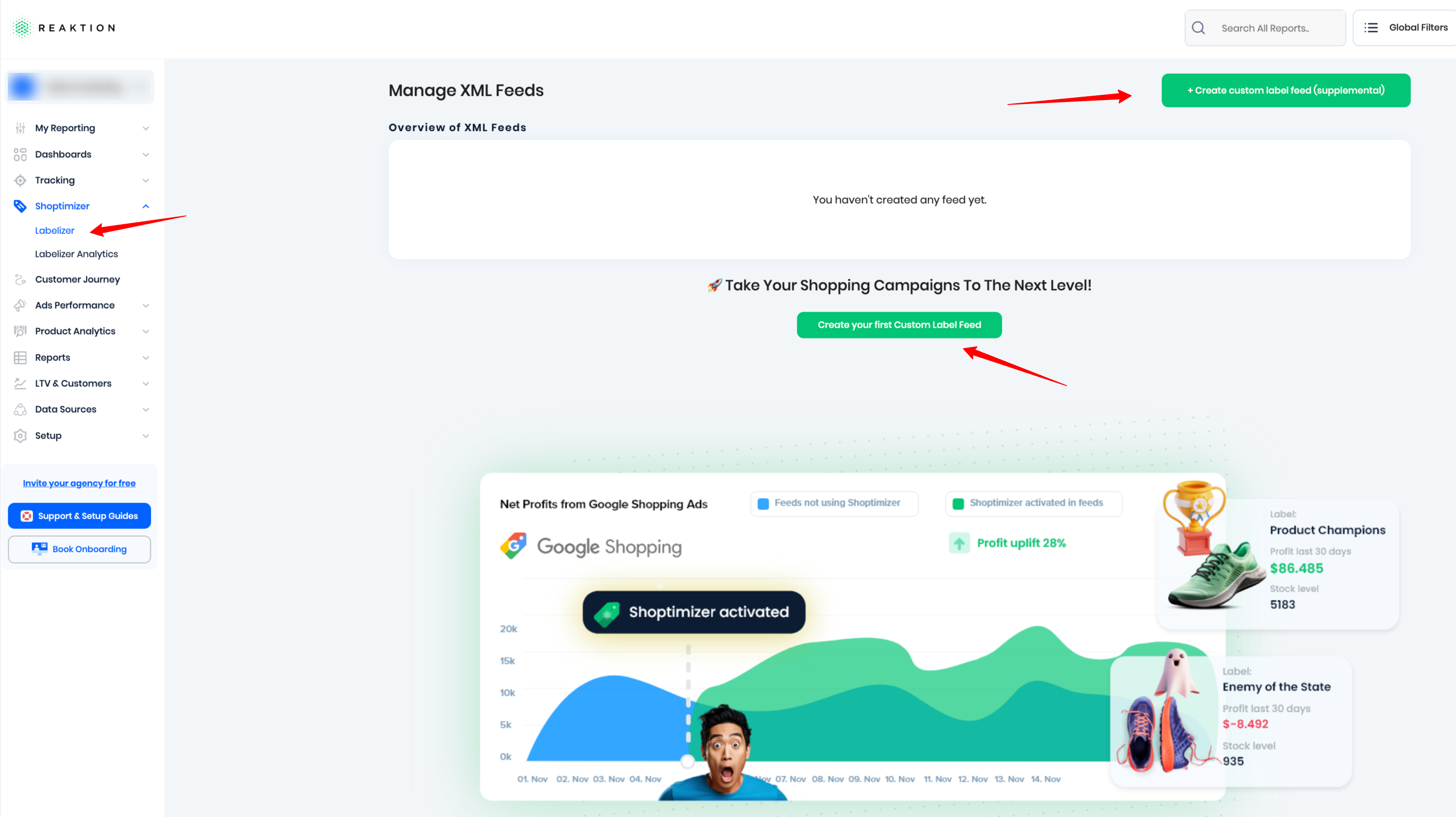
Step 2: Connect your Google Merchant Center or Enter Feed Details
Option 1: Connect your Google Merchant Center (preferred)
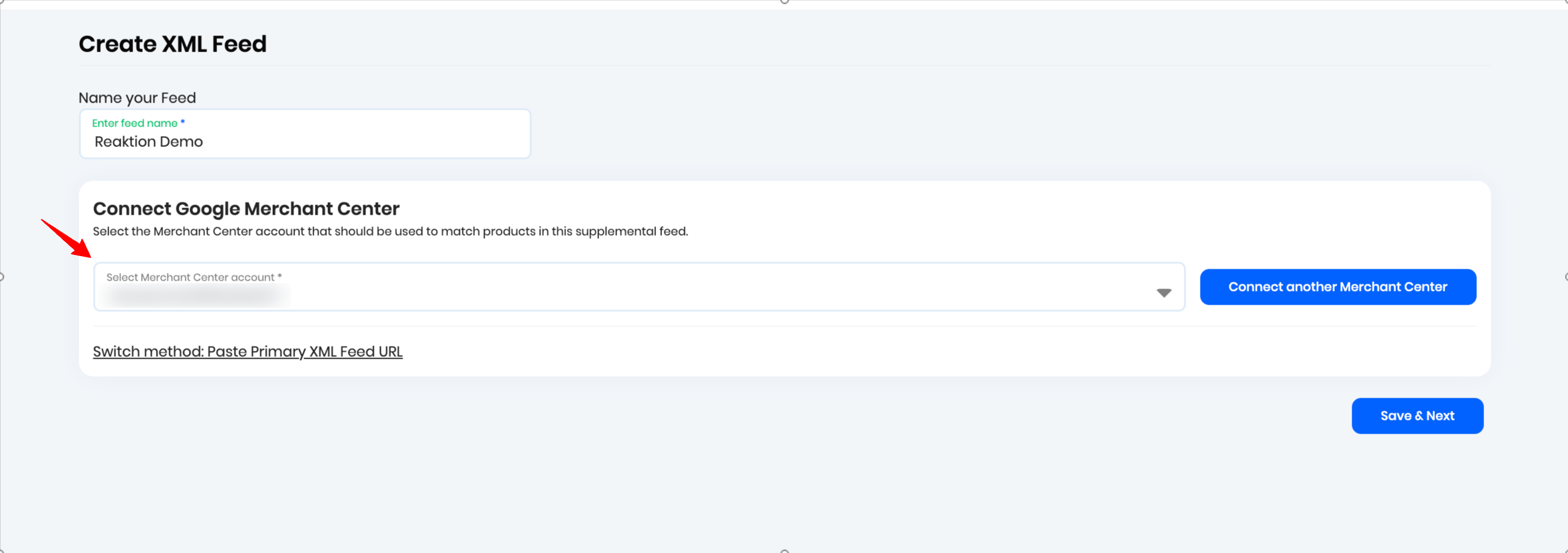
Option 2: Enter Feed Details
Provide the following information:
- Feed Name – Give your supplemental feed a descriptive name.
- Primary XML Feed URL – Paste the URL of your existing product feed.
Need help finding your Primary XML Feed URL? Guide to finding your Primary XML Feed URL
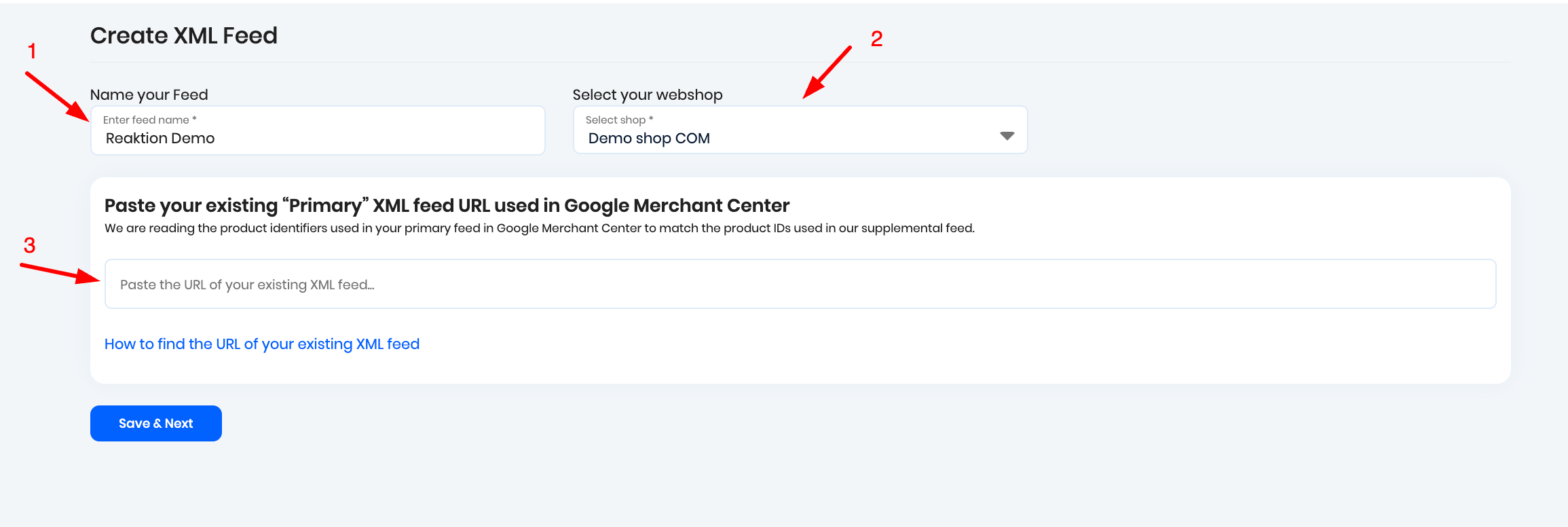
Multiple Webshops? If your account contains multiple webshops or markets, you will also be prompted to select the webshop that this feed should be generated for.
Note: This option is only displayed for accounts with multiple webshops.
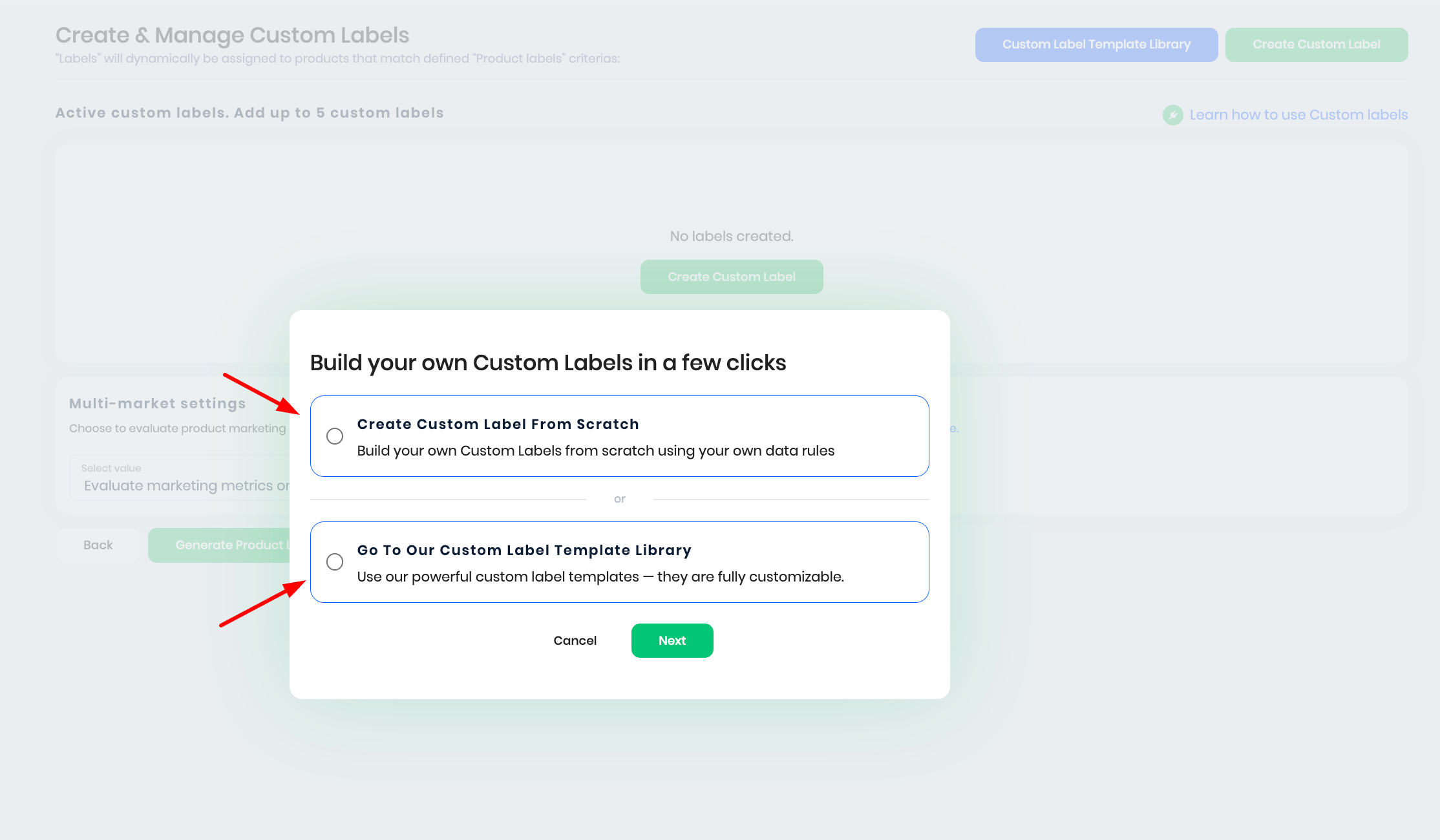
Step 3: Choose a Label Setup Method
You can either:
- Create custom labels from scratch, or
- Use one of our pre-built templates to get started quickly.
Once you've made your selection, click Next.
Note: Google Ads supports a maximum of 5 custom label slots per product.
Step 4: Create Your Label Rules
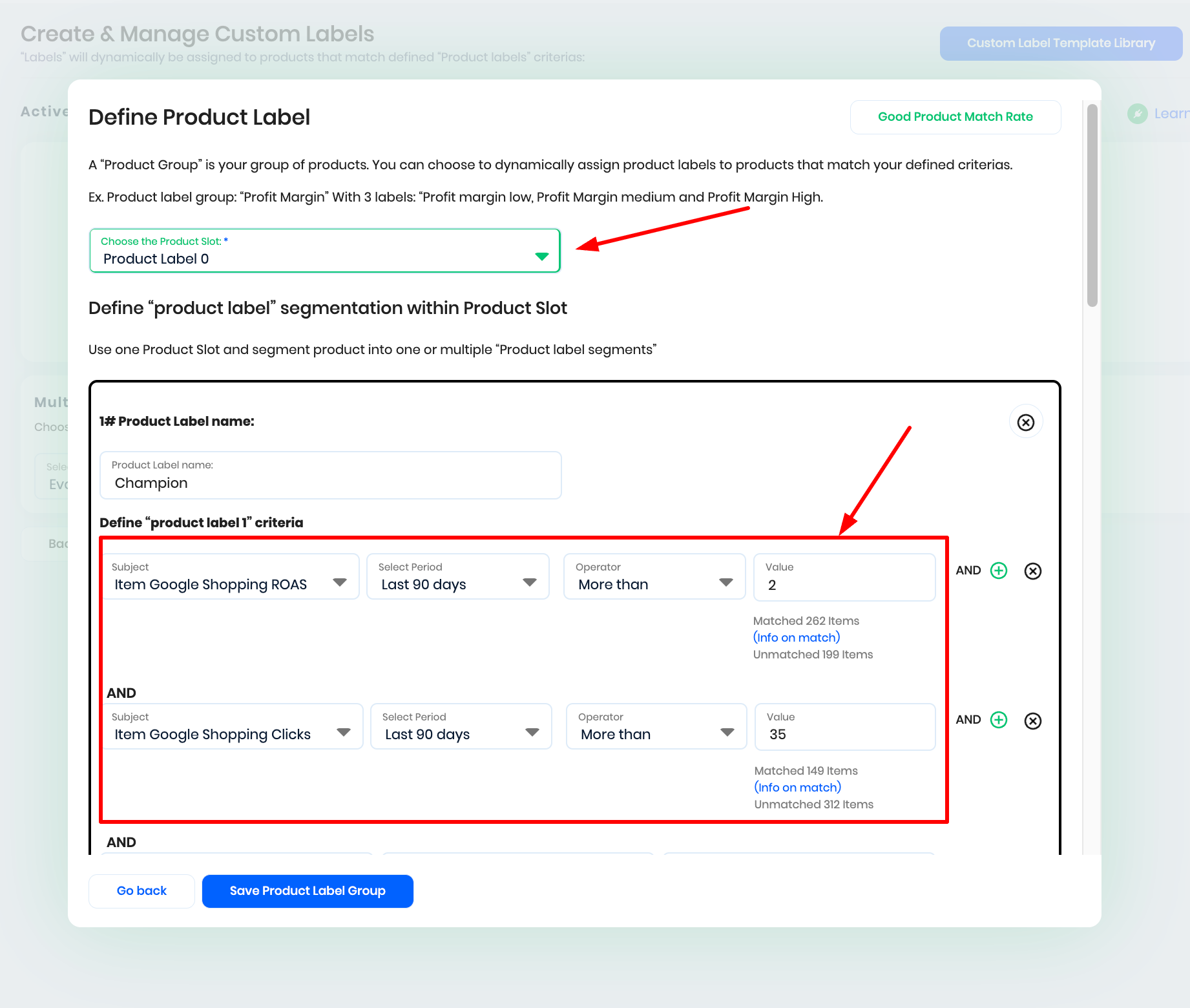
Select the custom label slot you want to use and define the criteria that products must meet.
For each label group:
- Select a Custom Label Slot.
- Define the performance criteria.
- Enter a Label Name.
- Click Save Product Label Group.
Products matching your criteria will automatically receive the corresponding label.
Step 5: Generate the Feed
Once you have finished creating your product label groups, click Generate Product Label Feed.
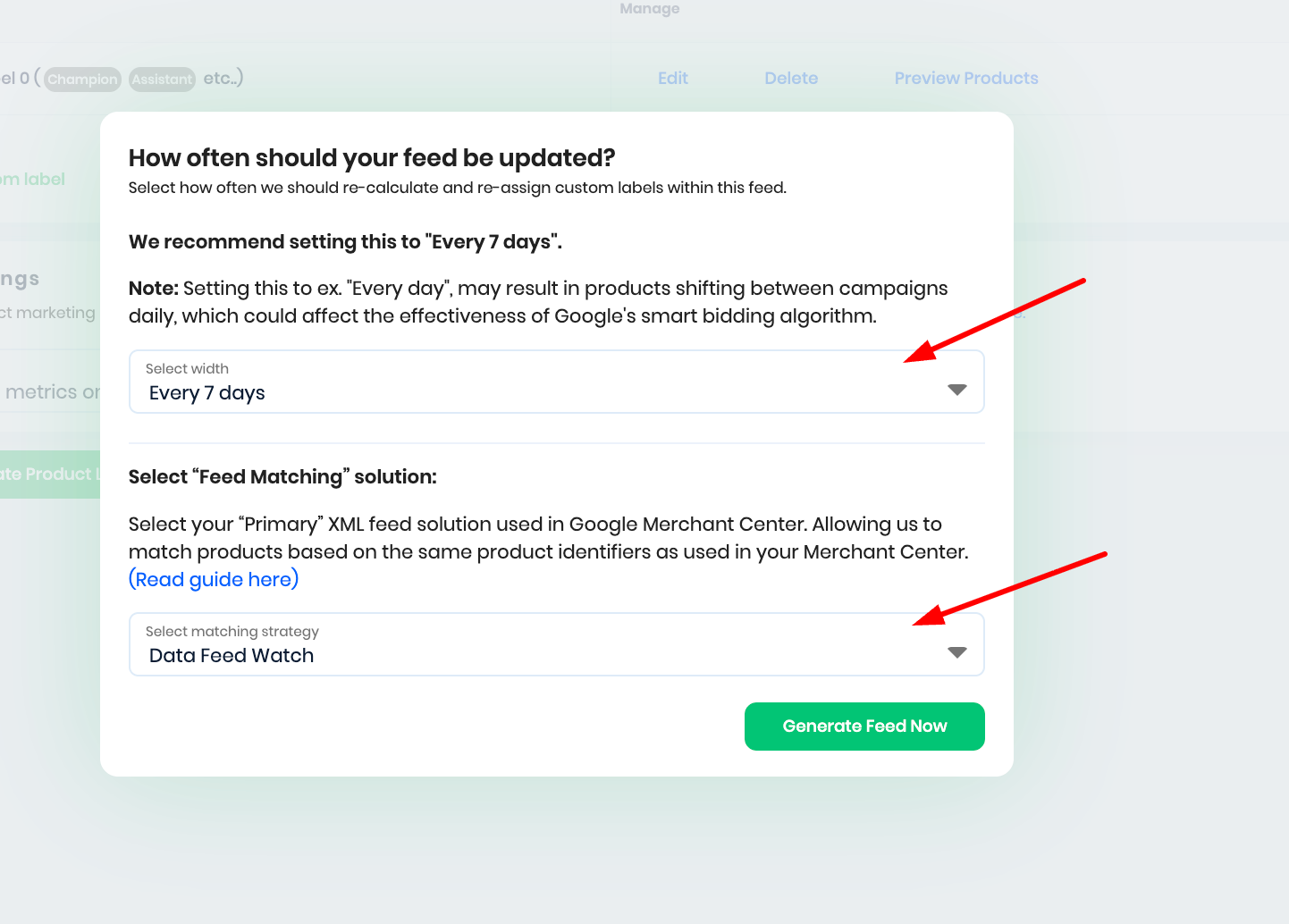
You will be prompted to configure the following settings:
Feed Refresh Interval:
Select how frequently your supplemental feed should be updated. This determines how often product performance is re-evaluated and labels are refreshed automatically.
Feed Matching Solution:
Choose the feed solution that provides your Primary XML Feed in Google Merchant Center. This allows Shoptimizer to accurately match products using the same product identifiers that are already being used in your Merchant Center account.
After saving your label groups, Shoptimizer will begin analyzing your product data and assigning labels to matching products.
The generation process typically takes between 5 minutes and 2 hours, depending on factors such as:
- Number of products
- Feed size
- Amount of historical performance data
Once processing is complete, you'll receive an email notification informing you that your supplemental feed is ready for review.
Step 6: Review Assigned Labels
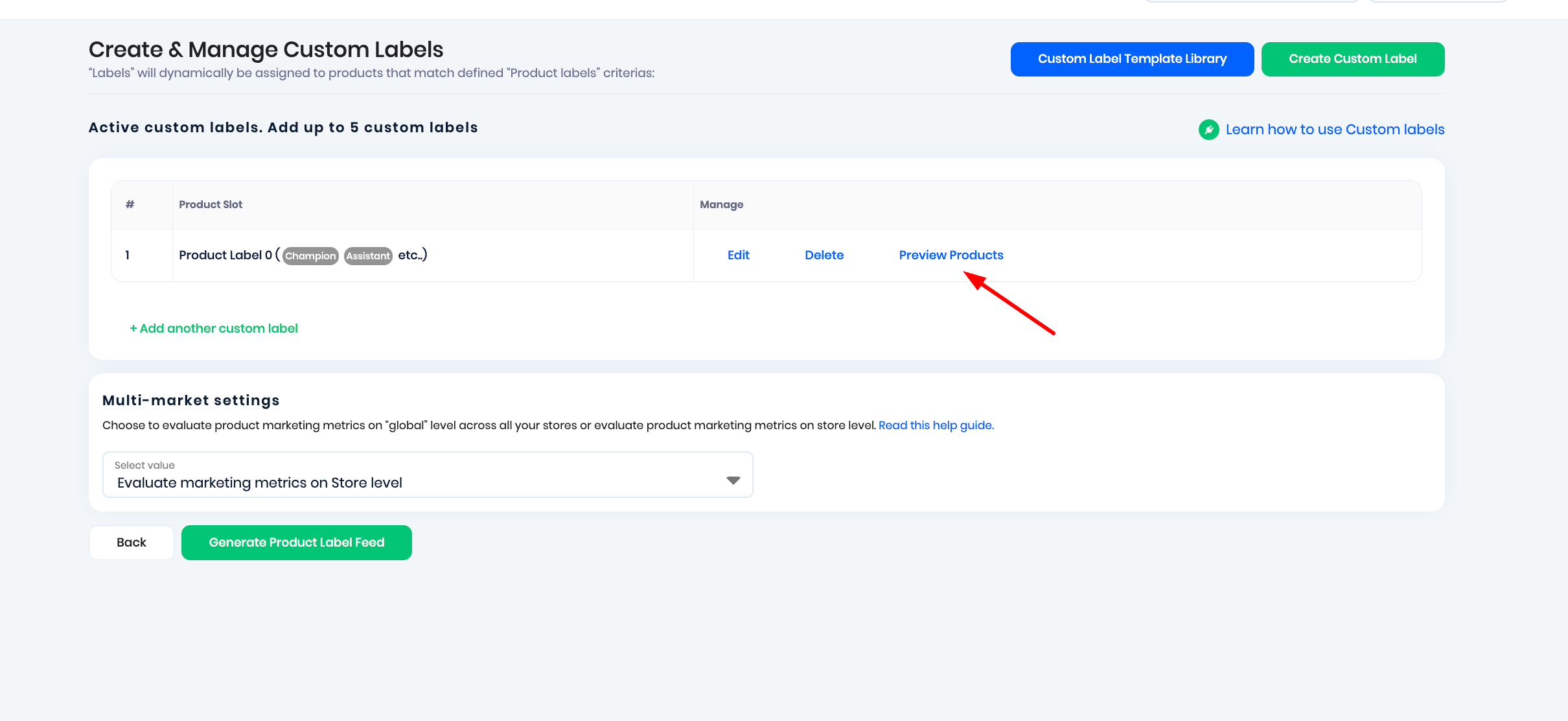
When your supplemental feed is ready, you can review all products and verify that labels have been assigned correctly according to your rules.
This allows you to validate your segmentation before publishing the feed.
Step 7: Get Your Supplemental Feed URL
Once you're satisfied with the results:
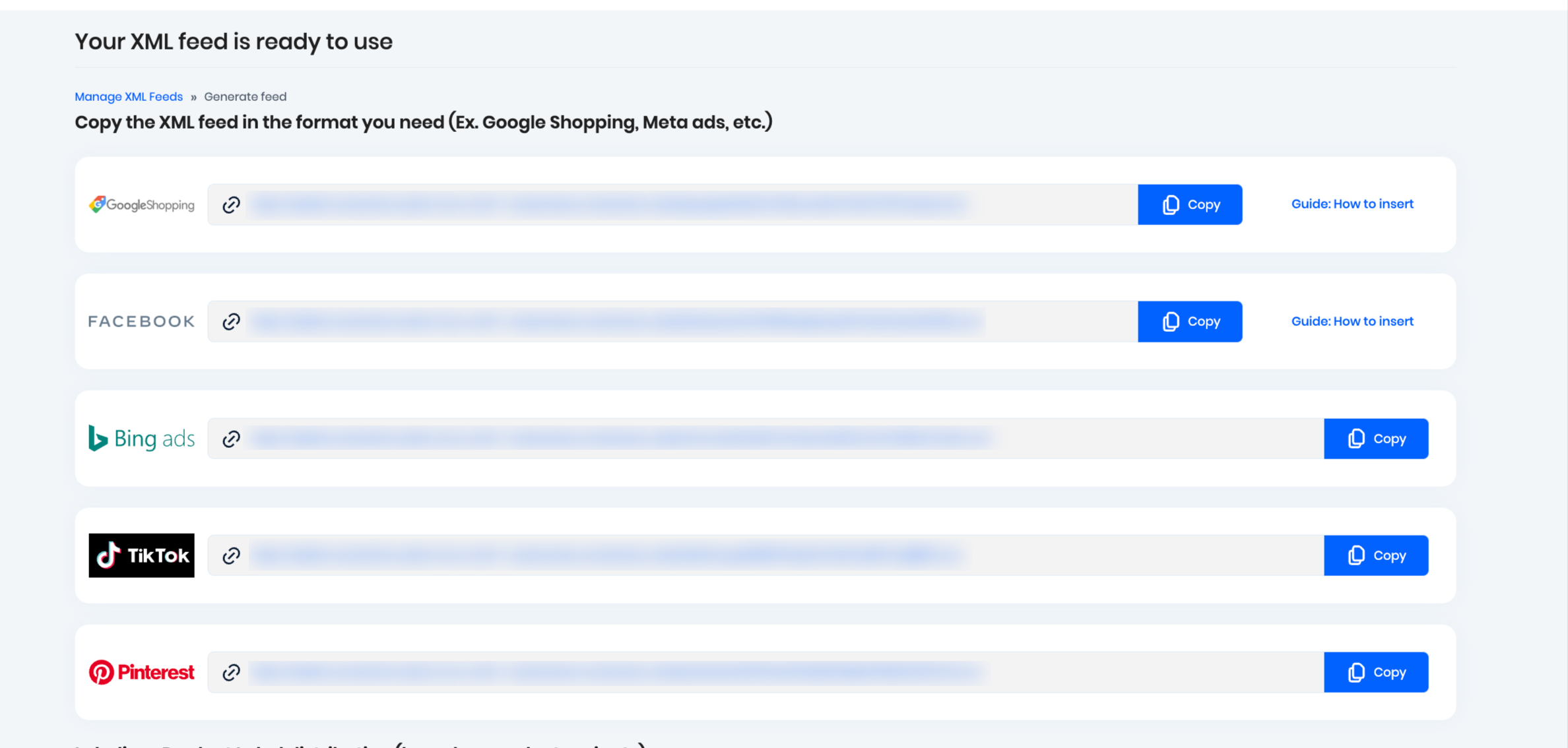
- Click Preview & Get Feed.
- Copy the generated XML Feed URL.
- Log in to your advertising platform and upload the feed.
Step 8: Upload the Feed to Your Advertising Platform
Follow the appropriate guide for your platform:
- Google Merchant Center Next – Guide here
- Google Merchant Center – Guide here
- Meta Commerce Manager – Guide here
Read more about our custom labels here:
LINK: https://reaktion.com/custom-product-labels-for-google-shopping-ads/
Was this article helpful?
That’s Great!
Thank you for your feedback
Sorry! We couldn't be helpful
Thank you for your feedback
Feedback sent
We appreciate your effort and will try to fix the article